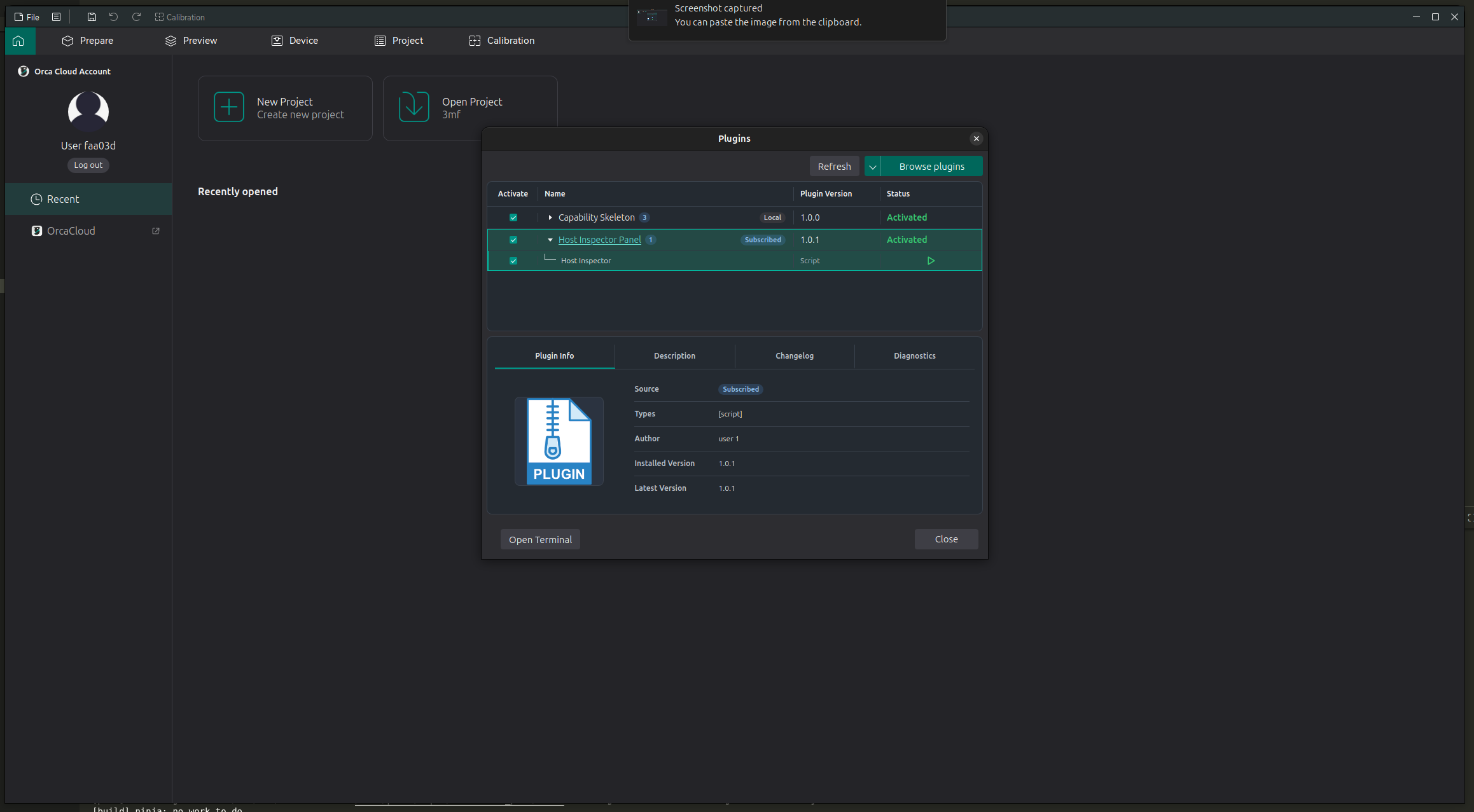
Cloud Plugins
Cloud plugins are plugins connected to your OrcaCloud account. They can be subscribed to from the cloud plugin browser, then installed and activated inside OrcaSlicer.
Browse Cloud Plugins
- Sign in to OrcaCloud.
- Open File > Plugins.
- Click Browse plugins.
- Subscribe to the plugin you want from the cloud plugin browser.
- Return to OrcaSlicer and click Refresh if the plugin list has not updated.
Subscribed plugins appear with a Subscribed source label. A subscribed plugin may show Not installed and Inactive until you activate it.
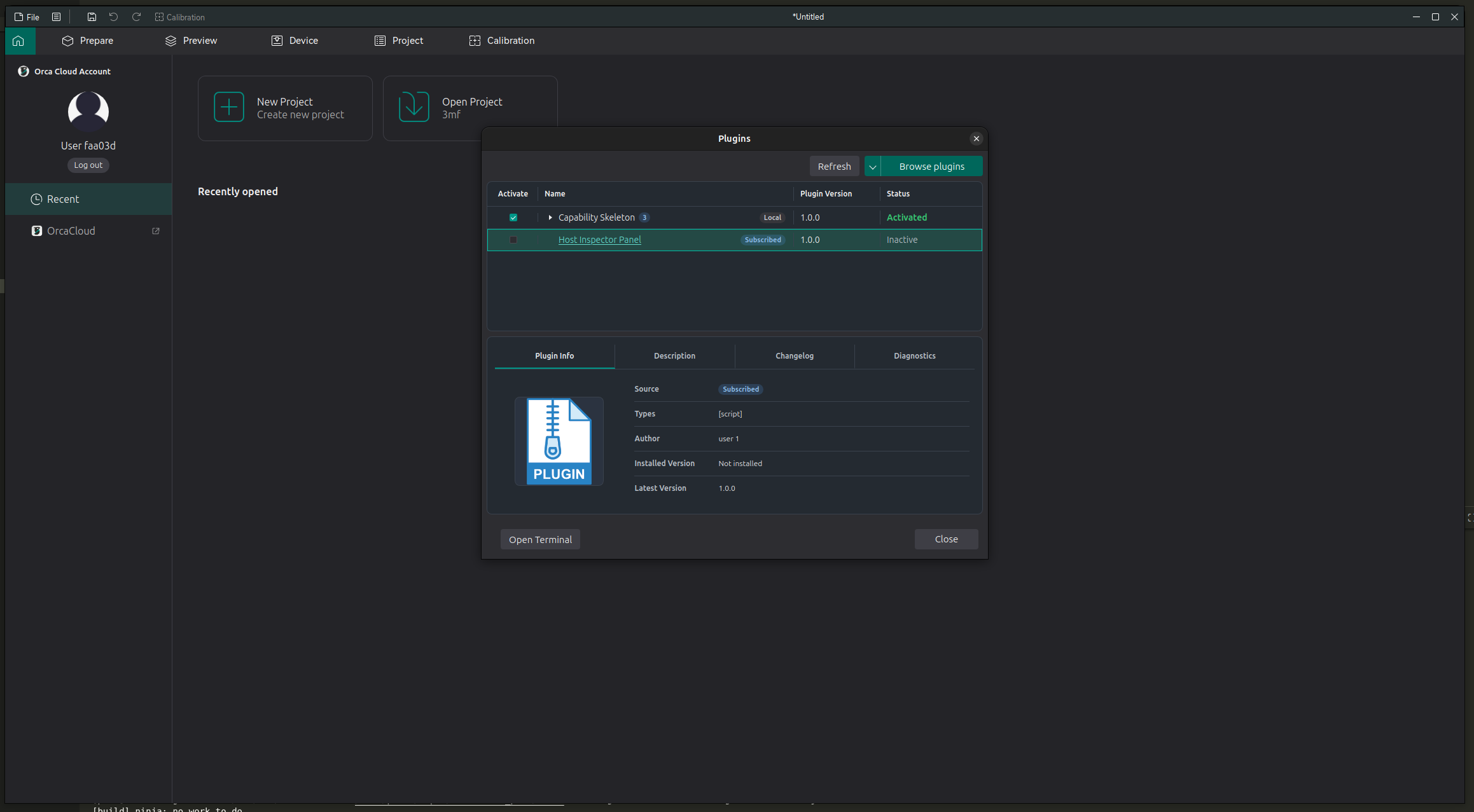
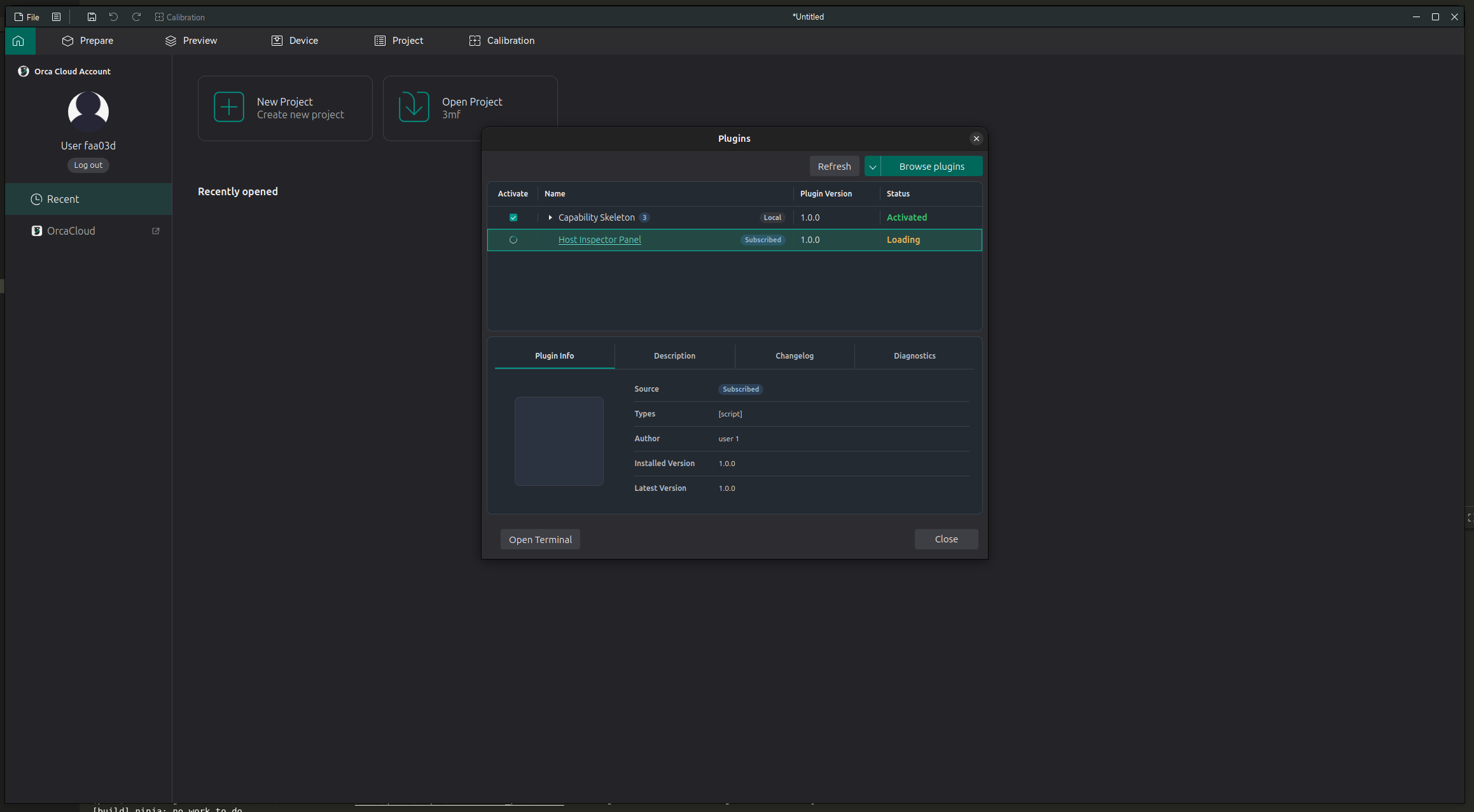
To use a subscribed plugin, check its Activate box. OrcaSlicer installs or loads the plugin as needed.
When activation is complete, the plugin status changes to Activated. Expand the plugin row to see the available plugin features.
Update a Cloud Plugin
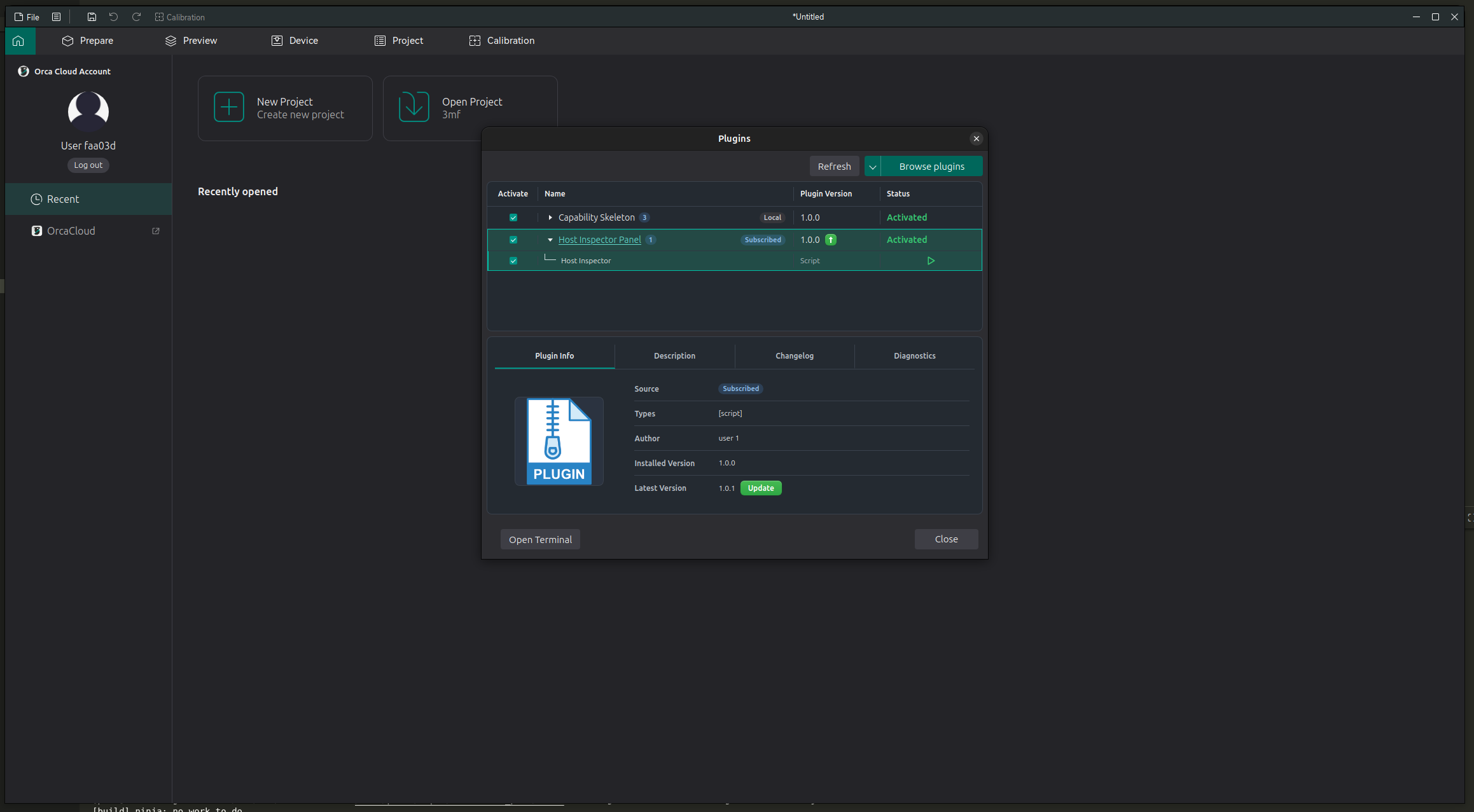
If a newer cloud version is available, the plugin details show an Update button.
Click Update and wait for the update to complete.
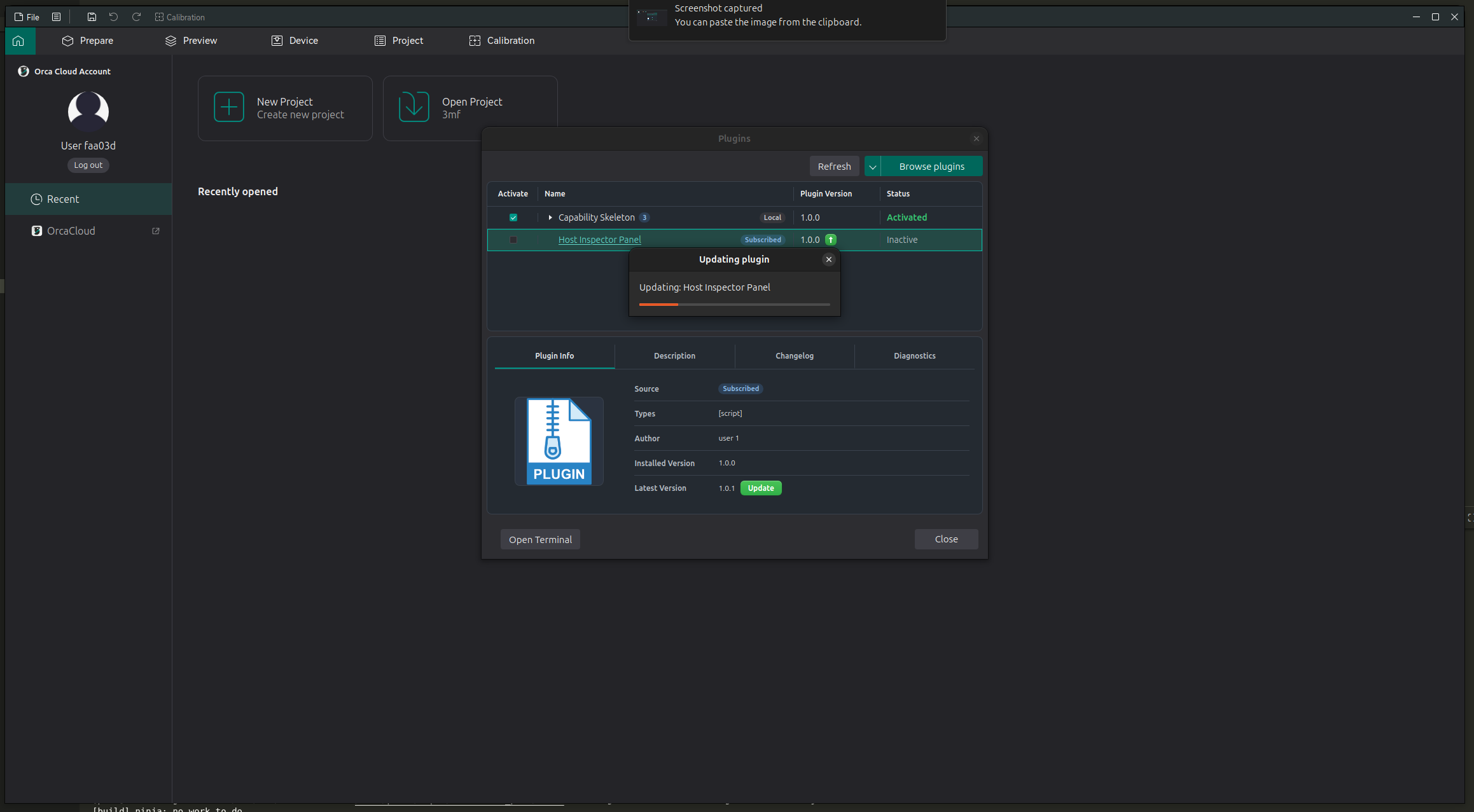
After updating, the installed version and latest version should match.