Getting Started
Plugins add extra features to OrcaSlicer. They are managed from the Plugins window.
Important
NEW FEATURE: Python Plugin System
Available in: Nightly builds or Releases greater than 2.4.2.
Open the Plugins Window
- Open the main menu.
- Click Plugins.
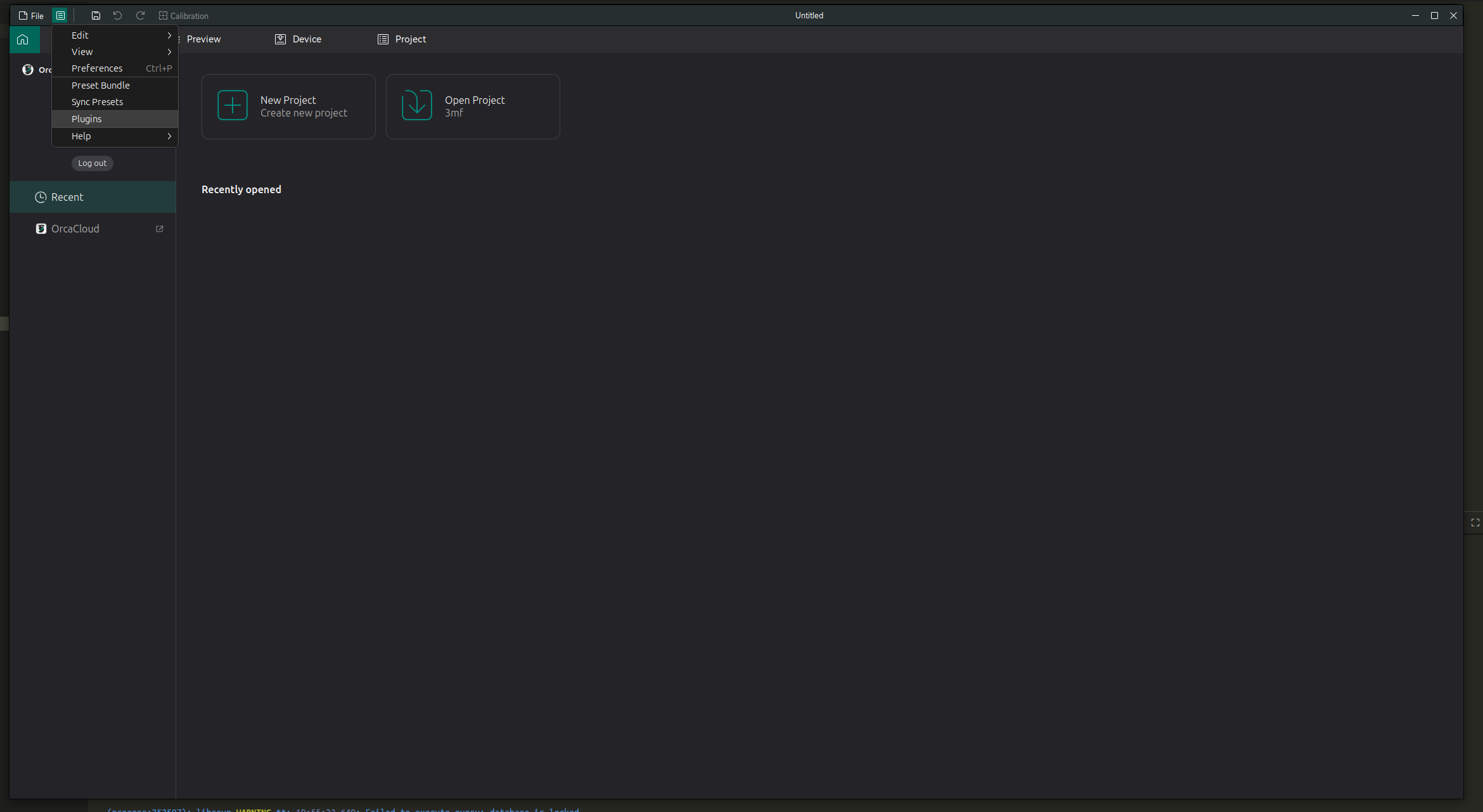
The Plugins window shows installed and available plugins. The upper table lists plugins, and the lower section shows details for the selected plugin.
The details section includes these tabs:
- Plugin Info — source, author, version, capabilities, and status.
- Description — information supplied by the plugin author.
- Config — configuration for the selected plugin's capabilities.
- Changelog — available version history.
- Diagnostics — loading and error information.
Every capability has a configuration. OrcaSlicer provides a JSON editor by default; a plugin can provide a custom configuration page instead. See Plugin configuration for the plugin-author API.
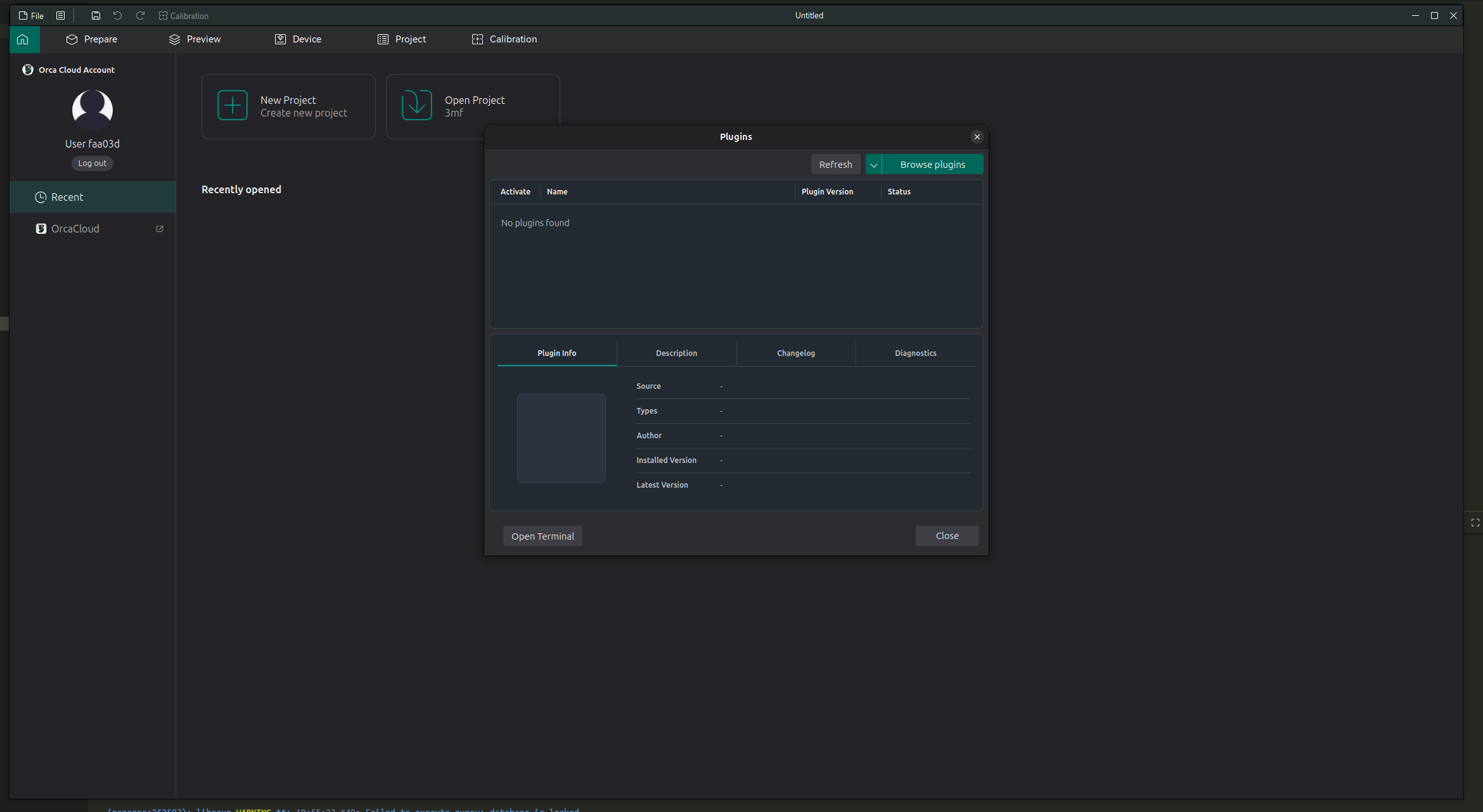
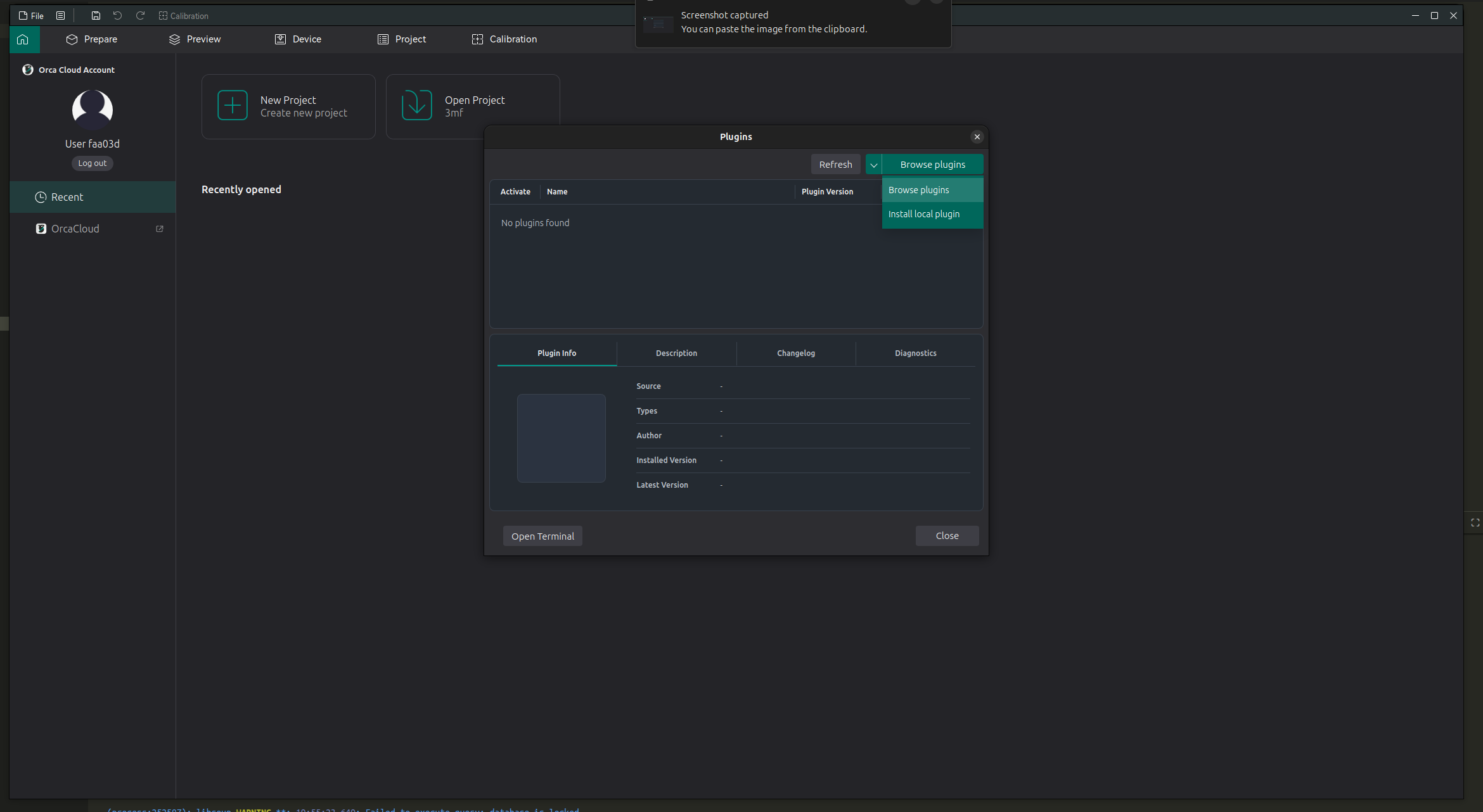
Use the split Browse plugins button to choose how you want to add plugins:
- Browse plugins opens the cloud plugin browser.
- Install local plugin installs a plugin file from your computer.
Note
Only install plugins from sources you trust. Plugins can interact with your files and print workflow.