Plugin Types
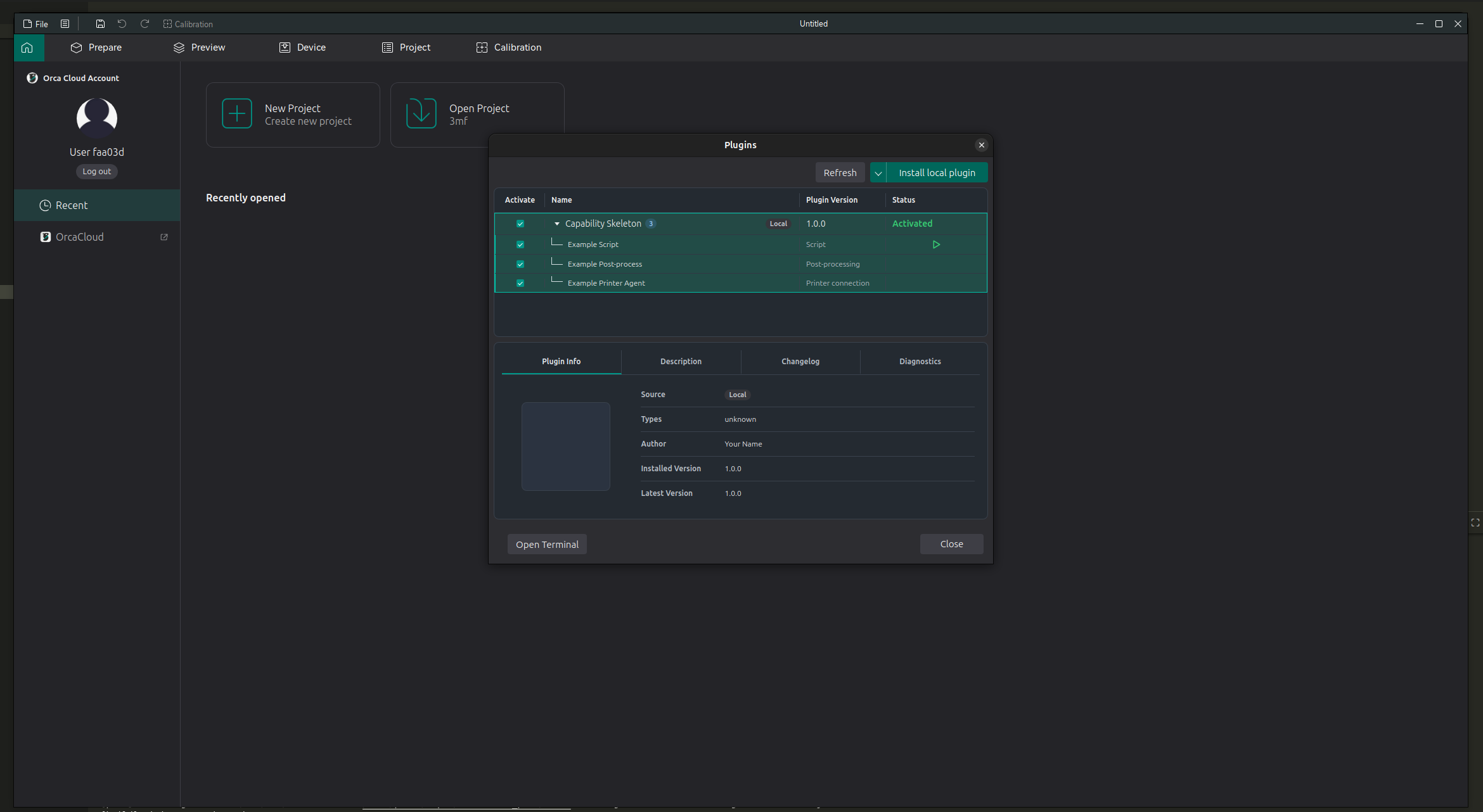
A plugin can provide one or more features. Expand a plugin row to see its plugin capabilities.
Script
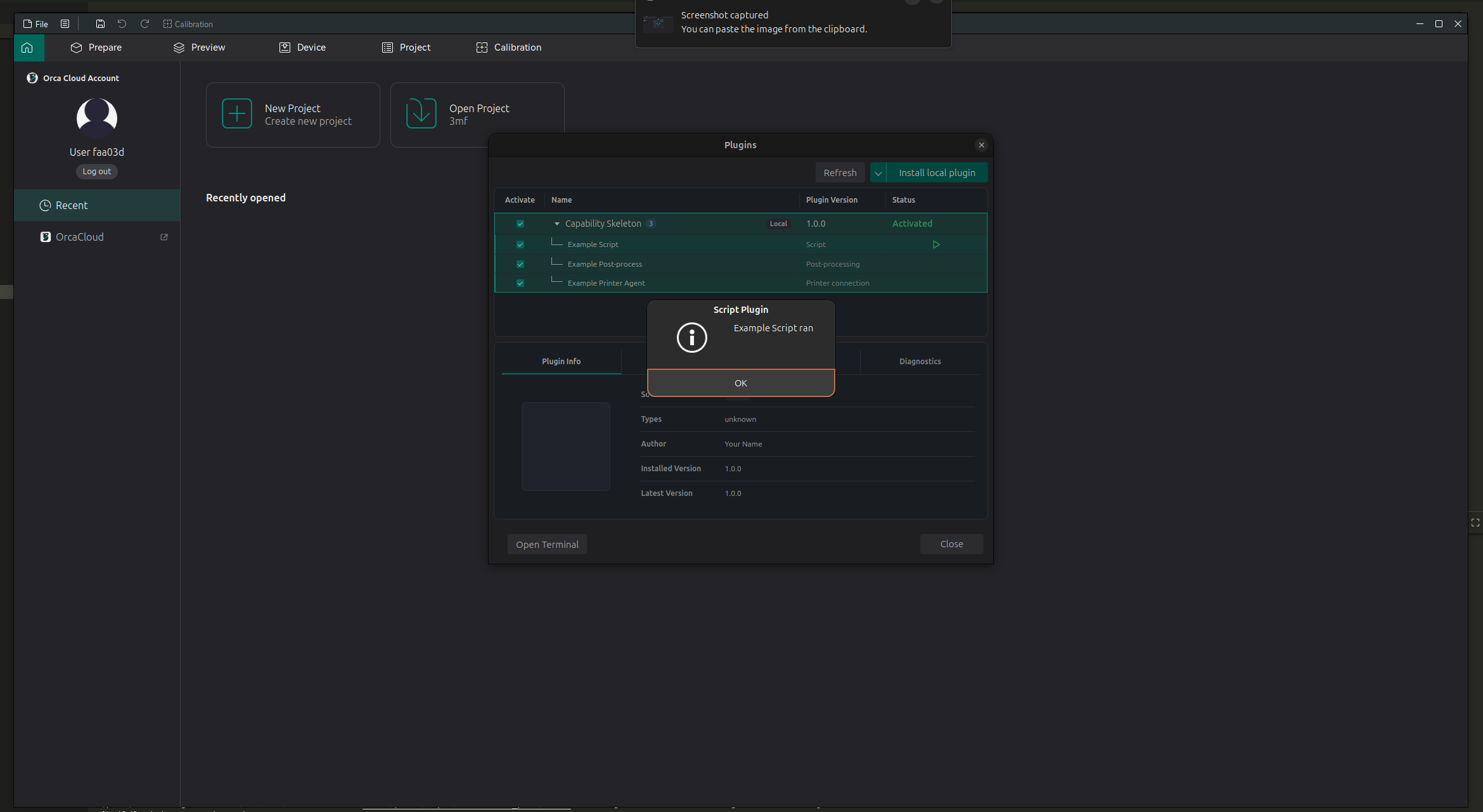
Script plugins are run manually from the Plugins window.
- Open File > Plugins.
- Expand the plugin.
- Find the script feature.
- Click the Run button.
Slicing Pipeline
Mode: Advanced.
Variable: slicing_pipeline_plugin.
Type: Text list.
CLI Example: --slicing-pipeline-plugin=value.
Slicing-pipeline plugins run at selected points in the slicing workflow. They can inspect or modify
the live slicing graph, or edit the exported G-code at the post-processing step. This capability is
experimental and intended for plugin developers and testers.
The plugin's capability appears in the appropriate plugin setting or workflow when it is enabled.
The psGCodePostProcess step runs after the classic post-processing scripts and receives the
working G-code path; geometry steps receive the active slicing context instead.
Warning
Slicing-pipeline plugins can change generated geometry or G-code. Review and test plugins from sources you trust before using them for a print.
Plugin Configuration
Select a plugin, open the Config tab, and select one of its capabilities. Edit the JSON configuration and click Save. Restore defaults removes the saved configuration for that capability and uses the plugin's default configuration.
When a preset uses a plugin capability, its configuration can also be overridden for that preset. The override is stored with the preset when you save it; otherwise the capability uses its global configuration.
Speed Dial
The Speed Dial allows quick access to installed plugins.
Printer Connection
Printer connection plugins add printer communication features. After activating a printer connection plugin, OrcaSlicer uses it where printer connection options are available. The Printer Agent workflow is still WIP.
If the plugin has its own setup instructions, check the Description or Diagnostics tab in the Plugins window.