V2.5.0 Alpha
This is the OrcaSlicer V2.5.0 Alpha, the most feature-packed release in OrcaSlicer's history, built from more than 950 pull requests by over 140 contributors. You can now extend the slicer with Python plugins, print on belt printers, design parametric parts in the experimental Design tab, blend new colors from the filaments you have loaded with color mixing, give surfaces real 3D texture with Texture Displacement, and print two to four parts at once on IDEX and IQEX printers. On top of that come the new Speed Dial, support for the Bambu Lab H2C and A2L with mixed nozzle sizes on the H2D and X2D, much faster startup, slicing and G-code export, Precise Seam modifiers, new infill options, and hundreds of fixes.
Note: This is an alpha build for testing. Several of the new features are experimental and may change before the stable release, so back up projects and profiles you care about and please report any problems on GitHub.
🧩 Plugins
OrcaSlicer 2.5.0 introduces Python plugins, a supported way to add your own features to the slicer without maintaining a fork. A plugin can add one-click scripts, step into slicing to reshape layers or rewrite the G-code, add its own tab or docked panel, or react to events like a finished print. Open Plugins from the main menu to install a plugin from a file on your computer or from Orca Cloud; a plugin must ask your permission before it reaches outside OrcaSlicer's data folder, goes online or starts other programs. The plugin system is new and its API may still change, so feedback from users and plugin authors is very welcome. Getting started with plugins · Plugin development guide
☁️ Find and share plugins on Orca Cloud. Browse the plugins the community has published and subscribe with your Orca Cloud account. OrcaSlicer installs them, offers updates when their authors release new versions, and brings them to every computer you sign in on. Built a plugin of your own? Publish it on Orca Cloud and anyone can use it.
https://github.com/user-attachments/assets/4e92d363-aa03-4b07-b876-9ae90ff593e3
-
Python plugins by @peachismomo and @lamweilun in 14530, 14776, 16070, 16473 and 16552 OrcaSlicer now runs plugins written in Python on a Python runtime that ships with the app, so there's nothing extra to install. A plugin is either a single
.pyfile or a.whlpackage, and any Python packages it depends on are installed for it automatically (on Windows ARM64 too). On Windows, plugins install correctly even when their files end up past the 260-character path limit, such as in a portable install inside a deeply nested folder. One plugin can provide several features, called capabilities. Script actions run when you click Run in the Plugins window or pick them in the Speed Dial. Slicing Pipeline steps run while you slice. Pages add their own tab to the main window. Resource Texture packs add their own height-map textures to the Texture Displacement picker.Plugins work with Orca Cloud the same way preset bundles do. Click Browse plugins in the Plugins window to subscribe to a plugin on Orca Cloud, and OrcaSlicer downloads it, installs it and offers updates when the author publishes a new version. Your subscriptions follow your account, so they're unloaded when you sign out and come back when you sign in again. Install local plugin side-loads a plugin file instead, which is handy for private plugins and development. Presets remember which plugins they use. If you open a preset or project on a computer that's missing one, a notification offers to install it from Orca Cloud (when it's published there), or to switch it on if it's only disabled. The Slice button stays disabled until the missing plugin is sorted out. Wiki
https://github.com/user-attachments/assets/abbd7900-3062-4e33-8f77-5d30d567be1d
-
Slicing-pipeline plugins by @SoftFever in 14721 A plugin can now take part in slicing itself. Pick one or more under Process > Others > Slicing Pipeline Plugin (Advanced mode), and they run at set points while the model is sliced. There, a plugin can read and edit the sliced layers, and the walls, infill, preview and final G-code all follow its changes. It can also edit the exported G-code file as a final post-processing step. Plugin errors show up as ordinary slicing errors rather than crashing OrcaSlicer. The PR includes sample plugins: one twists, tapers or wobbles any model as it slices, and one applies fuzzy skin to the sliced outline itself, so the infill follows the fuzzy wall too. This is experimental and aimed at plugin developers and testers. Wiki
https://github.com/user-attachments/assets/d1309ea8-b01c-4708-adf1-821b3b00a4cc
-
Plugin settings, globally or per preset by @peachismomo and @SoftFever in 14746, 14944 and 14862 You no longer have to edit a plugin's source to change its options. The Config tab in the Plugins window holds each capability's settings, shown either in a built-in JSON editor or on the plugin's own settings page. Restore defaults puts the plugin's defaults back. The process, filament and printer settings each have a Plugin Configuration group (Advanced mode). Its Configure button lets you override those settings for that preset only. The override is saved with the preset and works like any other setting: it shows the modified marker and revert arrow, and it travels with projects and cloud sync. Changes to a slicing plugin's settings take effect on the very next slice, and plugin settings pages follow the app's light or dark theme. Settings survive plugin updates and reinstalls. When a preset stops using a plugin, its leftover overrides are cleaned up. Wiki
Plugins window Per-preset override -
Plugin tabs, docked panels and windows by @peachismomo and @HanifKoh in 14992, 15736, 16257, 15737, 16335 and 16541 Plugins can show their own interface in several ways. A plugin can add a tab to the main window next to Prepare, Preview and Device, or a panel that docks beside the sidebar. You can move, float, resize and close that panel just like the sidebar. When there are more plugin tabs than Visible plugin pages (Preferences > General > Plugins) allows, the rest collapse into a dropdown on the last tab, and tab labels shrink to icons when space runs short, so the Slice and Print buttons stay in view. Plugins can also open their own windows and dialogs, which follow the app's theme. A plugin can open a docked panel as soon as OrcaSlicer starts. On Linux, plugin windows can be maximized under GNOME on X11 and keep their content when reloaded. Wiki
https://github.com/user-attachments/assets/f8f25b32-a65b-4c58-b148-4b4053349a7f
-
More for plugin authors: events, notifications and app info by @peachismomo, @pavluchenkor and @HanifKoh in 15293, 15889, 15318, 14923, 14997 and 16324 Plugins can react to what happens in the app through lifecycle events. These cover projects being opened, saved or closed, slicing and G-code export starting and finishing, objects and plates being added, moved, renamed or deleted, presets being selected or saved, printers being discovered or connected, and uploads and print jobs starting and finishing. For example, the PR's sample plugin forwards these events to a Telegram chat. Plugins can also pop up notifications in the 3D view and find their own install folder.
orca.host.app_info()returns the OrcaSlicer version, UI language and sign-in state, so plugins can match the app's language. Bug-report helpers can also read graphics-driver details, see which kind of printer is selected and save a copy of the current project. Wiki -
Plugins can load the presets they create right away by @WeLizard in 15424 A plugin that writes printer, filament or process presets into a local preset bundle can now load them with
orca.host.preset.bundles.reload_local(bundle_id), instead of asking you to restart OrcaSlicer. New presets appear, changed ones are updated and deleted ones are removed, and the preset lists and settings tabs refresh. Your selected preset stays selected, along with any unsaved edits. If the bundle has a problem, nothing changes and the plugin gets an error that says why. -
Plugins window by @andrewsoonqn, @SoftFever, @yw4z, @peachismomo and @Ricky1966 in 14610, 14611, 14552, 14946, 15568, 14855, 14860, 14859, 14861, 15751 and 16118 The Plugins window is where you install, switch on, run and configure plugins. Each plugin has tabs for its info, description, settings, changelog and diagnostics. Click a column header (Name, Plugin Version, Source or Status) to sort the list, and versions sort in the right order (1.10 after 1.2). The search box filters as you type, matches loosely, also searches each plugin's capabilities, and has match-case and whole-word toggles. Right-click a local plugin and choose Reload or Delete cache and reload to pick up your edits, and its version is read from the file itself. A cloud plugin you're no longer subscribed to stays installed and runnable, marked Orphaned. If a plugin's files are deleted while OrcaSlicer is running, you're asked whether to remove it. Delete on a plugin you published only removes your local copy, so it can't wipe the plugin from Orca Cloud by accident. Wiki
-
Permission prompts for plugins by @SoftFever, @peachismomo and @HanifKoh in 14821, 14989, 16243, 16248, 16254, 16255 and 16253 Plugins can't read OrcaSlicer's own config file or your Orca Cloud login token, which hold account and printer access details. Folders named like
secrets,certsorconfig, and.conf/.inifiles, are blocked the same way. When a plugin tries to work with files outside OrcaSlicer's data folder, connect to the network, launch another program (or replace OrcaSlicer with one) or start a background thread, a prompt names the plugin and what it wants. OrcaSlicer remembers your answer for that plugin. A plugin can also list the files it needs up front, so you're asked once when it loads. Cloud plugin downloads check the server's certificate, and a plugin that passes badly formed data to OrcaSlicer gets an error instead of crashing the app. This is a permission system, not a sandbox, so only install plugins from sources you trust. Wiki
⚡ Speed Dial
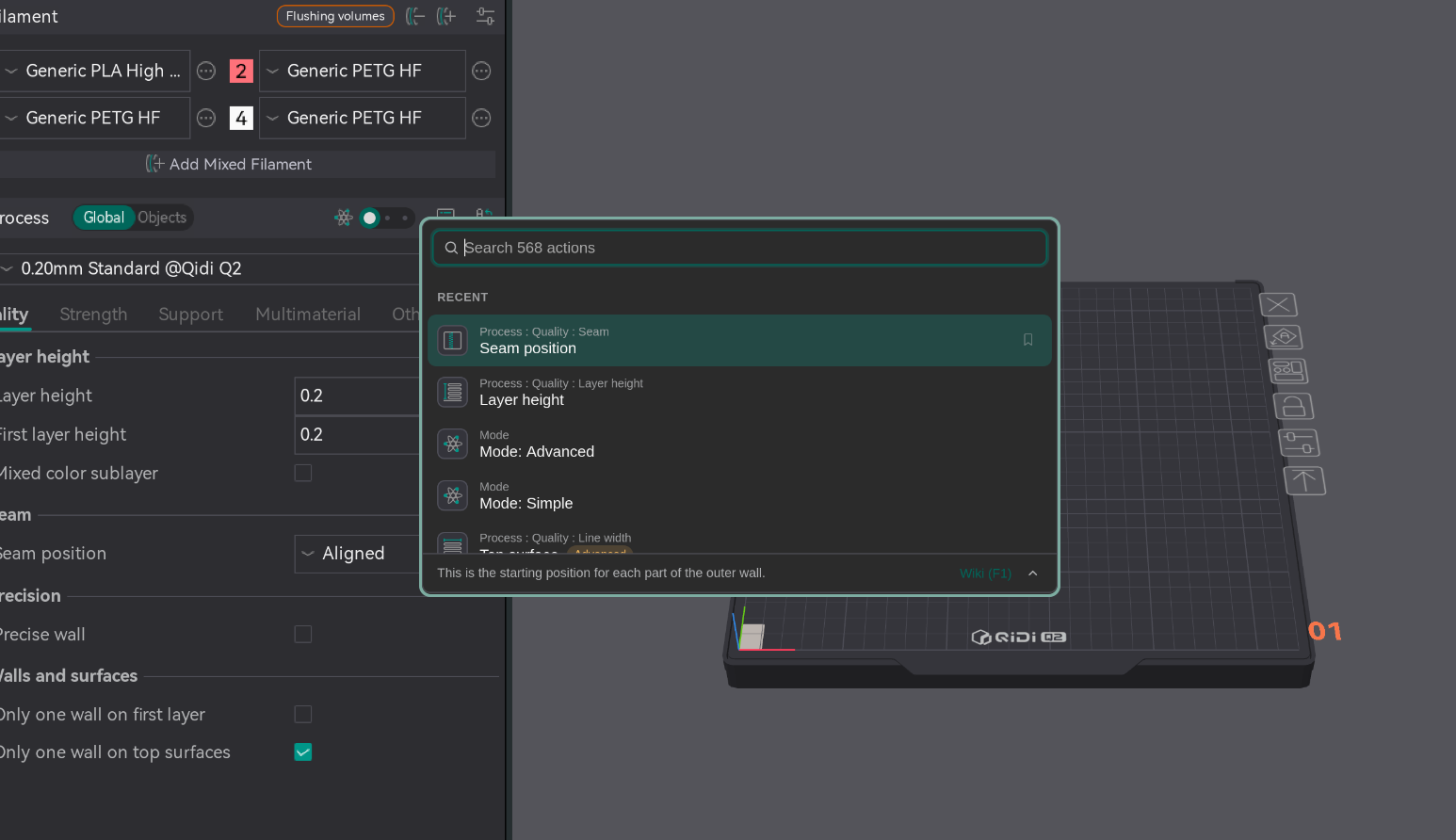
The new Speed Dial puts everything in OrcaSlicer one search away: press Space to find and run any command, setting or plugin.
-
Speed Dial by @andrewsoonqn and @lamweilun in 14697, 15562, 15867, 15817, 15822, 16315 and 16505 Press Space on any page (unless you're typing in a text box), or choose Open Speed Dial from the menu, to open a search box for everything you can do in OrcaSlicer. Type a few words and press Enter to save or open a project, open Preferences, switch tabs, slice and jump to a layer, arrange, orient or add instances, control plates and the camera, start a calibration, switch between Simple, Advanced and Expert mode, open help links, or run a plugin's scripts and open its tabs. You can also jump straight to any printer, filament or process setting. Its tooltip appears at the bottom, and F1 opens its wiki page. Recent actions are listed first and the rest are grouped by category. Pin up to 10 favourites with Ctrl/Cmd+B and launch them with Alt/Option+1–9 (0 for the tenth). Under Preferences > General > Features you can turn off the keyboard shortcut or choose how many recent actions to show. Wiki · Video guide
https://github.com/user-attachments/assets/008d8f41-305e-4b54-bb9a-e2d296caad8d
-
Search the Speed Dial in English in any UI language by @SoftFever and @lamweilun in 16369 and 16371 When OrcaSlicer is in another language, the Speed Dial finds commands, settings, plates, recent projects and tabs by their English names as well as their translated ones. With the UI in Chinese, for example, typing "reverse on even" finds 反转偶数层悬垂方向 and "device" finds the 设备 tab. This helps if you learned OrcaSlicer from English guides, wiki pages or videos. When a result matches only by its English name, that name appears as a faded hint next to the translated title. Searching in your own language works as before, and an English UI is unchanged.
🎨 Color Mixing
Color mixing blends two or three of your loaded filaments into new colours that print as thin alternating layers, so a few spools can cover a much wider palette. It also powers a new importer for textured and coloured models.
-
Color mixing with mixed filaments by @SoftFever, @ianalexis, @yw4z, @thelegendtubaguy and @HanifKoh in 15347, 15375, 15385, 15432, 15728 and 16435 Ported from Bambu Studio. A new Mixed Filament section under the filament list lets you combine two or three loaded filaments of the same type, at ratios you choose, into an extra filament slot. You can then assign that slot to objects, parts, features or colour painting like any other filament. When you slice, the mix prints as its component filaments in alternating layers. Turn on Mixed color sublayer (Process > Quality) to split those layers into thinner sub-layers, which blends the colours more finely. With sub-layers on, a mix can also be printed as a gradient that shifts from one colour to the other as the print rises. The mixing dialog previews the result and suggests recommended mixes. You can also right-click a filament and choose Decompose Color to turn a target colour into a mix of the filaments you have loaded. The prime tower is sized for the physical filaments your mixes are made of, so adding mixes doesn't make it any bigger. Mixed filaments are saved with your project.
-
Import textured and coloured models by @SoftFever and @HanifKoh in 15347, 15977 and 16122 OrcaSlicer can now import glTF, GLB and FBX models, and turn the colours of a textured model into colour painting. When you import a model that carries a texture, vertex colours or OBJ material colours, an Import Model dialog opens. It reduces the colours to the Color Count you pick, smooths them, and maps each one to a filament in your project, adding new filaments where needed. One-click CMYW / RYBW auto-mix can build mixed filaments that get close to colours you don't have a spool for. You can also skip matching and import the model in a single colour. This dialog replaces the old OBJ colour dialog.
🧱 Texture Displacement
Texture Displacement stamps a texture onto a model as real, printable relief. When the texture is a colour image, it can also colour the print, mixing filaments to get close to the image's colours.
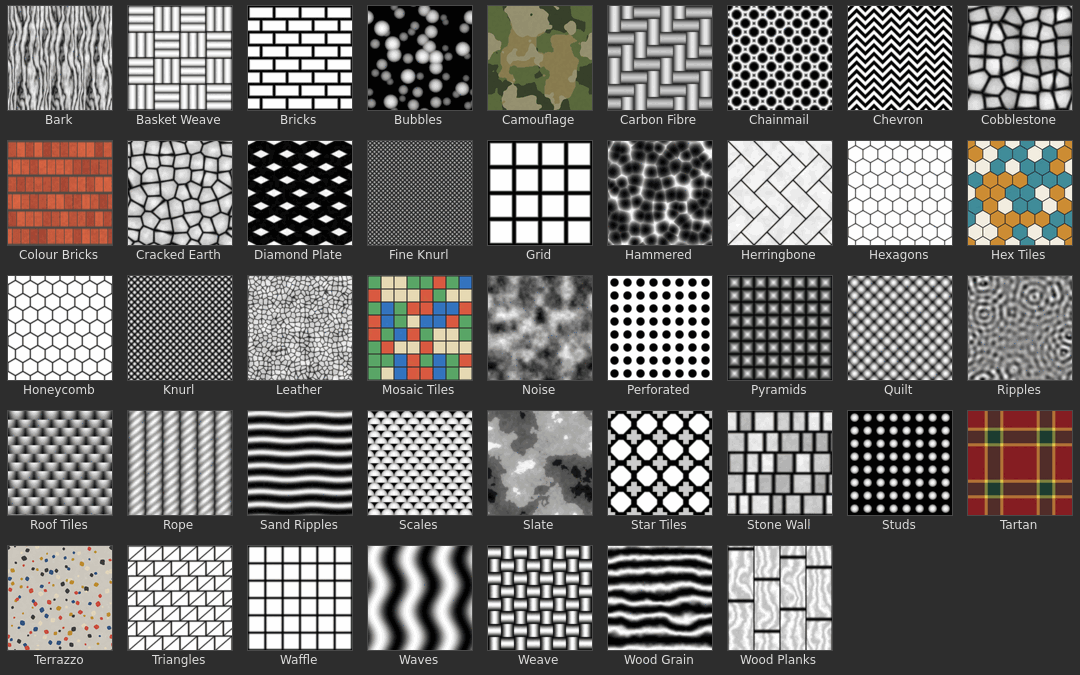
☁️ More textures on Orca Cloud. Beyond the 40-plus built-in textures, you can download texture packs others have shared on Orca Cloud and publish your own there for everyone to use. A texture pack is a plugin, so it installs, updates and publishes the same way.
-
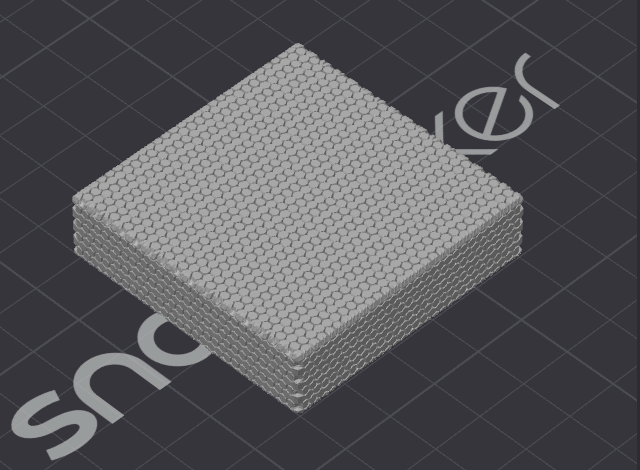
Texture Displacement by @ExPikaPaka, @SoftFever, @kisslorand and @lamweilun in 14662, 16147, 16149, 16076, 16148, 16394, 16395, 16472, 16393, 16409 and 16430 A new Texture displacement tool in the toolbar paints a texture onto part of a model and turns it into real, printable relief, such as knurling you can grip, brickwork or wood grain. Paint the area (brush, single faces, connected area or the whole model) and pick one of more than 40 built-in seamless textures or import your own PNG, JPG or BMP. Then set Depth and Tile size in millimetres, and press Bake. Unlike fuzzy skin, baking changes the mesh itself, so the result slices, previews and exports like any other geometry. Nothing is changed until you bake, and a bake is a single undo step. Wiki
Up to 8 texture layers can be stacked with Add, Override, Subtract, Multiply or Divide blending, where Override replaces what lies beneath the layer instead of combining with it. Each layer can be wrapped onto the surface in six ways: triplanar, cylindrical, spherical, from the current view, Unwrap, which comes with its own UV Editor panel for laying the pieces out by hand, or Model UV. Model UV uses the texture coordinates a model was imported with, so a texture made for that model lands exactly where it was painted, and new layers start on it when the model has them. You can type an exact value into any slider by Ctrl+clicking it or with the edit icon at its right end. Tooltips open beside the panel rather than over the control they explain, give each slider's range, and many show a picture or short animation of what the setting does.
Texture layers, their images, the painted areas and the UV layout are saved in the
.3mf, so a project reopens with its relief still editable, even on a computer that doesn't have your custom textures.https://github.com/user-attachments/assets/7fe10431-8c3f-4759-bd3f-78b4f7a12fc7
-
Colour from textures by @ExPikaPaka and @SoftFever in 16242, 16320, 16392 and 16394 A colour texture can colour the print as well as shape it. Turn on Colors on a texture layer, and each colour in the image is matched to the nearest loaded filament. With Mix filaments on, the bake can also add mixed filaments for the colours in between. Mixed colors (8 by default) caps how many it adds, and only the ones the bake actually uses are created. The baked colours go into the object's colour painting, so you can touch them up with the painting tool afterwards. Colour already on the model, whether it came with the model or from painting or an earlier bake, carries over to the baked surface, so a bake with Colors off on every layer only changes the shape.
-
Texture packs and image adjustments by @lamweilun and @ExPikaPaka in 16473, 16391 and 16547 The texture picker groups textures into Built-in, Texture libraries and My textures, and each section can be collapsed. Texture libraries holds the texture packs you've installed as plugins, one section per pack, and Explore more texture libraries opens Orca Cloud on the Home page to find more. Switching off or uninstalling a pack removes its textures from the picker, while projects that already use one keep it. The picker stays responsive with large libraries, loading thumbnails as they scroll into view. The Adjust image button in a layer's header opens a window with Brightness, Contrast, Sharpness, Blur and Hue, shown on the image and on the model as you set them. The adjusted image drives the relief as well as the colours, and Save as copy adds it to My textures and points the layer at it.
https://github.com/user-attachments/assets/b96787cf-b475-4698-826d-5db8b9f386f1
🏭 Belt Printing
This release adds support for belt printers — conveyor ("infinite Z") machines whose gantry is tilted over a moving belt, usually at 45°. Because the belt carries printed material away from the nozzle, a part can be longer than the machine, and a row of parts can print one after another without clearing the bed. Ready-made profiles are included for the Printcepts BabyBelt Pro and the IdeaFormer IR3 V2, plus a Generic Belt Printer you can adapt to other machines such as the CR-30 family. To get started, add one of these printers and slice as usual; the belt options live in Printer settings → Basic information → Belt printer, shown in Advanced mode and above. The Belt Printing guide walks through setup, how slicing for a belt works and what changes in your workflow.
-
Belt printer support by @HarrierPigeon and @SoftFever in 14394, 14385, 14393, 14425, 14446, 15087, 15181, 15526, 16145, 16168, 16192, 16195, 16196, 16198, 16226, 16240, 16262, 16277 and 16441 OrcaSlicer slices for a belt by rotating the model to the belt angle, slicing it with the normal engine, and converting the toolpaths back into the coordinates the printer expects — so walls, infill, seams, ironing, painting and most other features work on a belt without any belt-specific settings. The belt tilt angle is part of the printer profile, so machines tilted at angles other than 45° (30°, for example) are covered too. On a belt, the "first layer" is a band along the belt surface rather than the first slice, and first-layer speed, temperature and the no-cooling layers are applied to that band throughout the print. Features that can't work on a belt — skirt, raft, draft shield, the standard prime tower, arc fitting and scarf joint seams — are disabled on belt printers, Z-hop is 0 in the belt profiles, the temperature tower offers an Overhang test model suited to a belt, and every belt option has a Wiki link next to it. Closes #2628, #6885, #9004, #11344 and #14188. Wiki
Belt printing was designed and built by @HarrierPigeon, with the rotate-and-slice approach worked out together with the @Unlayered3D team, the IdeaFormer IR3 V2 profile and preview work from @tommasobbianchi, review and fixes from @HanifKoh, reviews by @raistlin7447, and field testing by the BabyBelt community.
https://github.com/user-attachments/assets/cdb9cc83-711d-48b7-9d86-a014a32c5e8e
-
Belt brims by @HarrierPigeon in 15155, 15156 and 16292 On a belt, each layer meets the belt along a single narrow line, so getting a part to stick can be tricky. Brims work on belt printers, printed on the belt surface one strip per layer, and come with two belt-only settings: Leading brim length extends the brim ahead of the part so its leading edge starts on material already stuck to the belt, and Extra brim width widens the brim across the belt. A new Leading edge only brim type puts the brim just where the part first meets the belt, even when an overhang sticks out ahead of the part. Wiki
-
Supports that land on the belt by @HarrierPigeon in 14395, 16236 and 16263 Normal, tree and organic supports all end on the belt surface, and nothing is generated below it. An overhang at the leading end of a part starts in mid-air on a belt; its supports reach down to the belt ahead of the part, and tree branches taper to a tip on the belt instead of sliding down the tilted surface. Painted supports and painted seams follow the belt rotation along with the model.
-
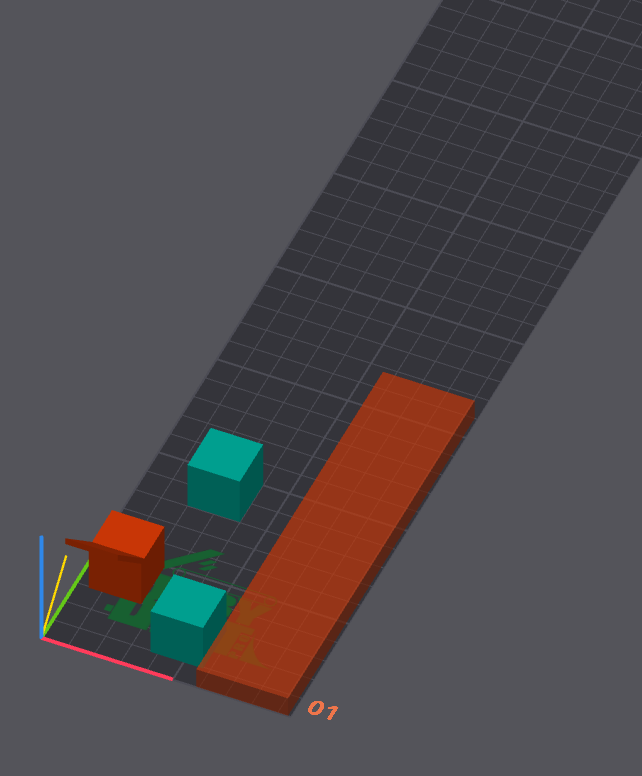
Multi-color belt printing and belt-aware arrange by @HarrierPigeon in 15361 and 16127 The standard prime tower can't stand on a belt, so multi-filament belt prints purge into a belt purge tower instead: a long, thin bar that OrcaSlicer adds beside your parts along the far edge of the belt and that takes the purge at every filament change. It is sized from your flushing volumes and created, resized and removed automatically, and what actually prints is smaller than the bar shown in Prepare, because it stops after the last filament change and skips infill no purge needs; turn it on with Enable belt purge tower in the printer's Multimaterial settings. Auto arrange is belt-aware too: it packs parts starting from the end of the belt that prints first, groups parts that use the same filament so each filament change happens only once, and leaves room for the purge tower and the brim. Wiki
-
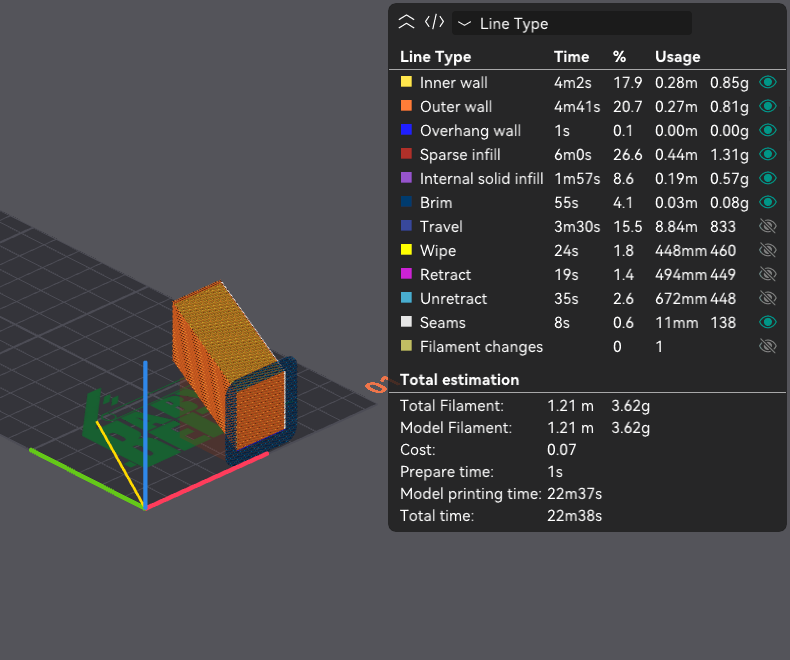
Belt preview: designed and raw G-code views by @HarrierPigeon in 16241, 16245 and 16173 The preview shows a belt print in the model's own orientation, so the part appears upright as designed. To see the coordinates actually written to the G-code — the layers lying along the belt the way the machine prints them — turn on Show raw G-code (belt only) in the preview's view menu (the eye icon) or press
B, which can be rebound in the keyboard shortcuts; the exported G-code is the same either way, and the layer slider stays on the same layer when you switch. The layer slider steps through a belt print one tilted layer at a time, labelled with its print height, even with several parts spread along the belt, and switching back to the Preview tab reuses the toolpaths already loaded.Designed view Raw G-code view 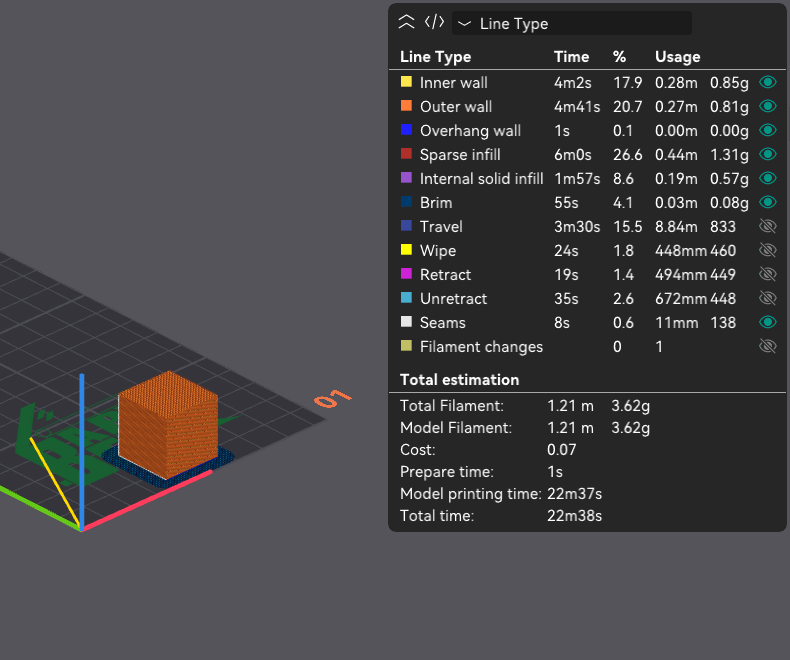
-
Belt printer profiles by @HarrierPigeon in 14424 and 15127 Adds the Printcepts BabyBelt Pro profile, contributed by @rexit1982, and 0.20mm Standard and 0.12mm Fine process profiles for the Generic Belt Printer's 0.2–0.8 mm nozzles.
-
Belt printing in the regular builds by @SoftFever in 16308 Belt printer support is part of the standard OrcaSlicer builds, so the separate
_beltnightly builds have been retired and nightly builds are published from the main branch only, under their usual names.
👯 iXex Parallel Printing for IDEX & IQEX
OrcaSlicer can now run printers with independent carriages as parallel printers. On an IDEX (two toolheads on one gantry), a dual-gantry machine, or an IQEX (two toolheads on each of two gantries), every active carriage prints its own copy of the part at the same time — either a straight copy or a mirror image — so one print produces two to four parts. OrcaSlicer slices the part once, shows exactly where each carriage will print, keeps parts out of the areas where the carriages could collide, and tells the firmware which mode to run. Ready-made Vivedino Xplorer profiles (IDEX, Dual Gantry and IQEX, plus the single-head model) are included, and any other IDEX or IQEX printer can be set up from its printer settings.
-
Parallel printing for IDEX and IQEX printers by @cgarwood82 in 13086
Printer setup: In Advanced mode, the printer's Multimaterial page has a new IDEX/IQEX Configuration section. Turn on IDEX/IQEX Printer, describe the hardware (gantry count, tools per gantry, where T0 sits, and the nozzle clearances that mark where carriages could collide), then build your parallel modes in a visual grid: give each tool a role — Copy, Mirror, Span or inactive — and enter the G-code that switches your firmware into that mode. OrcaSlicer writes that G-code just before the machine start G-code, and your start G-code can read the active mode from
{imex_mode}. Klipper, RepRapFirmware and Marlin 2 are supported, and a Firmware-managed zones option covers firmware that offsets each carriage itself, such as RepRapFirmware's duplication mode.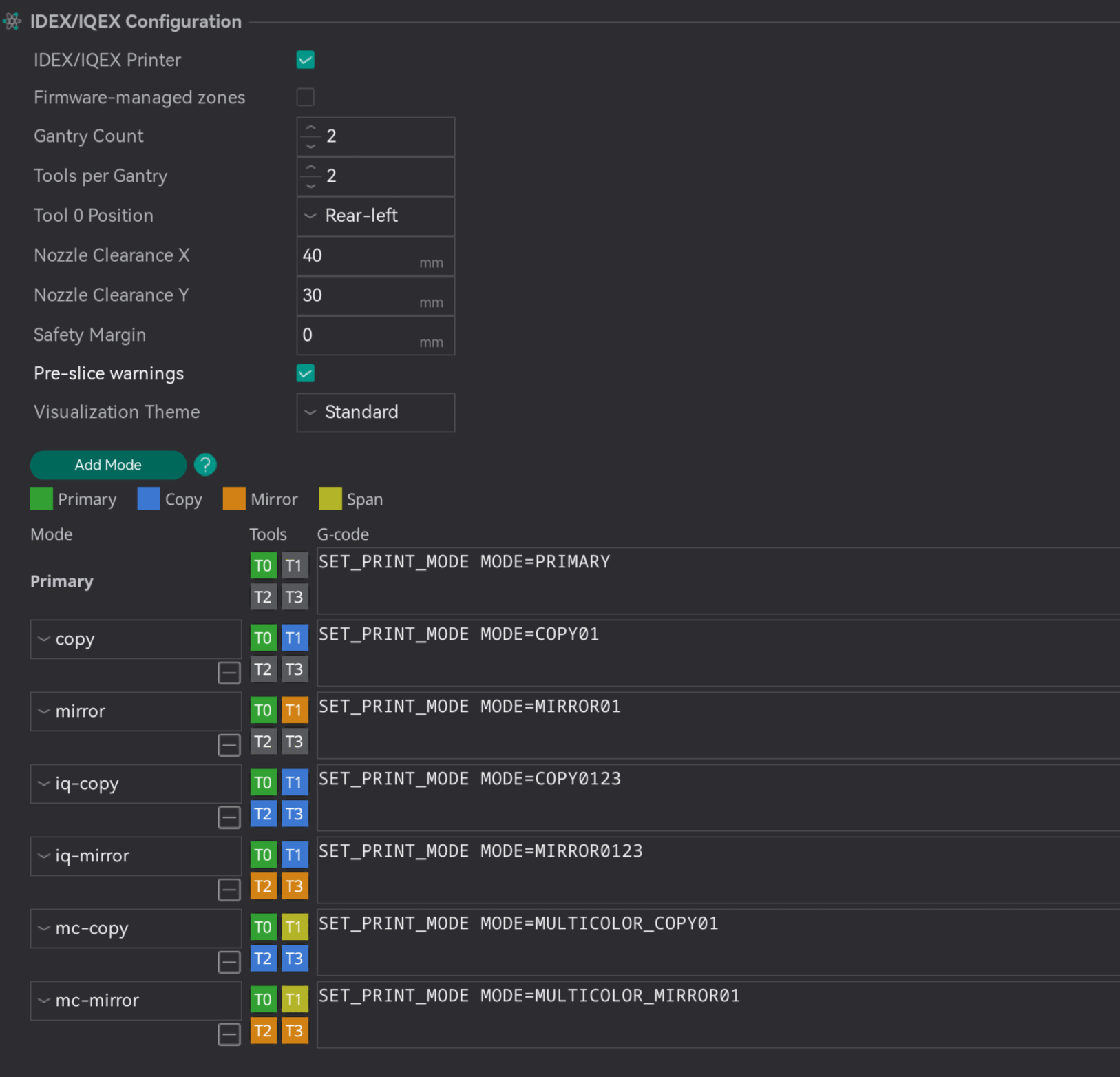
A mode for each plate: Every plate gets a mode icon — left-click to step through the printer's modes, right-click to pick one from a menu — so one project can mix normal plates with copy and mirror plates. The mode is saved with the project and can be undone like any other change.
https://github.com/user-attachments/assets/5ab497e3-9c2f-476a-ac67-ef34a592395b
Placing parts: In a parallel mode the plate is split into one zone per active carriage. You place parts in T0's zone, and each other carriage shows a semi-transparent "ghost" of what it will print (mirrored for Mirror carriages) that follows the part as you move, rotate or scale it. Clearance strips mark where the carriages could collide; Arrange keeps parts inside T0's zone and out of the strips, and a plate with a part or the prime tower in the wrong place will not slice. If an MMU or AFC feeds one of the toolheads, click its ghost to choose which filament that carriage prints with.
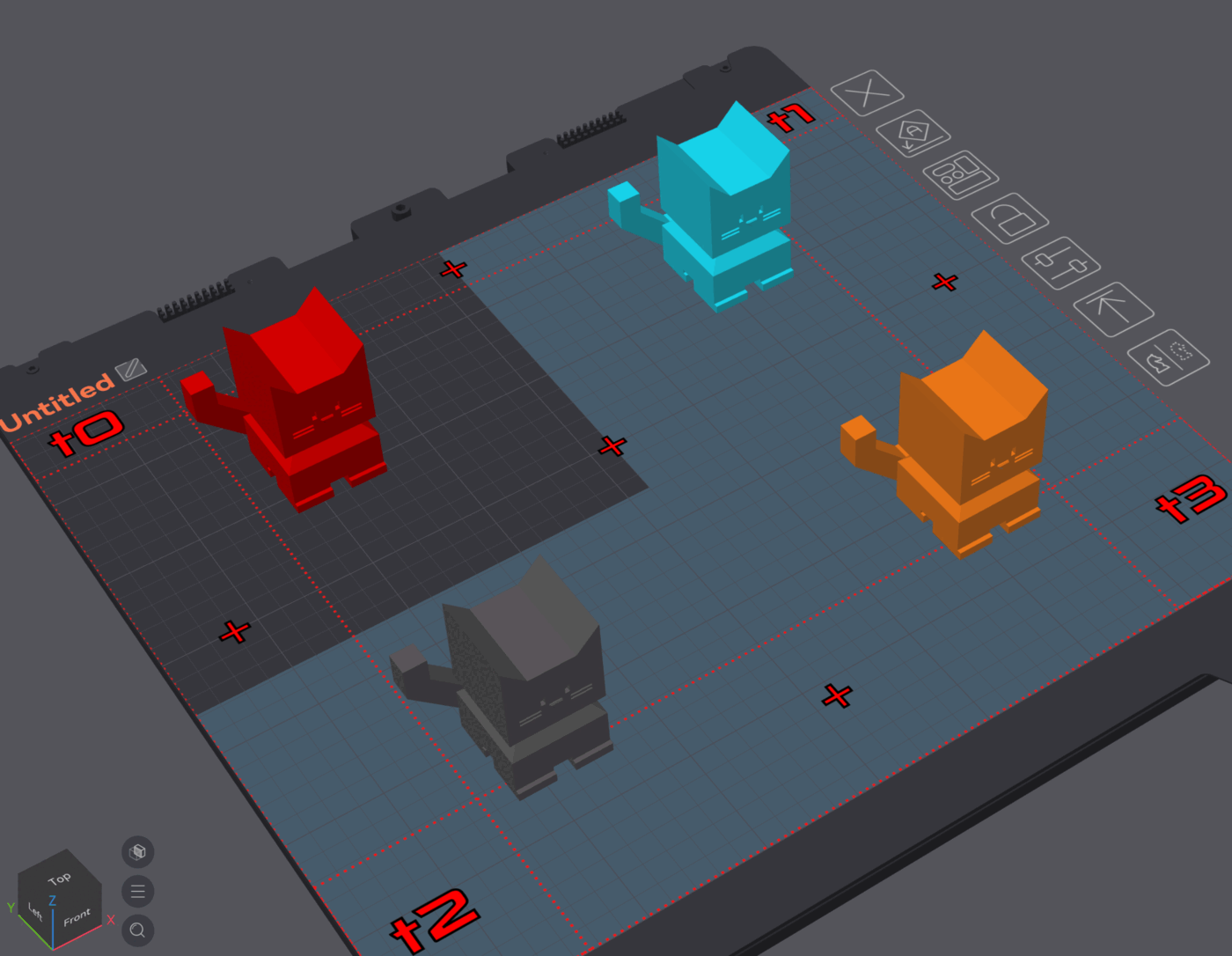
Printing: Each active carriage gets its own filament's pressure advance at the start of the print and its own nozzle temperature from the second layer on. On a dual-gantry printer with two carriages per gantry, giving T0's neighbour the Span role lets the pair print a part in several colors while the other gantry copies or mirrors it. Before slicing, OrcaSlicer warns when the carriages are loaded with different filament types or with filaments whose bed temperatures are more than 5 °C apart (the warning can be turned off).
Preview: The preview animates every active carriage alongside T0, with a box around each toolhead so you can check they stay clear of each other. The boxes can be hidden with View → Show IDEX/IQEX Toolhead. Closes #2021. Wiki
Copy mode:
https://github.com/user-attachments/assets/0774d285-ba36-4b86-a594-fb6572c3aede
Mirror mode:
https://github.com/user-attachments/assets/51528926-94dc-4d90-9b1a-1b42d9044be7
✏️ Design Tab (Early Preview)
The Design tab is a new, experimental CAD workspace inside OrcaSlicer. Sketch a profile, constrain and dimension it, turn it into a solid and commit it to the plate — no round trip through another CAD program and an STL. What you build is an editable feature history rather than a mesh, and it is saved inside the 3MF, so you can reopen a project, change a dimension and have the whole part rebuild. The tab is off by default: tick CAD feature (experimental) in Preferences → General → Features and restart OrcaSlicer to try it. It is still under active development, so expect changes between builds and keep a backup of projects you care about. Wiki
-
Design tab: sketch-first parametric CAD by @tommasobbianchi and @raistlin7447 in 15238 and 15762 Sketch on the bed, a reference plane or a face of a body with lines, rectangles, arcs, circles, slots, splines and more, then constrain and dimension it while the solver shows how many degrees of freedom remain. Profiles become solids with Extrude, Revolve, Sweep and Loft, and are refined with fillets, chamfers, shells, drafts, holes from ISO and ANSI standards tables, real modelled threads, patterns and booleans; variables and expressions can drive any dimension. Every step stays editable in the feature tree and rebuilds everything after it. You can also import STEP files as real solids (or convert STL/OBJ meshes), export STEP, and press Commit to Plate (
Ctrl+Shift+P) to hand the part to Prepare; enabling the feature also adds Sketch and Primitive tools to the Prepare toolbar for dropping a solid straight onto the plate. Wiki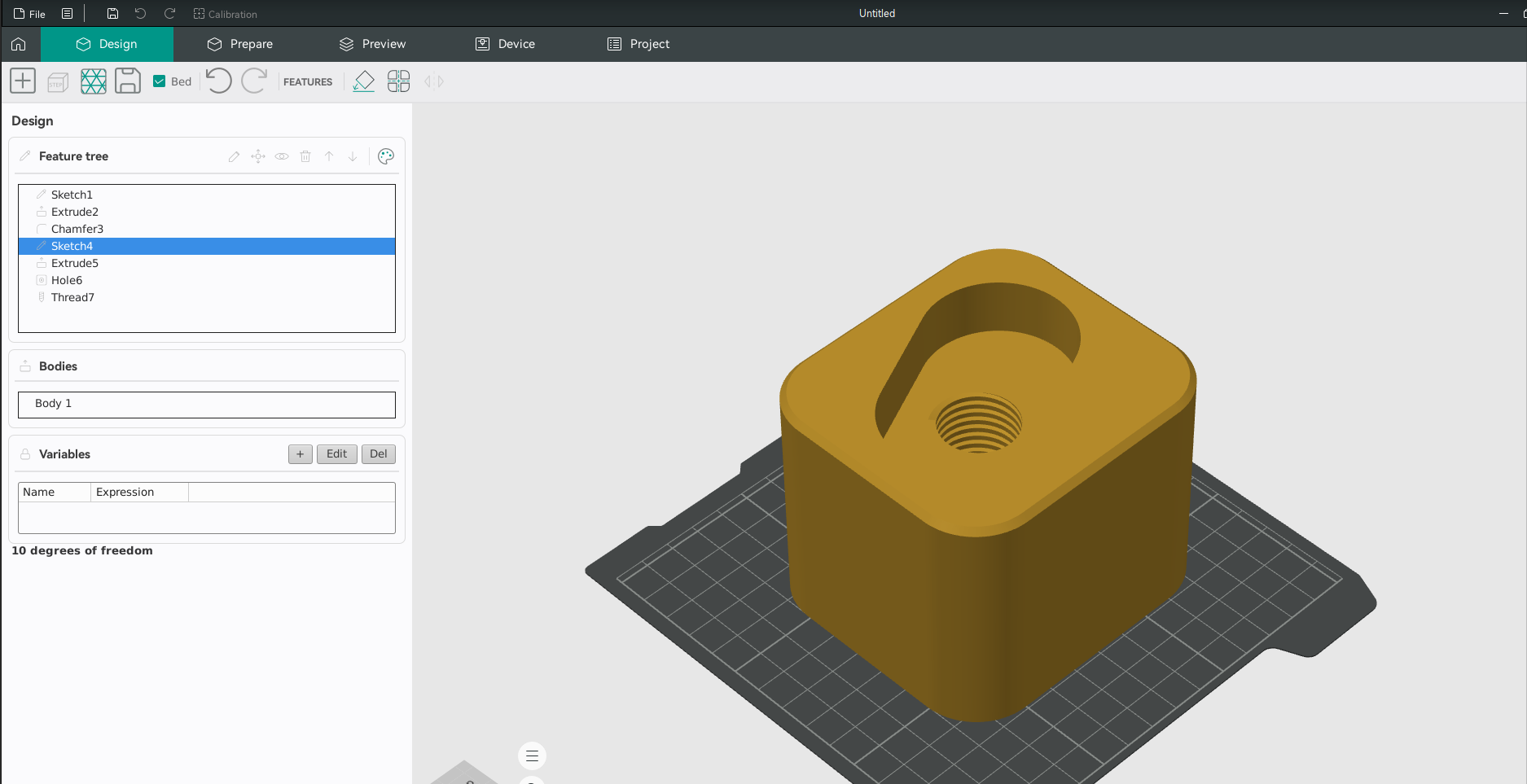
https://github.com/user-attachments/assets/6aac0a03-8405-403a-93b2-1fbf95da9fe7
-
Design tab: Text and Revolve features, clearer rendering and a smoother workflow by @tommasobbianchi and @SoftFever in 16019 and 16158 Text is its own feature: pick any installed font, style and height, see the outline in place as you type, and reopen it from the feature tree to edit it — the outline is saved with the project, so it opens the same on a computer without that font. Revolve can turn a profile about any line in its sketch (such as a construction centerline), one Fillet or Chamfer can dress several edges at once, and Sketch Offset takes the whole outline. In the Design view, parts get studio-style lighting and dark edge lines so faces are easy to tell apart, and the reference planes are labelled, colour-coded squares that stay out of the way until you start a sketch — then the plane or flat face you click opens the sketch on it. Enter, Esc and clicks follow one rule everywhere (Esc steps back one level and never deletes work), Undo and Redo work inside a sketch, panning and orbiting follow your camera settings in Preferences, and Zoom to selection is available from the feature tree and the Bodies list.
🔩 Multi-Nozzle Printers & Extruder Variants
This release adds Bambu Lab's latest multi-nozzle printers and lets the left and right nozzles of the H2D and X2D be different sizes. It also brings extruder variants to every printer: one profile can now hold separate settings for a Standard, High Flow or Extra High Flow nozzle, a direct drive or Bowden extruder, and for each nozzle on a multi-nozzle printer. The right values are used automatically for whichever nozzle prints each part.
-
Bambu Lab H2C and A2L support by @SoftFever, @dnevera and @raistlin7447 in 14685, 14800 and 14758 Adds full support for the Bambu Lab H2C and A2L, including pre-heating and cooling, and multi-colour and multi-material printing on the H2C with its nozzle-changing rack. OrcaSlicer keeps track of which filament is loaded in each of the H2C's nozzles and only purges a nozzle when its filament actually changes, so filament use and print time stay close to Bambu Studio's. Support for Bambu's Filament Track Switch has been ported too, but hasn't been tested on hardware yet, so feedback is welcome.
https://github.com/user-attachments/assets/417f0e32-1967-4536-b732-3c8dc8d4dd4a
-
Mixed nozzle sizes on Bambu Lab H2D and X2D by @LixNix in 14125 The left and right nozzles of an H2D or X2D can now be different sizes, for example a 0.2 mm nozzle for fine outer walls and a 0.8 mm nozzle for fast infill. Set each nozzle's diameter in the sidebar or the printer settings. Line widths, infill, supports and ironing are then worked out from the nozzle each filament actually prints with. Wiki
-
Extruder variants on every printer by @Noisyfox, @SoftFever, @HanifKoh, @raistlin7447 and @kisslorand in 13712, 15964, 16046, 16107, 14572, 15221, 14930, 14931 and 16176 Ported from Bambu Studio. On Bambu dual-nozzle printers, each nozzle has a Flow choice (Standard or High Flow) in the sidebar. Speeds, motion limits and many other process and printer settings can be set separately for each nozzle and flow type: a switch at the top of the settings page picks which one you are editing, and a sync button copies your changes to the other nozzle. Extruder variants now work on any printer. Vendor profiles can declare Standard, High Flow and Extra High Flow variants, the sidebar lets you pick the nozzle type for each extruder, and filament profiles show a tab for each variant they support, such as Direct Drive or Bowden. Your existing user presets and projects keep their own values on variants they didn't list before. An object setting entered as a single value applies to every nozzle. This also fixes a second filament printing at the first filament's temperature on a P1S or X1C with a High Flow nozzle. Closes #10336.
Nozzle type in the sidebar Per-variant filament settings -
Pressure advance and cooling per nozzle variant by @SoftFever and @nuclearmistake in 15986 and 16007 Filament profiles can set pressure advance, adaptive pressure advance, part and auxiliary fan speeds, temperature limits and multi-tool ramming separately for each nozzle variant. One filament profile can then carry the right values for both a Standard and a High Flow nozzle, and each filament uses the values of the nozzle it prints with. Profiles that store a single value keep applying it to every variant, so existing profiles and projects slice as before. The add:north Bambu Lab filaments in the Orca Filament Library use the new per-variant layout. Nozzle type moves from the printer's Basic information page to each extruder's page. Command-line slicing now fills in every per-variant filament setting for each filament, where it could previously use another filament's value.
https://github.com/user-attachments/assets/617d6d30-ce24-4507-885e-6ea2bf2e50af
-
Compact multi-nozzle controls by @yw4z in 15083, 16075 and 16162 The sidebar nozzle selectors take up about 40% less height on multi-nozzle printers and about half on single-nozzle ones, and they look right on Linux. In Printer settings, extruders share a single Extruders tab with a switch (T1, T2… or Left/Right on Bambu printers) instead of one tab each. This keeps Motion ability and Notes reachable on printers with many extruders, and on every multi-extruder printer Motion ability edits the limits of the extruder selected on the switch. The nozzle switch highlights modified values and adjusts its spacing to the number of nozzles. A multi-nozzle icon with a tooltip explains which settings are per-nozzle. The Publish dialog publishes each extruder's own retraction and Z-hop values.
-
Open Bambu Studio H2D projects with per-object speed overrides by @Noisyfox in 14700 Bambu Studio projects for the H2D whose objects override a speed for only one nozzle failed to open with "Invalid value provided for parameter …". They now load, and an object that overrides a setting for one nozzle no longer prints with a broken, huge negative speed when it uses the other nozzle. Fixes #14673.
-
Variant handling fixes by @cgarwood82, @kisslorand and @HanifKoh in 15456, 15515 and 15639 Fixes a crash when switching from a project with per-object settings to a printer with more extruders or nozzle variants, such as the Prusa XL 5T (Fixes #15455). Changing Nozzle type now shows the undo arrow and appears in the unsaved-changes dialog. On the command line, a single-value override such as
--nozzle-temperature=211now applies to every filament in a multi-filament project instead of setting the others to 0.
🌊 New Features & Improvements
Walls, Seams & Surfaces
-
Precise Seam modifiers by @DImagine in 12974, 16072 and 16170 A new modifier type that puts the seam exactly where you want it. Right-click an object, choose Add Precise Seam and pick a shape (or load your own mesh), and on every layer the seam is placed where that body crosses the outer wall. Three strong types (Seam Center, Seam Left, Seam Right) pin the seam to an exact point, and three weak types (Seam Enforced, Seam Blocked, Seam Neutral) mark preferred, forbidden or neutral zones the way seam painting does. Because the modifier is a separate body, it keeps working after you edit or replace the model, so there is no repainting after every design revision. Sweep a thin profile along a path drawn on the model in your CAD tool and the seam follows that path exactly. Modifiers with holes and bodies that pass right through the object are supported. A Seam Enforced or Seam Neutral modifier that encloses a whole wall acts like painting it all the way round. A Seam Blocked modifier that covers a whole wall blocks all of it, overriding any painting there: the seam is then placed as on an unmarked wall, and a slicing warning names the modifier so you can check it. If a modifier does not reach far enough into the wall to take effect, a slicing warning names it. Closes #5118 and #11162. Wiki
https://github.com/user-attachments/assets/9a8f2d51-b6b9-46c8-8832-fcf2ec02979d
A full walkthrough of every modifier type is in the Precise Seam demo video.
-
Top surface expansion by @ianalexis in 14296 Grows top surfaces by a set distance, so a top skin interrupted by raised features (text or a boss on a flat face, or overlapping objects) prints as one continuous surface instead of being cut up around them. This closes the small holes under those features, keeps the top pattern unbroken (Concentric tops look much cleaner) and gives the layers above a solid base. Top expansion wall margin keeps the expanded surface away from the outer walls so it doesn't leave a hull line on them, and Top expansion direction chooses whether it grows inward into holes, outward to join separate surfaces, or both. Find it under Strength > Top/bottom shells. Closes #7402 and #14311. Wiki
Original 5 mm expansion -
Wipe inward for outer walls by @valerii-bokhan in 15407 The wipe after an outer wall can leave a scar next to the seam, because the hot nozzle runs back over the visible surface it has just printed. The scar is most noticeable at layer heights below 0.1 mm. With Wipe inward (Quality > Seam, Expert mode), the wipe turns into the part and runs along the inner wall instead, where any mark is hidden. Wipe inward distance sets how far in it moves; the default of 50% of the line width puts it between the two walls. It needs Wipe while retracting and a wall order that prints the inner walls first, and falls back to the regular wipe wherever there is no inner wall to wipe on. The Wipe on loop move is also corrected, so profiles that use it may show slightly different wipe paths after re-slicing. Wiki
Regular wipe Wipe inward -
Print unsupported walls last by @ianalexis in 15411 Wall loops that would be printed entirely in mid-air, with nothing under them on the layer below, can now wait until something can hold them. With Print unsupported walls last (Quality > Overhangs) turned on, such loops are printed after the walls that anchor them. A loop that touches nothing waits until the infill or bridges of that layer are down. It works with both the Classic and Arachne wall generators and with either wall/infill order, and needs Detect overhang wall to be on. Fixes #11906. Wiki
Disabled Enabled https://github.com/user-attachments/assets/d7c6d593-6c92-4780-a264-e232b30f9f98
-
Retract amount after wipe by @valerii-bokhan in 11015 In addition to the existing Retract amount before wipe, you can now set how much of the retraction happens after the wipe move (Printer Settings > Extruder > Retraction, and in filament overrides; Expert mode). Splitting the retraction this way gives finer control over stringing and seam blobs on stringy filaments. The author cut the wipe distance from 2 mm to 0.2 mm on a stringy PLA+ and still got clean seams and cleaner fine details. The default of 0% keeps today's behavior. Fixes #3150. Wiki
-
Arachne honors Maximum wall resolution and deviation on curves by @ianalexis in 15314 Arachne simplified curved walls more coarsely than your Maximum wall resolution and Maximum wall deviation allowed, so lowering those settings could not make curves any finer. Arachne walls on cylinders and arcs came out coarser than Classic walls from the same mesh, with sharper corners that firmware using junction deviation has to slow down for (visible as a mottled Actual Speed preview). These settings now take full effect, so with fine values Arachne walls match Classic. Slicing with the default values is unchanged.
Before (Classic left, Arachne right) After -
Smoother and safer spiral lift by @SoftFever and @RF47 in 15118 and 13634 With arc fitting turned off, the spiral Z-hop was drawn as a coarse octagon whose sharp corners made the toolhead stutter around the lift. It is now built from enough short segments to run smoothly at full speed. Spiral lift also no longer reaches outside the printable area when a model sits near the edge of the bed: if there isn't room for the spiral, a normal lift is used instead (rectangular beds). Fixes #13606, #10902 and #11775. Wiki
-
Limit polyhole edge count by @fuyarovh in 12349 The new Maximum Polyhole edge count setting (Quality > Precision, Expert mode, default 50) caps how many sides a polyhole can have, which helps keep holes accurate at very high print speeds. Wiki
-
Remember STEP import settings by @ianalexis in 14484 STEP meshing quality (linear and angle deflection) and the split-into-multiple-objects option can now be set in Preferences, and the STEP import dialog has a "Save these settings as default" checkbox, so you don't have to set them again on every import. Closes #14009. Wiki
-
Send anyway on a nozzle diameter mismatch by @ianalexis in 14890 In the send-to-printer dialog, a printer nozzle diameter that differs from the sliced file's is now a warning instead of a hard block. Tick "I have checked the installed nozzle and want to print anyway" to send the job, which helps if you run a non-standard nozzle. Closes #12910.
-
Plate spiral vase mode applies to every object by @thelegendtubaguy in 16091 Turning on spiral vase in a plate's settings with by-object print sequence now applies the vase-mode settings to every object on the plate, not just the first. Fixes #15995.
Infill
-
Adaptive density for Gyroid and TPMS infill by @ianalexis in 16005 The new Adaptive density (experimental) option for Gyroid, TPMS-D and TPMS-FK sparse infill grades the pattern from the surface of the object to its core. It keeps your sparse infill density just under the walls and top/bottom shells, where support is needed, and thins out to the Interior density at the center, saving material and print time. Several modes choose how it follows the shape: by distance to the nearest surface (Distance warp, Smooth blend, Stepped shells), by the 3D lobes of the object (Lobes), or by its cross-sections along one axis (Normal X/Y/Z) for extruded profiles. Adaptive gradient sets whether the density changes linearly, quadratically or exponentially. All three options can be set per object and per modifier. Wiki
Distance warp Lobes -
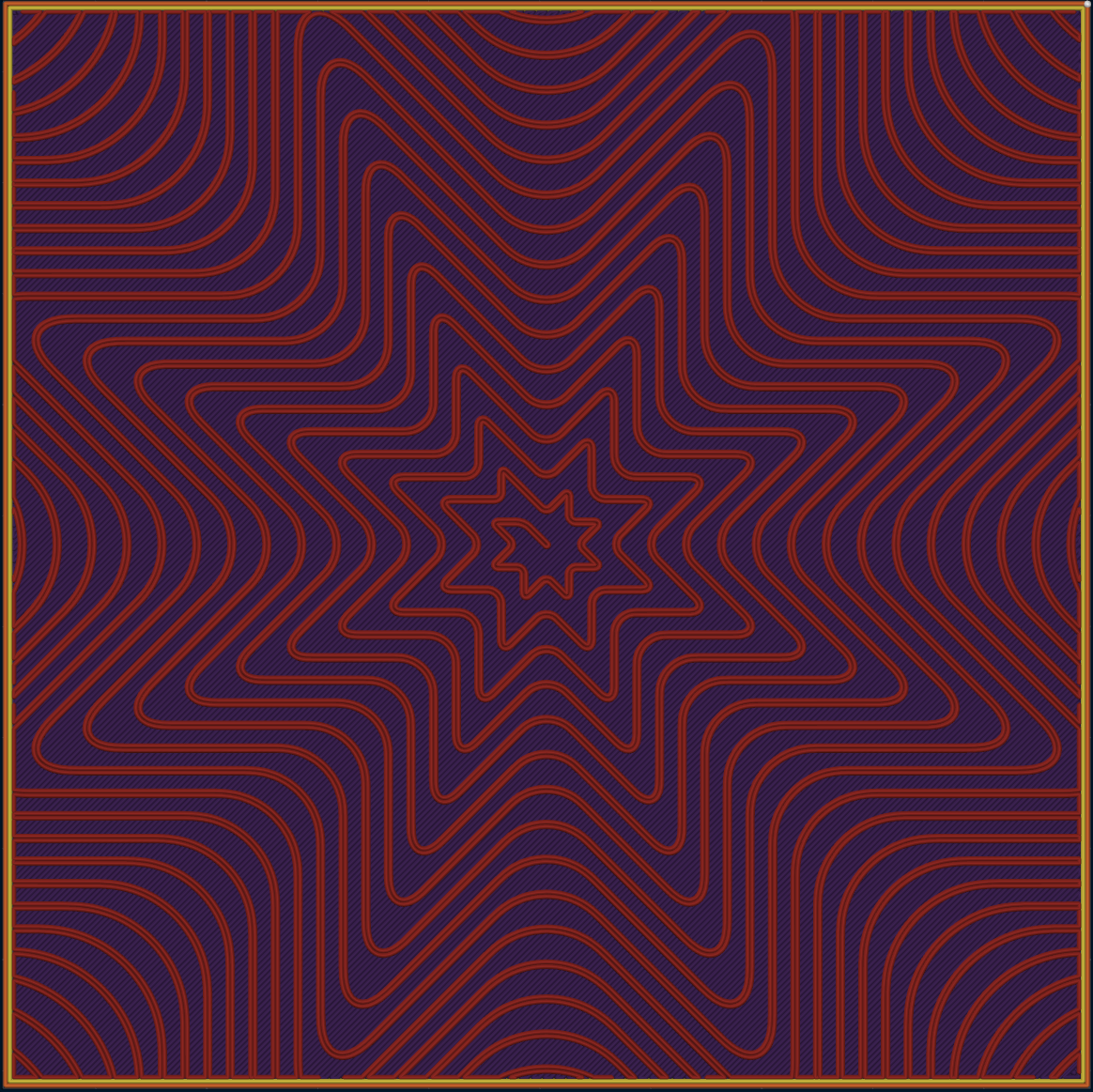
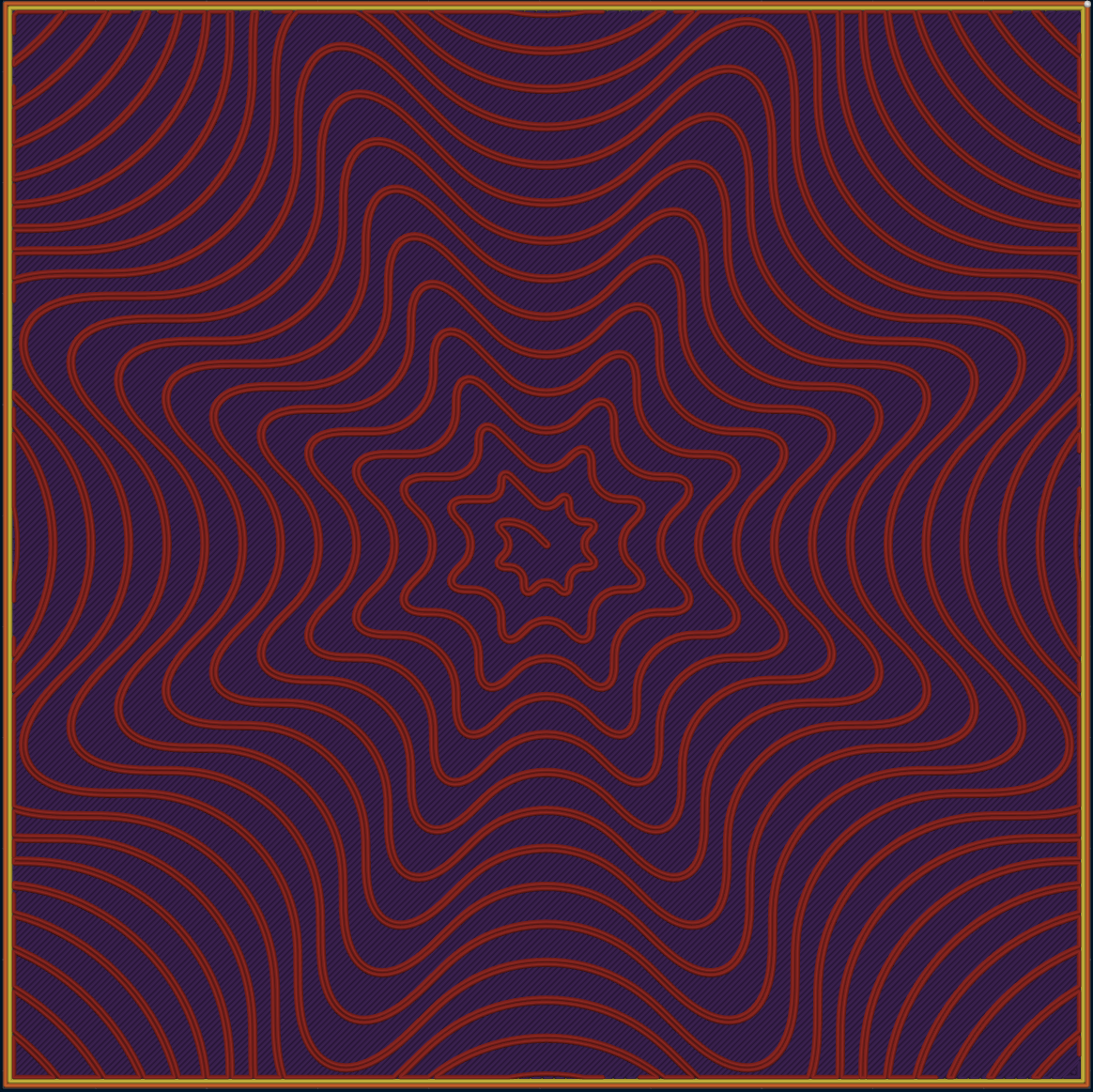
Sparse infill smooth factor by @valerii-bokhan, @ianalexis and @RF47 in 14969, 15205, 16172 and 15287 Rounds the sharp corners of the sparse infill path into smooth curves, from 0% (the original path) to 100% (the largest curves that fit). Rounded corners shrink less, let the toolhead keep its speed through turns instead of braking at every corner, and keep the nozzle from catching on the infill during travel when Z-hop is low or off. It works with Hilbert Curve, Octagram Spiral, Lightning, Honeycomb, 3D Honeycomb, Concentric and Cross Hatch, and with Grid, Triangles, Tri-hexagon and Cubic when Fill Multiline is above 1. Wiki
0% 50% 100% 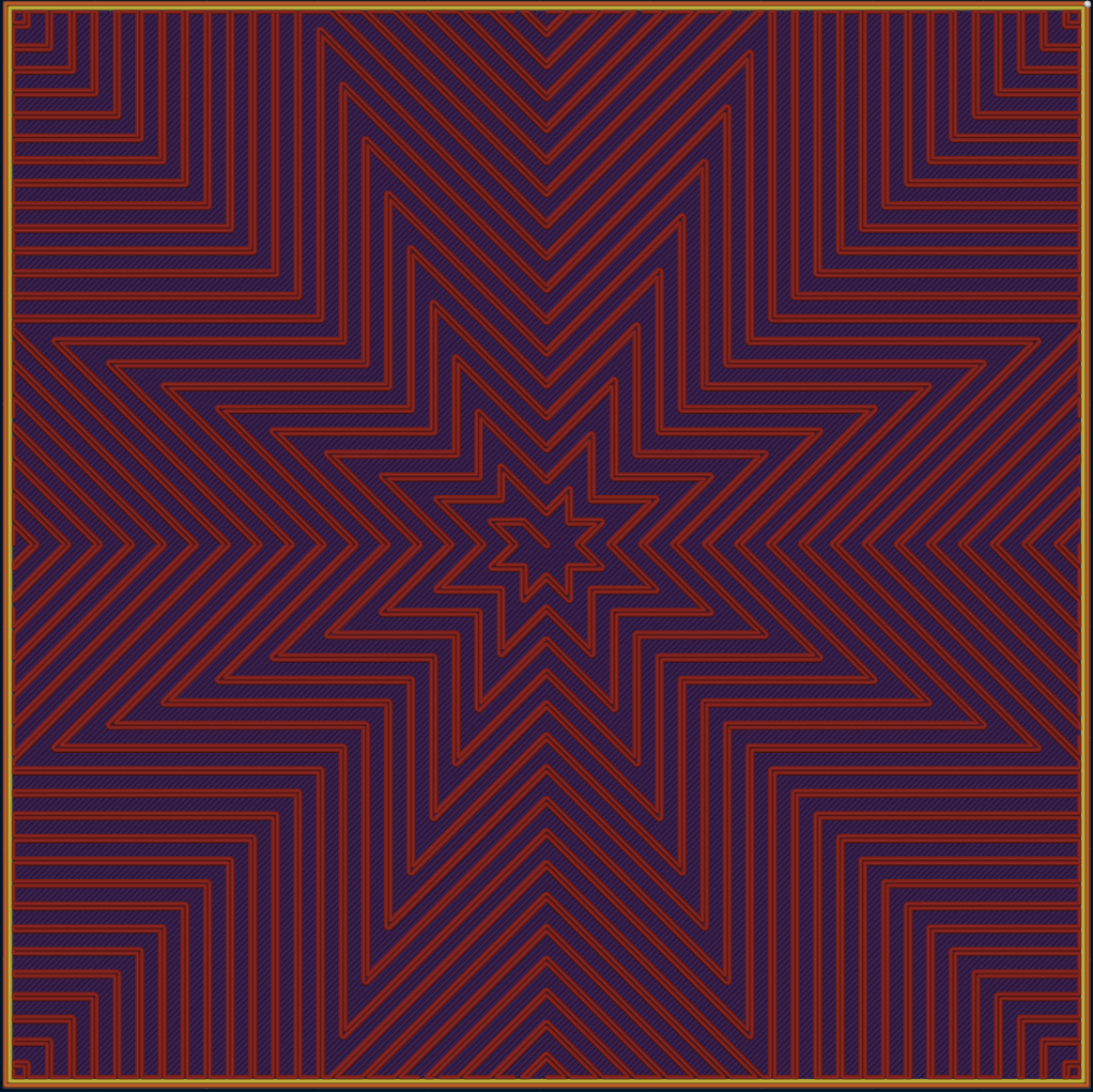
-
Spiral Inset pattern by @RF47 in 15085 and 15705 A new Spiral Inset pattern for top, bottom and internal solid infill (and support interfaces) follows the outline of the surface like Concentric, but prints it as one continuous spiral instead of separate closed rings. Combine it with the new top/bottom fill order below to spiral inward or outward. On internal solid infill, the tiny gap fill at the center is skipped to avoid needless moves. Closes #6898.
Inward Outward -
Top and bottom surface fill order by @Mqrius in 14179 and 14786 For center-based top and bottom patterns (Concentric, Spiral Inset, Archimedean Chords, Octagram Spiral), the new Top surface fill order and Bottom surface fill order settings print the rings or spiral consistently Outward from the center or Inward from the edge, instead of the default shortest-path order. Outward suits top surfaces: any excess material is pushed toward the edge, where it is least visible. Inward suits bottom surfaces: starting with the wide outer curves improves first-layer adhesion on plates where tight curves at the center don't stick. A consistent direction also matters for silk and multicolor filaments, and surfaces split up by holes keep the right order too. Wiki
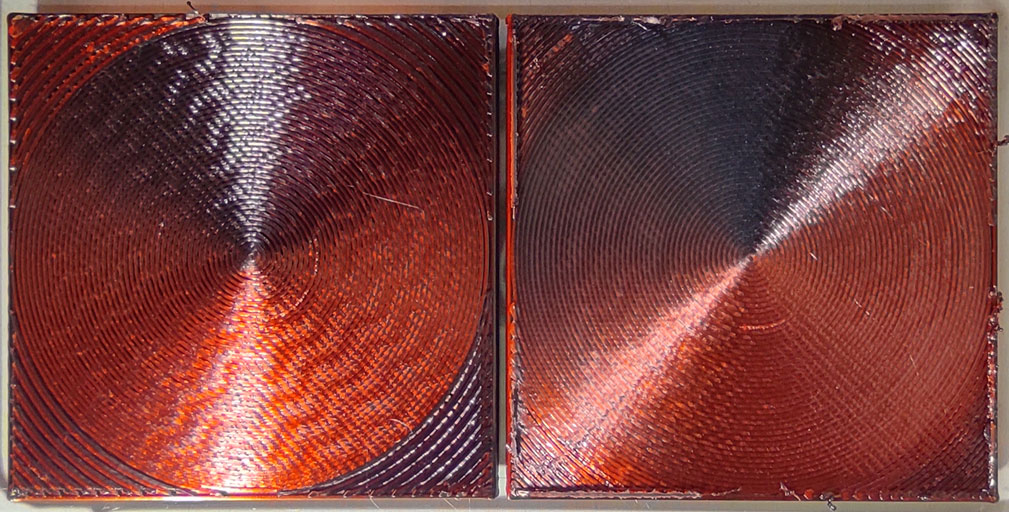
-
Fixed top and bottom layer directions by @ianalexis in 13631 and 14734 The new Top layer direction and Bottom layer direction settings (Strength > Top/bottom shells) set a fixed angle for the top and bottom solid infill, for example 0° on both for a consistent look, while the solid infill inside keeps rotating for strength. The top angle also applies to ironing. Leave them at -1 (the default) to keep the current behavior. The existing "Align infill direction to model" option has been renamed Align directions to model, since it also rotates bridge, ironing and top/bottom surface directions. Closes #3095. Wiki
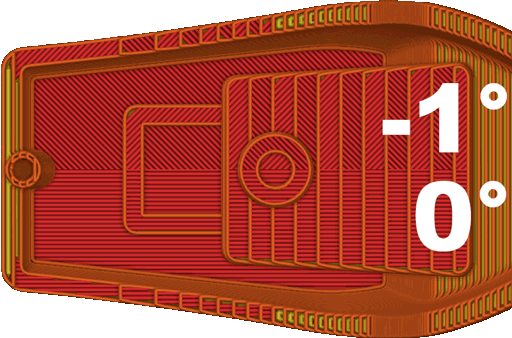
-
Separated infills for assemblies by @pi-squared-studio and @ianalexis in 11682, 14674 and 16274 In an object made of several parts, the infill used to be laid out from one common center for the whole assembly, so each part's pattern depended on where it sat in the group. With Separated infills (Strength > Infill, Expert mode), each part's infill is centered on that part, exactly as if it were sliced on its own. Parts that touch or overlap share one center. It covers nearly every sparse pattern and also applies to internal solid infill and bridges. A companion Center surface pattern on option (Strength > Top/bottom shells) chooses whether centered top/bottom patterns (Archimedean Chords, Octagram Spiral) are centered on each surface, each model or the whole assembly. Adaptive Cubic and Support Cubic now always fill each part on its own. This also fixes those patterns in multi-part objects, where only the first part used to get properly refined infill. Fixes #11929. Wiki
Separated infills off Separated infills on -
Non-crossing multiline for Cubic infill, and faster non-crossing infill by @ianalexis and @RF47 in 15887 and 15931 With Fill Multiline above 1, Cubic, Adaptive Cubic and Support Cubic now use the non-crossing strategy that Grid, Triangles and Tri-hexagon already use. Instead of crossing lines and closed loops, the infill runs as continuous paths that never cross themselves. That means far fewer retractions, travels and wipes: in the authors' test, print time dropped from 8h19m to 7h29m and retractions from about 42,000 to 6,200. Non-crossing multiline infill also slices much faster: Grid, Triangles and Tri-hexagon are over 100× faster on plates with many small islands. Wiki
Before After -
Fill pattern tops for 3D Honeycomb by @gringer and @ianalexis in 12541 and 16214 The new Fill pattern tops option for 3D Honeycomb infill covers the open square at the top of each cell by bridging extra lines across it whenever the pattern changes direction. This is useful for functional parts that need closed channels, such as separate air and water passages, and for decorative prints. It is off by default because the extra direction changes slow the pattern down. Wiki
-
Faster Gyroid infill by @ianalexis in 16002 Gyroid infill now slices faster: up to about 2× for regular Gyroid on many small islands, and up to about 10× with the Z-buckling optimization. The optimized Gyroid now lines up the same way across separate islands. The regular Gyroid pattern itself does not change.
Brims, Supports, Fuzzy Skin & Cooling
-
Outer-only mouse ears and larger brim ears by @maddavo and @ianalexis in 15015 and 15115 The new Brim ears outer only option (Others > Brim) keeps automatic mouse ears and painted brim ears on the model's outer contour, so no ears end up inside holes or enclosed areas where they are hard to remove. With Mouse ear brims, Brim width is shown as Brim ear radius. In the brim ears painting tool, Head diameter is now Brim ear radius, with its maximum raised from 20 mm to 100 mm. Painted ears also print at the size you set, where before they came out smaller. Closes #11600 and #13380. Wiki
-
Slow down small support areas by @valerii-bokhan in 13459 New Small support perimeters speed and threshold settings (Speed > Other layers speed) slow down support paths below the threshold, the same way Small perimeters does for walls. Thin tree-support branches that tend to curl up and get knocked over by the nozzle print slowly while the rest of the support stays fast. In the author's test this saved about 25 minutes compared with slowing down all supports. Set a threshold above 0 to turn it on. Wiki
-
No fuzzy skin on bridging walls by @RF47 in 13891 Fuzzy skin is no longer applied to outer walls that hang out over nothing, such as the wall across the top of a window or a bridge. Roughening those unsupported walls made them sag or fail, so they now print smooth while the rest of the wall stays fuzzy. Fixes #9137.
Before After -
First layer fan speed by @igiannakas in 14270 A new per-filament First layer fan speed setting (Filament > Cooling) sets an exact part-cooling fan speed for the first layer only, overriding the rest of the cooling logic. It is aimed at printers with printed (for example ABS/ASA) toolhead ducts, which need a little airflow on layer 1 to survive a hot bed without full cooling that could hurt first-layer adhesion. If Full fan speed at layer is also set, the fan ramps up smoothly from this value. The setting is available when No cooling for the first is 0, and -1 (the default) turns it off. Fixes #11029. Wiki
-
Axis lock for support painting by @mlugo-apx in 14262 The Support Painting tool gets the same Vertical and Horizontal checkboxes as the color and seam painting tools, which keep brush strokes on a straight vertical or horizontal line.
-
Raft expansion setting by @RF47 and @acceleratorlastorder in 16416 The new Raft expansion setting (Support > Raft) sets how far every raft layer reaches beyond the object, so you can print a wider raft for a steadier base. Before, only the raft's first layer could be widened, with First layer expansion, and the rest of the raft always used a fixed 1.5 mm. The setting appears when Raft layers is above 0, and is greyed out for Tree Slim, Tree Strong and Tree Hybrid supports, which size the raft from the first layer expansion only. Closes #3422. Wiki
Prime Tower & Multi-Material
-
Rib wall and skip-points prime tower on all printers by @SoftFever in 15035 The Rib wall type and the Skip points option showed up for every printer but only worked on Bambu Lab machines; they now work everywhere. The tower wall leaves an opening at each toolchange entry and the nozzle travels around the tower and in through it instead of dragging across the printed wall, the start of each purge is ironed flat so toolchange blobs no longer end up on the wall, and purge sections fill the tower without blank bands between them. The tower shell also avoids support or soluble filament when a regular one is available, and custom multi-extruder printers no longer ask for a re-slice right after slicing. Skip points is on by default, so existing multi-filament projects on non-Bambu printers pick up the wall openings; untick it to get the previous solid wall. Wiki
https://github.com/user-attachments/assets/07c95ce4-f57e-40c0-a42f-f5e9b0b9ff7b
-
Wait for the toolchange temperature at the prime tower by @SoftFever in 15144 New Wait for temperature on wipe tower printer option for multi-toolhead printers using a Type 2 wipe tower. The incoming tool's temperature is raised ahead of the tool change, and the printer waits for it parked beside the tower, right before purging — so heat-up ooze lands next to the tower instead of on the model, and the heat-up overlaps the tool change and travel instead of adding dead time. It helps most on tool changers with long docking cycles, such as Tapchanger and StealthChanger machines. Your firmware or tool change macro must not wait for the temperature itself; the option is off by default and enabled in the generic tool changer profile. Wiki
-
No more stringing between the model and the prime tower by @SoftFever in 15038 On multi-toolhead printers using a Type 2 wipe tower, the travel to the tower always lifted straight up instead of following the filament's Z hop type, so the nozzle rose in place over the part and oozed a string on its way to the tower. It now uses your Z hop setting, as the Type 1 tower already did.
-
Prime tower pauses work on Klipper by @SoftFever in 15133 On Klipper printers, the prime tower's wait for queued moves to finish before a temperature change, and its pause after a filament's cooling moves, silently did nothing because Klipper ignored the commands used. The tower now writes commands Klipper honours (
M400andG4 P), so these waits happen as intended; G-code for other firmware is unchanged. -
Combine sparse prime tower layers by @ianalexis in 15841 New Combine sparse layers option merges runs of prime tower layers that have no filament change into a single thicker layer, the way infill combination works for sparse infill. This removes most of the travel to the tower on those layers (the example print went from 5h23m to 5h03m), and unlike No sparse layers the tower keeps rising with the model, so there is no collision risk or restriction on the plate layout. Merged layers never exceed the nozzle's maximum layer height, so the gain shows mostly at lower layer heights. Wiki
Combine sparse layers on Combine sparse layers off -
"No sparse layers" for Type 1 (Bambu-style) prime towers by @ianalexis in 15485 No sparse layers (beta), which skips the tower on layers without a tool change, now works with the Type 1 prime tower too. Because the tower then ends up lower than the model, the toolhead only descends to it once it is safely above it, and OrcaSlicer checks the plate before slicing and highlights any object that is too tall or too close for the toolhead to reach the tower. Selecting smooth timelapse turns the option off, since it needs a tower on every layer; the option stays off by default. Fixes #15381. Wiki
-
Prime tower stays on non-rectangular beds by @SoftFever in 15146 On delta, round and custom-shaped beds — and on multi-nozzle printers where a nozzle reaches only part of the plate — the prime tower could be placed in a corner the bed doesn't have, and neither dragging it nor slicing caught the problem. Its default position, drag limits and pre-slice check now follow the real printable outline, and a tower that doesn't fit is reported as "Prime Tower is partially outside the printable area". The travel into the tower also keeps its detour near the bed edge instead of cutting straight across it, and the checks for a rotated tower now use its correct footprint.
-
Prime tower sized from the actual flush volumes by @SoftFever in 15149 The tower shown in Prepare and the space kept clear for it when arranging were sized from the prime volume alone, so on multi-colour prints the sliced tower could be much larger and overlap objects or run off the plate. The estimate now uses your flush volumes, for Rectangle, Cone and Rib walls and on multi-nozzle printers, so the tower you place matches the one that gets printed.
-
Prime tower preview matches the printed tower by @HanifKoh and @SoftFever in 15532 and 15760 The prime tower drawn in Prepare, the space reserved for it when placing and arranging, and the size checked before slicing now all come from one shared estimate, so they agree — for example, an object with a finer layer height override now gets a correctly sized tower in the preview, and each plate draws its own tower brim. A plate that uses only one filament no longer shows or reserves a phantom tower just because more filament slots are configured. The G-code is unchanged; because the pre-slice check now reserves the same space as placement, a saved project with its tower right against an exclusion area or the rear edge may need the tower moved slightly before it slices.
Before:
https://github.com/user-attachments/assets/c5b0ea61-127d-408e-bafe-f1f76c58b996
After:
https://github.com/user-attachments/assets/ac6632b3-5d44-4013-aca3-73f6cfd1139c
-
Cyclic toolchange order and shorter travel between objects by @ianalexis and @mpyrozhok in 13582, 14868, 13578 and 14784 A new Toolchange ordering option (Process › Multimaterial › Advanced) adds a Cyclic mode next to Default: Default starts each layer with the filament the previous layer ended on to keep tool changes to a minimum, while Cyclic prints the filaments in the same sequence on every layer, which costs extra tool changes but gives each colour more time to cool and generally makes multicolour models look better. In Expert mode you can set your own Cyclic order (e.g.
3,2,1,4) and choose whether it also applies to the first layer, which is otherwise ordered for the best bed adhesion. The Intra-layer order setting, which decides the order objects are visited within a layer, now builds a shorter, looping path by default (including between parts of an assembly) and adds Snake and Best of all (shortest path) strategies — less travel, less oozing and fewer passes over parts already printed. Closes #14857. WikiPrevious intra-layer order Cyclic intra-layer order -
Per-filament toolchange retraction by @SoftFever in 15039 Filament profiles can now override Retraction Length (Toolchange) and Extra length on restart (Toolchange) in a new "Retraction when switching material" group under Setting Overrides, so each filament can use its own retraction on tool changes. The Snapmaker U1 and generic tool changer profiles were updated to match.
-
Turn off toolheads that have finished printing by @tejas-devkar in 15849 On multi-toolhead and IDEX printers with Ooze prevention turned on, a toolhead that has printed its last layer is now switched off when it parks, instead of being held at its idle or standby temperature for the rest of the print. That saves power and keeps filament from cooking in a nozzle that is no longer needed. Toolheads that still have work to do keep the usual standby temperature. Closes #15708.
-
Prime tower rotation angle setting works by @jimmy-brightz in 15227 Changing Wipe tower rotation angle in the process settings now actually rotates the prime tower; before, the setting had no effect. Fixes #3596.
-
Remove a floating final purge line on the prime tower by @RF47 in 14416 When the prime tower ended below the top of the print, its final purge line was printed in mid-air at the last print layer. That purge is now skipped. Fixes #14354.
-
Prime tower Width greyed out for rib walls by @RJAudas in 14625 The prime tower Width field is disabled when Wall type is Rib, since a rib tower is sized by its own rib settings and ignores Width. Fixes #14537.
-
Clumping detection asks before the prime tower is turned off by @ianalexis in 16458 Turning off the prime tower while Enable clumping detection is on now always asks whether you are sure, since clumping detection needs the tower. Before, you were only asked when smooth timelapse was also selected; otherwise you found out from a warning after slicing.
-
Filament change time and purge stats for Elegoo Centauri Carbon by @anjis-elegoo in 14663 Print time estimates for the Elegoo Centauri Carbon and Centauri Carbon 2 account more accurately for each filament change, and the filament purged during those changes now shows in the Flushed column of the preview's filament statistics.
-
Fix "flush volumes matrix do not match" error after enabling Single Extruder Multi Material by @kisslorand in 15223 Switching a multi-extruder printer to Single Extruder Multi Material, or resetting a profile that turns it back on, no longer leaves a flush matrix of the wrong size that blocked slicing. Fixes #15222.
-
No flushing-volume warning for single-filament plates by @RJAudas in 14704 The "Partial flushing volume set to 0" warning no longer appears on plates that use only one filament, where no filament change can happen. Fixes #14570.
-
OBJ colour import limited to the printer's toolheads by @Noisyfox in 14275 When importing a multi-colour OBJ on a multi-toolhead printer such as the Snapmaker U1, the colour mapping dialog no longer offers more colours than the printer has toolheads, which used to add filaments to the sidebar that could not print.
-
Fix "Label object id error!" on filament changes without objects by @kisslorand in 15666 Slicing no longer fails with "Label object id error!" when a layer has a filament change that isn't tied to any object, as could happen with Filament for Features combined with single-wall top or first layers. Partially fixes #15430.
3D View & Preview
-
Shadows that fall on objects by @RF47 in 14702 With shadows turned on in Realistic View, objects now cast shadows onto each other and onto themselves, not only onto the build plate. Overhangs, recesses and parts that sit close together read much more clearly in 3D.
Before After -
X-Ray view by @ianalexis in 15770 A new X-Ray toggle in the view menu at the bottom left of the 3D view draws models as see-through surfaces. Overlapping geometry looks denser, so you can see inside parts, find hidden internal features and check how parts of an assembly fit together. It works in Prepare. Painting tools and variable layer height editing switch it off while they're open. Closes #10691.
-
Section view by @ianalexis in 15879 A new section button in the bottom-left toolbar of the 3D view cuts away everything between the camera and a plane, so you can look inside models in Prepare and inside the toolpaths in Preview. Its panel has a depth slider, a Set viewing angle button that turns the plane to face the camera, and a reset button. You can also move the plane with the mouse wheel over the button or with
Alt+ mouse wheel anywhere in the view. Cut faces are filled in, and Prepare and Preview share the same cut, so toolpaths are cut exactly where the objects are. The painting tools and brim ears use this section view instead of their own separate clipping controls. It only affects the view: the model, the slice and the project are unchanged.Prepare Preview -
Center of mass markers by @ianalexis in 16291 Turn on Center of mass in the view menu to show where the weight sits. There's a marker for each plate (including brim, raft and supports once sliced), each object, each part of an assembly and, in Preview, each object's supports and raft. Click a marker to see its weight, volume, where the center lies in its bounding box, the box size and its moments of inertia. Weights use each filament's density. In Preview, the solid markers follow the layer slider and show the balance of what has been printed so far. A faded twin of each marker shows the finished print. This helps you spot top-heavy or unbalanced parts before you print.
Markers in Prepare Marker details -
Focus mode by @RF47 in 16325 Turn on Focus mode in the view menu at the bottom left of the 3D view to work on one plate of a big project without the others getting in the way. Prepare then shows only the current plate and the objects on it, including any that stick out onto it from elsewhere, and the hidden plates can't be clicked. A compact plate switcher in the top-left corner has a numbered button with thumbnails for each plate. When you switch plates there, in the object list or by adding a plate, the camera moves to that plate and keeps its angle and zoom. Focus mode only changes the view and is off by default. Closes #8122.
Focus mode off Focus mode on -
Improved preview colors by @ianalexis and @RF47 in 15809 and 15865 Toolpath colors in Preview are more vibrant. A new Enable in Preview option (Preferences > Graphics > Realistic View) brings Realistic View shading and ambient occlusion to the sliced preview, with brighter colors to match. Ambient occlusion also shades the build plate now, while the grid lines stay crisp.
Before After (ambient occlusion + Realistic View in Preview) -
Dim lower layers in Preview by @ianalexis in 14705 and 15001 Ported from preFlight. When you scrub the layer slider in Preview, the layers you aren't inspecting are darkened, so the current layer stands out. Moving the lower thumb up lights the lowest visible layer, and using the slider as a range lights both ends. Turn it on under Preferences > Graphics > G-code Preview > Dim lower layers, and set how dark the dimmed layers are (0–100%) with Dimmed layer brightness.
-
Smoother selection outlines by @RF47 in 14835, 14741 and 15776 The outline around selected objects is now anti-aliased with MSAA, and its outer edge has a consistent thickness, so it looks clean instead of jagged.
No anti-aliasing MSAA 4x -
Move length in Preview by @ianalexis in 15326 The info box that follows the tool as you step through moves in Preview now has a Length row. For arcs (G2/G3) it shows the length of the whole arc, not just one segment of it.
-
Choose the default Preview view type by @ianalexis in 15769 A new Default view type option (Preferences > Graphics > G-code Preview) sets the color scheme that Preview opens with. Choose Automatic (Filament for multi-material prints, Line Type otherwise), Last used, or any fixed view type. A view type you pick by hand now stays selected after a re-slice.
-
Smooth normals is now a separate setting by @RF47 in 14724 Smooth normals is now its own option under Preferences > Graphics > General and is no longer tied to Realistic View. Turning Realistic View on or off no longer leaves the shading in an inconsistent state. After changing it, reload the scene (right-click the 3D view > Reload All).
-
Wireframe toggle in the view menu by @yw4z in 14469 Wireframe can now be switched on and off from the view menu at the bottom left of the 3D view, and its keyboard shortcut works again.
-
FPS overlay stays clear of the toolbar by @ianalexis in 16215 On narrow windows, the FPS and render-timings overlay now moves below the toolbar instead of covering the tool icons.
-
Auto Perspective works with a 3D mouse by @Noisyfox in 14768 With View > Auto Perspective on, rotating the view with a 3D mouse now switches back to perspective, the same as rotating with a regular mouse.
-
Steadier panning in perspective view by @valerii-bokhan in 15212 In perspective view, panning keeps the surface under the cursor moving with the mouse at a steady speed. It no longer turns sluggish after you rotate the scene, and it no longer jumps when the pointer crosses objects at different depths. Shift + two-finger trackpad panning on macOS works the same way. Fixes #11107.
-
Accurate G-code listing in Preview by @ExPikaPaka and @raistlin7447 in 15005 and 15448 On Bambu printers with a post-processing script, the G-code panel in Preview showed garbled lines with the wrong line numbers, and the highlighted line drifted away from the current move. Preview now reads back the post-processed file, so the listing and the 3D toolpaths match what will actually be printed. Fixes #14338. The panel also keeps comment text that contains extra semicolons, and lines with non-Latin characters are no longer cut short.
-
Open G-code files with their own settings by @SoftFever in 16463 Opening a
.gcodefile exported by OrcaSlicer now loads the printer, filaments and process it was sliced with. The preview shows the right bed model and texture, for custom and user printers too, and the sidebar shows the file's settings. They're loaded as temporary project presets, so nothing is added to your preset lists and OrcaSlicer still starts with your own printer next time. If you have unsaved preset changes, you're asked to save or discard them first, as when opening a project. Changing presets in the sidebar while the file is open, such as picking another printer model, can clear the preview; start a new project and open the file again to get it back. G-code from other slicers, or saved with Skip G-code config block on, previews as before.https://github.com/user-attachments/assets/95259ca0-a749-4540-8760-26552c0dda34
-
Tall models no longer clipped when viewing G-code files by @anjis-elegoo in 15360 Opening a standalone G-code file no longer cuts off the top of tall models in the preview.
-
Correct 3D view from the first frame at startup by @raistlin7447 in 15830 At startup, the plate now appears square to the camera and zoomed to fit right away. It no longer shows at a 45° angle for half a second and then jumps into place.
Publish 3MF
-
Publish 3MF by @lamweilun and @kisslorand in 15251, 15690, 15695, 15718 and 16543 Publish 3MF lets you share a model together with the settings it needs to print well, without handing over your whole printer, filament and process profiles. Open File > Publish 3MF… (
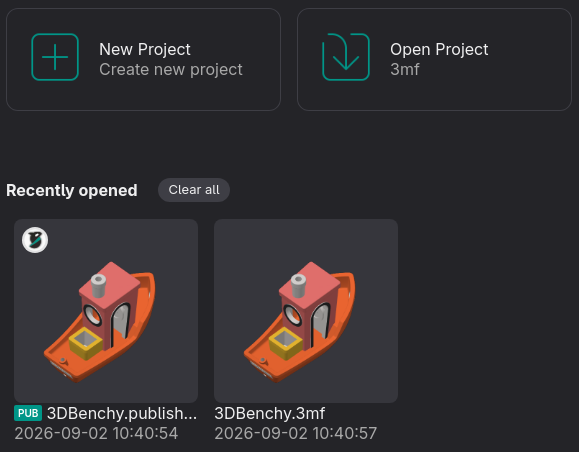
Ctrl/Cmd+Shift+E) and pick the settings to include on the Printer, Filament and Process tabs. Settings that differ from your presets are pre-selected, and there's a filter box to find the rest. For each filament slot you can require a material type and color, or use Full Publish to embed the whole filament preset you tuned.When someone opens the file, their own printer and presets stay as they are. Only the published settings are applied on top, filament slots are matched by type, and anything that can't be applied is reported. A published file opens as a new untitled project, so saving never overwrites the shared file. Published files show a PUB badge in the Home page's recent files. Wiki · Creator guide
https://github.com/user-attachments/assets/acf22dd9-ae9b-4a58-b77d-8c2d9ffbc7a5
Interface & Usability
-
Assignable keyboard shortcuts by @raistlin7447 in 15706 and 15862 You can now change every keyboard shortcut. The Keyboard Shortcuts dialog opens from the Help menu, from Preferences > Control, or with
?in the 3D view. It has a page for each context (Global, Prepare, Painting, Objects list and Preview), with edit and reset buttons on each row. Pick a row and press the new key combination. If another action already uses it, the dialog says which one and only moves it after you confirm. Menus and tooltips update right away. Only your own changes are saved, so improved defaults in later releases still reach you. A few defaults were tidied so the same action uses the same key everywhere. For example, toggling printable in the object list is nowV, as in the 3D view. Requested in #1222, #7691 and #14421. Fixes #15338. WikiShortcut list Assigning a key that's already in use -
Align, distribute and drop objects by @Swoy, @SoftFever, @kisslorand and @Eldenroot in 13373, 16479, 16498 and 16323 Select several objects or parts, right-click and open Align/Distribute to line them up by their left, right, front, back, top, bottom or center, or to space three or more of them evenly along X, Y or Z. The Move tool has the same commands as a row of icons under its position boxes. There you can align the selection within itself, or to its object (for parts) or the plate, and hovering an icon previews where things will land. While the Move tool is open,
Ctrl/Cmd+click adds objects to the selection andAlt+click adds or removes parts. Each operation is a single undo step and works on rotated, scaled and mirrored objects and on objects with several copies. The Move tool also gets a Drop button that lowers the selection onto the bed; like Drop in the right-click menu, it's greyed out when there's nothing to drop. Ported from Bambu Studio. Closes #6059.https://github.com/user-attachments/assets/44c308c3-faff-4f51-a3b7-88f264f03743
-
Plate toolbar improvements by @yw4z in 14292 The plate list in Preview is more helpful. Plates that need slicing show a Slice button, and plates being sliced show their progress as a percentage. Plates that can't be sliced (for example, with an object out of bounds) get a Review button that takes you back to Prepare. Slicing the active plate keeps your current view angle and zoom. Every plate's status now updates after process changes, and the scrollbar can be dragged again and no longer disappears when clicked.
-
New color picker with saved favorites by @Noisyfox and @yw4z in 16197 Filament colors in the sidebar, color fields in the settings, AMS custom colors and the texture import dialog now all use one new color picker that follows the app's light or dark theme. Pick from the Basic Colors, Orca Palette or RAL Classic palettes, search them by name or hex code, or set a color by hex, HSL or RGB value. Filament colors can also have an opacity, for translucent filaments, or be a gradient of up to seven colors. Click the star to save the current color to your favorites, which are kept between sessions; custom colors saved in the old picker carry over. Closes #11246.
-
Startup progress bar by @KrishManan in 14155 The splash screen now shows a progress bar while OrcaSlicer loads. On slower machines, startup no longer looks stuck.
https://github.com/user-attachments/assets/32f5164e-d645-4456-88a1-5cb39003caf8
-
Orca Cloud inside the Home tab by @peachismomo in 16402 and 16489 The OrcaCloud button on the Home tab now opens Orca Cloud right inside OrcaSlicer instead of in your web browser. It uses your OrcaSlicer sign-in, so you don't have to log in again, and signing out of OrcaSlicer signs it out too.
-
Remember last print action by @RF47 in 15774 Turn on Remember last print action (Preferences > Control > Slicing) and the print button keeps the option you last picked from its dropdown (Print, Export plate sliced file, Export G-code file and so on) as its default, even after a restart. Closes #14008 and #10020.
-
Tidier Move, Rotate and Scale panels by @yw4z in 14410 The transform panels are more compact. The coordinate-system dropdowns are shorter, which puts the input boxes closer to the toolbar and cuts mouse travel by about a quarter. The rotate panel loses a stray gap after the degree symbol. Reset icons no longer shift the layout when they appear, and each coordinate-system option has a tooltip.
Before After -
Interface polish throughout by @yw4z in 14186 and 15074 Two broad rounds of visual fixes. Many dialogs and popups that still looked out of place now use Orca's colors, button styles and spacing, including in dark mode. This covers the network lookup, AMS mapping and AMS sync dialogs, the filament sync popups (whose buttons no longer overflow in longer translations), the flow-rate calibration, purge mode and filament grouping dialogs, the Edit G-code, Compare and Unsaved Changes dialogs, the object table and all progress dialogs. The object list and Compare dialog have their proper background colors again. The Emboss and SVG tools no longer overlap their labels, and the G-code position box no longer jitters. The plate toolbar scrollbar is wider, switch buttons scale correctly at 150% on Windows, and the 3D view's settings menus can no longer be dragged around (Fixes #15272). The menu bar also loses a duplicate Sync presets item and gains a separator so Preset Bundle isn't clicked by accident.
Before After -
Unified wiki and video guide buttons, and wiki link fixes by @yw4z, @ianalexis, @thelegendtubaguy and @SoftFever in 16159, 14731, 14887, 15172, 15738, 16451 and 16515 The "Wiki Guide" and "Video Guide" text links are now compact icon buttons, placed in the same spot in every dialog. This covers the calibration dialogs, Publish 3MF, STEP import, Troubleshoot, Unsaved Changes, the Bambu device pages and the tool panels in the 3D view. Longer translations no longer push them out of place, and the Troubleshoot dialog gains a video link. The shortcut button in the 3D view's tool panels shows a keyboard icon instead of a "?", so it no longer looks like a third help button. Several help links now go to the right page: the top and bottom surface direction settings, the Troubleshoot Center, the extruder clearance Distance to rod setting, the PLA/PETG mixture warning (Fixes #15098), Fuzzy skin, Fuzzy skin generator mode, Infill shift step and the slicing pipeline plugin setting. The process Change extrusion role G-code setting gets a help link too, like its printer and filament versions.
Before After -
Clearer parent preset options when saving by @yw4z and @kisslorand in 15076, 15558 and 15520 The Save Preset dialog now shows the parent preset's name next to Detach from parent (or Unique preset if there's no parent). The option has a tooltip that explains it and uses Orca's checkbox style. For a preset without a parent, the option is available as Save without parent instead of being greyed out. Fixes #14988.
Preset with a parent Preset without a parent -
Bed texture and model included in printer bundles by @Klober81 in 15965 When you export a Printer config bundle (.orca_printer) from File > Export > Export Preset Bundle…, a new Include custom bed texture and model checkbox (on by default) packs the printer's custom bed texture and bed model into the bundle. Importing the bundle restores them for that printer, so a shared printer profile shows the same bed on another computer.
-
Orca Badge handy model by @yw4z in 14487 The Add Handy models right-click menu now includes an Orca Badge: a multi-part OrcaSlicer logo badge to test multi-color printing with and then stick on your printer.
-
Dragging continues outside the window by @yw4z and @raistlin7447 in 14999 and 15312 Drags in the 3D view no longer stop when the cursor leaves the canvas or the window. This applies to sliders, panels, the navigation cube, transform handles, camera rotate and pan, moving objects, variable layer height and the selection rectangle. The navigation cube also no longer takes over a drag that started somewhere else.
-
Menu icons on macOS and Linux by @yw4z in 15620 The plate menu and the right-click menu on the empty 3D view now show icons on macOS and Linux, as they already did on Windows.
-
Restyled height range modifier panel by @yw4z in 15703 The height range section in the sidebar now matches the object list. It uses the same wording and input boxes, puts the units inside the boxes, and leaves more space between the add and remove buttons to prevent accidental clicks.
-
OpenGL profile in the Troubleshoot dialog by @Noisyfox in 14464 The Troubleshoot dialog now shows whether OpenGL runs in Core, Compatibility or ES mode, which helps when diagnosing graphics driver problems.
-
Placeholder image for printers without a picture by @yw4z in 16235 In the printer selection dialog, printers without a cover picture now show a neutral placeholder instead of a broken image.
-
Consistent scrolling speed by @kisslorand in 15902 Mouse-wheel scrolling now moves at the same speed throughout the app and follows display scaling. The unusually slow scrolling in Preferences and several other dialogs is gone. Fixes #15874.
-
"OK" instead of "Yes" on notices by @raistlin7447 in 16332 Notices that only have one button, such as the warning for a file with no geometry and the preset creation and export messages, now show "OK" instead of "Yes".
-
Text polish by @ndrwrbgs, @afmenez and @lamweilun in 15454, 15468, 14848 and 15814 Fixes spelling, punctuation, spacing and capitalization in interface text across the app, adds context to help translators, and updates the translations to match.
G-code & Placeholders
-
regex_replace()for placeholder templates by @raistlin7447 in 14650 The filename format, custom G-code and profile compatibility conditions gain aregex_replace(text, /pattern/, replacement)function, so you can reshape any placeholder value. For example,{regex_replace(first_object_name, /\.stl$/, "")}drops the.stlextension from the object name in your file name, and the replacement can use capture groups ($1,$2, …). Nothing changes unless a template uses it. Closes #14645. Wiki -
Print time placeholders for days, hours, minutes and seconds by @matiasyocca in 13063 New
{print_time_day},{print_time_hour},{print_time_minute}and{print_time_sec}placeholders give the estimated print time split into its parts, so custom G-code can write it in formats like the11d 22h 25m 19sheader line Flashforge printers read; the Flashforge Adventurer 5M and 5M Pro profiles now use it to show the estimated time. Note:{print_time_sec}is now the seconds part only — the total time in seconds is{print_time_total_sec}, so update any custom G-code that used{print_time_sec}for the total (the bundled Creality Ender-3 V3 SE profiles already are). -
Skip G-code config block by @Felixoid and @manzari in 12455 and 13507 New Skip G-code config block option (Printer Settings › Basic information › Advanced) leaves the block of slicer settings out of the G-code file, for printers whose firmware chokes on those comment lines. This fixes Anycubic Kobra 3 printers getting stuck on "parsing" and Anycubic LAN uploads failing with an HTTP 500 error, both since 2.3.2; the
filament_colour_typeline that triggered the Kobra 3 crash is also left out of the block for everyone. A G-code file written without the block cannot restore its settings when opened back in OrcaSlicer. Fixes #12033, #12444 and #12952. Wiki -
More accurate corner speeds in time estimates and the preview by @ianalexis in 15304 and 15308 On Klipper printers, and on Marlin 2 printers with Maximum Junction Deviation above zero, the print time estimate and the Actual Speed / Actual Flow preview now plan corners the way that firmware does (junction deviation, taken from the square corner velocity on Klipper) instead of with the classic jerk model. That removes the slow lobes around small round walls and the speed differences between identical layers, and brings the estimate closer to the real print time. The G-code itself is unchanged, and other firmware keeps the existing model.
Before After -
Bed leveling counted once in the time estimate by @thelegendtubaguy in 15274 The time estimate allows a fixed 4 min 20 s for bed leveling (
G29), but added it again for everyG29line in the start G-code, including ones that don't move the printer. The stock Prusa MK4S start G-code, for example, showed a prepare time of about 26 minutes. It is now counted once per print. Fixes #15088. -
Printers that read the end of the file show the print time again by @fer-marino in 15897 The
; estimated printing timecomment is now written after the config block instead of before it, so firmware that only scans the last few hundred lines of a file, such as on the Elegoo Neptune 4 Pro, finds it again instead of showing "-" or a remaining time that counts below zero. Fixes #15805. -
First-layer temperatures in the G-code follow the filaments you print with by @xNoVoSx in 16422 The
; first_layer_bed_temperatureand; first_layer_temperaturelines written into the G-code always took filament 1's values, even on a plate that doesn't use filament 1. Some firmware reads them: Anycubic Kobra S1 and Kobra 3 printers with an ACE Pro heat the bed from that line for flow calibration and power-loss recovery, so a plate printed only in ASA from slot 4 got filament 1's 75 °C bed. The bed line now follows Bed temperature type (first filament or highest of the filaments used), like the bed temperature set before the start G-code, and the nozzle line uses the first filament that prints. -
{curr_bed_type}in the G-code editor by @tejas-devkar in 15987 The Edit Custom G-code dialog now listscurr_bed_type, the current plate type, under Slicing State, so it can be found and inserted like other placeholders. -
initial_no_support_extruderin the filename format by @peachismomo in 15950initial_no_support_extrudernow also works in the output filename format, so a template such as{filament_type[initial_no_support_extruder]}names the file after the first non-support filament instead of failing with a parsing error. -
Reserved-keyword check for custom G-code works everywhere by @raistlin7447 in 14908 The warning about reserved keywords in custom G-code now appears on non-Bambu printers straight after launch, not only after a first slice, and also when you edit through the Edit Custom G-code dialog.
-
Corrected
layer_numdescription by @tejas-devkar in 15984 Thelayer_numtooltip now says it counts from 0, except in extrusion role change G-code where it counts from 1. Fixes #10340. -
Fix preview speeds and time estimates with firmware retraction by @kisslorand in 15066 With firmware retraction (
G10/G11), the move after a retraction could be shown and timed at the retraction speed, making infill look very slow in the preview and badly inflating the print time estimate. Fixes #15056. -
Opened G-code files show manual filament changes by @hikaru0602 in 15379 With Manual Filament Change on, a G-code file opened or dragged into OrcaSlicer ignored its manual filament changes, so the preview showed the wrong filament colors after each change. It now matches the preview you get right after slicing.
-
Smaller cancel-object outlines for Klipper by @pbannykh in 15291 The object outlines written for Klipper's exclude-object feature are now simplified as intended — on a plate of 54 parts the G-code header shrank from 235 KB to 29 KB — so plates with many objects start faster and are less likely to end in an
MCU shutdown: Timer too closeerror at print start. -
Timelapse G-code runs once per layer on i3 printers by @kisslorand in 15734 On non-Bambu printers with an I3 printer structure, the Timelapse G-code ran twice on every layer, so the head parked and a frame was taken twice per layer. Fixes #15730.
-
Acceleration and jerk restored after custom G-code by @kisslorand in 14613 When custom G-code changed acceleration or jerk (for example with
M204orSET_VELOCITY_LIMIT), OrcaSlicer could skip restoring its own value afterwards, leaving the printer at the custom G-code's setting; it now restores it, and the preview shows the change. Fixes #14490. -
Fan timing no longer adds moves to your filament change G-code by @fer-marino in 15904 With Fan speed-up time or Fan kick-start time set, OrcaSlicer could split a move inside the Change filament G-code to time a fan change, inserting a travel the template never asked for. On a Bambu Lab P1S with an AMS this drove the toolhead into the motor housing during filament changes. The change filament G-code is now left exactly as written. Fixes #15789.
-
Fix crash with placeholders in File header G-code by @kisslorand in 15915 Placeholders such as
bed_temperature_initial_layer_singlein File header G-code could crash slicing; they now resolve normally, and invalid ones are reported as an error like in the other custom G-code fields.
Bambu Lab Printers
-
AMS filament drying by @Noisyfox in 14637 You can now start, watch and stop filament drying on an AMS 2 Pro or AMS HT from OrcaSlicer. Click the AMS humidity indicator on the Device tab to open AMS Dryness Control, pick a filament to fill in its drying temperature and time, and start. The dialog then shows the current humidity, temperature and progress. Ported from Bambu Studio. Part of #12091.
Drying settings Drying guide -
Gradient and multicolor filaments in the AMS by @Noisyfox in 16252 Gradient and multicolor filaments now show all their colors on the Device tab's external spool instead of a single color, and draw cleanly in the AMS color picker. In the AMS filament settings, Other Color lists the colors the selected filament comes in, including its gradient and multicolor versions. On printers whose firmware supports it, a gradient or multicolor choice is sent to the printer, and the slot updates right away.
Before After -
Smoother camera live view by @Noisyfox in 15234 The live camera view for newer Bambu Lab printers uses the same FFmpeg-based player as Bambu Studio, so the stream is noticeably smoother.
-
Bambu network plug-in 02.08 series by @SoftFever, @HanifKoh and @peachismomo in 14837, 16202, 16203, 14966 and 16438 OrcaSlicer now works with Bambu's 02.08 network plug-in series and defaults to 02.08.04. 02.08.04 also loads on macOS 27, where 02.08.01 cannot, so if you were on 02.08.01 you are moved to 02.08.04 automatically. Plug-in updates install right away and take effect without restarting OrcaSlicer. The version list shows the newest builds first, and the older 02.03.00 plug-in is still there if you need it. The Device tab also catches up with current Bambu firmware: it adds the print options newer firmware offers, a choice of where timelapses are stored (with a free-space check), a button to stop a filament change, and error dialogs that show a snapshot of the failed print. Before sending a job, OrcaSlicer now warns you when a filament will switch extruders mid-print.
-
Clearer network plug-in settings and dialogs by @yw4z and @Wegerich in 14720 and 14265 The plug-in options in Preferences are now labelled Bambu network plug-in, which makes clear they have nothing to do with Orca Cloud. The plug-in update and error dialogs match the rest of the app, with a "don't ask again" checkbox, and you can show, hide, select and copy the error details.
-
Your project's filaments first in the AMS filament list by @ansonl in 11293 and 11306 When you set an AMS slot's material, the filaments you're slicing with appear at the top of the dropdown, even custom ones based on another profile. Generic filaments are listed before the long tail of less common Bambu filaments.
-
Favorite filaments in the AMS filament list by @KrishManan in 13946 When you set an AMS slot's filament, click the star next to a filament in the dropdown to make it a favorite. Favorites get their own Favorite filaments section at the top of the list, above All filaments, and are remembered after a restart.
https://github.com/user-attachments/assets/41e881be-d4de-4a7d-8f99-4297567adef2
-
Timelapse and SD card files load again by @nvs1-cinci in 14688 Browsing timelapses and files on a Bambu Lab printer's storage from the Device tab works again.
-
Stop the repeating LAN/Developer mode prompt by @raistlin7447 in 14774 With a Bambu Lab printer that isn't in LAN and Developer mode, the "Network Plug-in Restriction" notice now shows once per connection instead of popping up again every few seconds.
-
Fix the Virtual Camera Tools installation loop by @raistlin7447 in 15540 Installing the Virtual Camera Tools now downloads the camera tools instead of the network plug-in, so it no longer keeps asking to install them again. Fixes #6466.
-
Open Bambu Studio projects without extra pop-ups by @HanifKoh in 16153 Opening a Bambu Studio project no longer shows the "Some settings may differ" (or "You should update your software") message and the list of substituted settings every time. These details go to the log instead.
Performance
-
Much faster startup by @ExPikaPaka, @raistlin7447 and @peachismomo in 14217, 15943, 15811 and 15627 OrcaSlicer opens in about half the time. The built-in printer, filament and process profiles now ship pre-built in a cache that loads in one pass, instead of parsing tens of thousands of profile files on every launch, and the remaining preset work is spread across all CPU cores. Tabs you rarely need right away (Device, Calibration, Project, Multi-device) and the preset comparison dialog are built in the background after the window appears, or the moment you first open them. In the authors' Windows tests the Home page was ready in 3.4 s instead of 7.5 s, loading presets at launch fell from 810 ms to 256 ms, and after a profile update the printer and filament selection dialogs open in about 2.3 s instead of 6.2 s. The setup wizard opens faster too. Fixes #14317.
Startup with Home as the start page (before on the left, after on the right):
https://github.com/user-attachments/assets/188528ba-6261-4052-b993-04fcb6de30f0
Opening the printer selection dialog after a profile update (before on the left, after on the right):
https://github.com/user-attachments/assets/7533fe64-7a6f-4089-8493-595dff8ccacc
-
Faster printer switching by @Noisyfox in 14437 Switching to another printer profile is quicker, most noticeably on Windows.
2.4 2.5 -
Faster G-code export by @raistlin7447 in 16026, 16028, 16050, 16031, 16108 and 16167 Generating and writing the G-code after slicing is much faster. This is also the step that runs on its own when you only change something like the start G-code and export again. Six separate speedups cover settings lookups, overhang detection, building the G-code text and the final write. In the author's benchmarks the first four together cut export time by 37.7%, and the last two save up to another 8% and 6%. The G-code itself is unchanged.
-
Faster slicing by @ianalexis and @raistlin7447 in 15969, 16113 and 16183 All polygon clipping now runs on the Clipper2 library, tuned for OrcaSlicer. On the bundled sample models this cuts slicing time by about 35% (40% in an independent run) and peak memory by 13–32%, and a 3DBenchy slices up to 3.7× faster. Walls, infill and surfaces come out essentially the same; organic tree supports may differ slightly. Slicing also skips the curled-wall estimate unless Slow down for curled perimeters is on, since that is the only option that uses it, saving up to 9% of a full run. A few other slicing steps stop making needless copies of the print settings, saving up to another 5%.
-
Lower memory use when slicing and previewing by @ExPikaPaka and @SoftFever in 16065, 16066 and 16440 Re-slicing no longer leaks memory with tree supports, or when an object becomes identical to another one and starts reusing its slices. Tree supports free their working data as soon as they are generated, and a slice result or preview that gets thrown away releases its memory right away instead of at the next slice. Generating the G-code no longer briefly keeps a second copy of every move, which took about 150 MB on a large, finely sliced model in the author's test. Loading a 2-million-move G-code into the preview peaks about 75 MB lower and prepares its data in half the time. Elephant foot compensation also uses each object's own Slice gap closing radius, instead of the value of the first object sliced in the session.
-
Less GPU load when moving the mouse over the 3D view by @raistlin7447 in 15674 and 15664 Moving the cursor over the viewport used to redraw the entire 3D scene on every mouse movement, just to update toolbars, tooltips and hover highlights. On integrated graphics that could keep the GPU fully busy. OrcaSlicer now reuses the scene it already drew while only those overlays change, skips frames that would look identical to the one on screen, and no longer runs a per-frame mouse raycast it rarely needed. Both behaviors are on by default and can be switched off in Preferences > Graphics > FPS (Reuse the 3D scene while idle, Skip unchanged frames) if the viewport ever looks stale. Fixes #12633.
GPU load while the cursor moves over the Preview, before:
https://github.com/user-attachments/assets/18ab0aea-1e07-431c-83fe-f08eb3cb3ae3
After:
https://github.com/user-attachments/assets/fe50b19c-e062-4ff7-80e8-de20baa7c68e
-
Smoother G-code preview by @HanifKoh and @ianalexis in 15833, 15883, 15884 and 16389 The sliced preview draws faster, especially on integrated graphics. Toolpaths are drawn top-down when you look down on the print, so hidden layers are skipped; on an AMD Radeon 610M that took whole frames of a tall print from 41–45 ms to 16–20 ms. Toolpath segments are also drawn more efficiently, with up to 61% less draw time on a large plate. Dragging the layer slider no longer recolors every point of the print at each step and runs at 108 FPS instead of 27–47 in the benchmark scene. Realistic view shadows are cheaper to draw. A new Static option under Preferences > Graphics > Shadows (Off / Static / Orbit) keeps the light fixed, so shadows are only recomputed when the scene changes. To check your own system, there is a Show render timings overlay in Preferences > Graphics and a Benchmark 3D Scene entry in the Help menu.
-
Smaller install by @yw4z in 16111 Bundled images and data files are compressed, making OrcaSlicer about 74 MB smaller on disk with no visible change.
-
Windows builds compiled with clang-cl by @raistlin7447 in 15428 Official Windows builds (x64 and ARM64) are now compiled with clang-cl instead of MSVC, and slice faster as a result. In the author's tests, slicing and exporting G-code took 11–12% less time on small and medium projects and 29% less on a large one.
-
OpenCASCADE 8.0.1: faster STEP import by @raistlin7447 in 16089 The CAD library behind STEP import and the Design tab is updated from 7.6 to 8.0.1. STEP files import 10–31% faster (reading the file itself is 57–72% faster), and cuts, fillets and meshing in the Design tab take 4–13% less time. Fixes #7578.
-
CGAL 6.2.1: faster mesh booleans by @ianalexis in 16258 The geometry library behind mesh boolean operations is updated, making union, subtraction and intersection about 15–30% faster.
Consistent Slicing Results
Slicing the same model with the same settings now gives the same G-code every time. You can compare outputs, cache G-code and trust that a re-slice changed only what you changed.
-
Same G-code on every slice by @raistlin7447, @HanifKoh and @igiannakas in 15311, 15563, 15565, 15899 and 16115 Several slicing steps depended on which CPU thread finished first, so the same project could give slightly different G-code from one slice to the next. Lightning infill came out different every time. Non-organic tree supports could vary from run to run, and organic tree supports changed with the number of CPU cores, so a laptop and a desktop sliced the same project differently. Overhang speeds with Slow down for curled perimeters could change between runs. Painted multi-material models shifted wall points by a micron and swapped island order. Except on Klipper, Marlin and RepRapFirmware printers with Exclude objects on, the
; printing objectcomments carried an arbitrary id and labelled every copy as copy 0; objects and copies are now numbered the same way every time, each copy with its own number. All of these are now stable. Lightning infill and tree supports may come out slightly different from earlier versions, and then stay the same on every slice. -
Same G-code on every export by @raistlin7447 in 16025 Exporting an already-sliced plate a second time, for example after changing only the start G-code, reversed some infill and support paths, so the second file differed from the first. Re-exports now match, and every copy of a multi-copy object starts from the same sliced toolpaths.
Command Line
The command line gets new options for print farms, slicing services and scripted pipelines, plus a long run of fixes so it slices a project the same way the GUI does. Wiki
-
--strictand warnings inresult.jsonby @packerlschupfer in 14601 With--strict, a slicing warning that would otherwise only be logged, such as "support needed but disabled", fails the run before any G-code is written. A CI job or print-farm pipeline then can't ship a slice nobody checked.result.jsongains awarningslist, filled with or without--strict, and astrict_modefield.result.jsonis written on Linux only; the non-zero exit code works on every platform. -
Lay parts on a chosen face with
--ground-*, and--inspect-meshby @packerlschupfer in 15073 These are command-line versions of the Lay on Face tool.--ground-largest-faceputs each object on its largest flat face,--ground-face-normal X,Y,Zon the face pointing closest to a direction, and--ground-face-point X,Y,Zon the face that contains a point.--inspect-meshprints a JSON summary of each object, with its bounding boxes and the candidate faces' normal, area and center, so a script can choose one. The--ground-*options run in command-line order with the other transforms. -
Inspect painted data with
--inspect-paintby @packerlschupfer in 14608 Prints a JSON summary of what is painted on each object (support enforcers and blockers, seams, multi-material colors and fuzzy skin), with facet counts, areas and bounding boxes, then exits. Useful for checking painted 3MF files in CI without opening the GUI. -
Print the effective settings with
--export-settings -by @packerlschupfer in 15698 Passing-to--export-settingswrites the merged settings JSON to standard output, so a script can read it without a temporary file. It can't be combined with slicing, exporting, or other actions such as--infothat print their own output. -
Export G-code statistics as JSON by @ianalexis in 16487
--export-statisticswrites each sliced plate's statistics asplate_N.statistics.jsonnext to its G-code, and inside the 3MF from--export-3mf, for scripts and spreadsheets that compare prints or settings. The file holds the estimates the preview shows: print time, travel, layer count, the time and filament of each feature, and each filament's length, volume, weight and cost, split into model, support, prime tower and flush, plus the same per layer and per object copy. In the GUI, turn on Export statistics with G-code (Preferences > Developer) to get a<name>.statistics.jsonwith every G-code export and the statistics inside exported sliced 3MF files. The wiki's infill pattern ratings are now computed from these files. Wiki -
--align-to-y-axisfor arranging by @HanifKoh in 15836 Turns "Align to Y axis" on or off when the CLI arranges objects. It was always on for i3-style printers such as the Bambu Lab A1, so arranging with--allow-rotations=0turned every object 90°. Without the flag, the default is unchanged. Fixes #15752. Wiki -
--allow-rotationsis now off by default by @packerlschupfer in 15033 and 16339 Behavior change: arranging on the command line no longer rotates objects unless you pass--allow-rotations(or--allow-rotations=1), matching the option's name and the GUI's arrange default. This includes the arrange the CLI runs on its own for STL, OBJ and STEP input. Before, rotation was on by default and silently turned objects, undoing orientations set with--rotate-*or--ground-*. An object that fits the bed only diagonally, such as a long bar, can now fail to be placed: pass--allow-rotations, or--arrange 0if the input is already placed. When a plate ends up with nothing to slice (exit code -50), the error now says so plainly instead of telling you to check a 3MF before uploading, and if arrange ran without rotations it suggests--allow-rotations, on the terminal as well as inresult.json. -
Clear per-object slicing errors by @HanifKoh in 15834 When slicing fails because of one object, for example an empty first layer, the CLI now prints the real message with the object's name to the terminal, the log and
result.json, instead of just "Errors". Fixes #15786. -
Prime tower kept clear when arranging a project by @HanifKoh in 15837
--arrange 1on a 3MF project now reserves room for the prime tower on every plate that needs one. Before, objects could be placed across the tower, and the slice then failed with a path-conflict error. Fixes #15753. -
Mixed filaments on the command line by @HanifKoh in 15636 and 16247 Projects that use mixed filaments (color mixing) follow the same rules on the CLI as in the GUI. The prime tower is kept, mixed slots are left out of the flush-volume recalculation, and a mixed slot without a filament of its own, or a mix of different filament types, is refused with a clear error instead of quietly printing in one color. Exported projects also keep the mixed-color data for every filament.
-
Plate thumbnails from the command line by @chrisbennight and @HanifKoh in 15745, 16010 and 15866 The CLI asked for an OpenGL version that doesn't exist, so it skipped thumbnail rendering and G-code and 3MF files exported from the command line had no plate thumbnails. Thumbnails now render whenever a display is available.
-
Command-line crash and correctness fixes by @packerlschupfer, @HanifKoh, @raistlin7447, @leolobato and @fa1k3 in 14580, 14415, 15477, 15478, 15479, 15978, 16004, 13429, 14803 and 16312 Fixes a long list of CLI crashes. They happened on 3MF files without preset or project settings (including some bundled sample models), when
--rotate-yand similar options tipped a part below the bed, with--sliceplus--export-3mfon a model sliced from scratch, with multicolor 3MFs loaded through--load-filaments, with an--outputdiror--datadirwhose parent folder didn't exist yet, and with malformed projects or assemble lists.--slice 2and higher now work on printers with a round bed. Per-feature filament overrides on objects without supports are no longer dropped, and CLI-sliced 3MFs record the correct first-layer time. Filament shrinkage compensation (Shrinkage (XY) and Shrinkage (Z)) is now applied; command-line slices used to come out at the uncompensated size. An invalid option value now stops with an error that names the option, instead of being silently ignored. Boolean options accepttrue/false,yes/noandon/off. Opening a file by a relative path (orca-slicer ./model.3mf) now works. Fixes #13328, #14181 and #15363. -
CLI settings match the GUI by @mazzanfar, @packerlschupfer and @HanifKoh in 15438, 15449, 15595, 15642, 15953, 16038, 16157, 15693 and 16047
--load-settingsand--load-filamentsnow resolve the presets your files inherit from. A user preset that lists only its changes no longer falls back to default values without warning, and one whose parent can't be found fails with a config error. Process presets that declare their compatible printers through a condition, which includes 173 bundled Prusa presets, are no longer rejected as incompatible. When the CLI slices a project, settings you didn't change follow the current system presets, as they do in the GUI. Exported 3MFs record which settings were changed, whether by your presets or by command-line options, so reopening them in the GUI keeps your values, and they carry the correct per-filament drying values. Each vendor's profiles are read only once per run, so preset loading stays fast. Fixes #14718.
Security & Robustness
OrcaSlicer is sturdier with files and data from outside sources. Damaged files fail cleanly instead of crashing, and downloads and archives stay inside the folders they belong in.
-
Malformed model and project files fail cleanly by @HanifKoh, @MAVProxyUser, @ExPikaPaka, @ocidburn and @Eldenroot in 15959, 15958, 15948, 15594, 16059, 16060, 16014, 15451 and 16341 Damaged or malformed files no longer crash or hang OrcaSlicer. They fail to load with an error or, where possible, load with only the damaged part dropped. This covers 3MF projects with invalid plate numbers, corrupt painting data, oversized archive entries or components that refer to themselves. It also covers OBJ files with out-of-range texture coordinates, Draco (DRC) files with missing data, ASCII STL files with an extremely long name, AMF files with incomplete metadata, and truncated PNG images on Windows. The support, seam and fuzzy skin painting tools no longer crash on painting data with values they don't use; those triangles are treated as unpainted. Opening a 3MF from Creality Print 5.1.7 as a project no longer crashes. Fixes #15337.
-
Safer downloads, archives and imported bundles by @HanifKoh in 15955, 15957, 15608 and 15956 Files downloaded through
orcaslicer://and similar links, or from the MakerWorld page, always land in the download folder and never replace an existing file; a name clash getsname(1).3mfinstead. Profile updates, resource packs, the network plugin installer and File > Import > Import Configs only extract inside their own folders, and reject an archive that tries to write anywhere else. The Project page shows the names, authors and descriptions stored in a 3MF as plain text, keeping normal formatting in descriptions, and only opens attachments stored inside the project. -
Built-in pages load from any install folder by @HanifKoh in 15961 The Home tab, Project tab and setup wizard stayed blank, or showed a folder listing, when OrcaSlicer was installed in a path containing
#,%or?, such as a portable copy underD:\#OneDrive\. Fixes #12916. -
Sturdier network and cloud connections by @HanifKoh, @AveryanAlex and @hberntsen in 15947, 15391, 15979 and 16128 An unexpected reply from a Duet, MKS, UltiMaker or Flashforge printer, such as an HTML page from a proxy or captive portal, no longer closes OrcaSlicer. One failed upload no longer stalls the rest of the upload queue. Orca Cloud requests always go over HTTPS, which fixes profile sync failing with 401 errors and logging you out on systems with a recent libcurl. While logged out, OrcaSlicer no longer accesses the system keychain every two seconds. That polling could freeze the UI when the keychain didn't respond, and let a second, logged-out window delete your saved login. Some Linux builds that use the system certificate store no longer crash at startup when
SSL_CERT_FILEisn't set. -
Safe to run several OrcaSlicer windows at once by @HanifKoh in 15861 All open OrcaSlicer instances share one settings file and one user preset folder. Saves from different instances, or from cloud sync while you work, are now coordinated and written in one step. A settings or preset file can no longer end up half-written, and a preset no longer disappears for the session because another instance was saving it at that moment. When two instances save the same file, the later save still wins.
-
Fix files that imported incorrectly by @thelegendtubaguy, @raistlin7447 and @anjis-elegoo in 16130, 15406 and 14633 Some small binary STL files, such as a simple 10 mm cube, were mistaken for text files and loaded as empty objects. STEP parts named with accented, Cyrillic or Greek characters were imported as
1,2,3. Chinese file names inside imported ZIP archives came out garbled. Fixes #15993.Before After
📐 Calibration Improvements
-
Adaptive Pressure Advance: input checks and clearer labels by @ianalexis and @Wegerich in 14198, 14271 and 14411 The Adaptive pressure advance measurements field is now checked when you edit it and again before slicing: each line must be three numbers — PA, volumetric flow and acceleration — and OrcaSlicer warns about letters or stray characters, missing values, a PA of 2 or more, or values that look like they are in the wrong column. The overhang option is renamed Enable adaptive pressure advance within features (beta), since it changes PA whenever the flow changes inside a feature (corners as well as overhangs), and its tooltip now warns that it does not suit Prusa printers, which pause to process each PA change and leave marks on the print. Fixes #14264. Wiki
-
Nozzle-aware VFA test, plus PA and temperature tower tweaks by @ianalexis in 14759 The VFA test tower now scales to your nozzle — the footprint follows the nozzle diameter and the layer height defaults to half of it — so it prints properly with large nozzles instead of having its walls clipped; with a 0.4 mm nozzle you get the same tower as before. A new Auto-adjust to max volumetric speed option (on by default) lowers the layer height when the end speed would exceed the filament's max volumetric speed, and proposes a lower end speed if that is not enough; with it off you just get a warning. The VFA and Temperature tower dialogs also gain an Auto-scale for nozzle checkbox for keeping the original 0.4 mm model size, and the PA Tower now spreads its PA range in evenly sized steps over the tower height. Closes #14661. Wiki
-
PA Line test: smaller print area and a correct preview by @Wegerich in 14440 The PA Line calibration now reports a print area only as wide as the test pattern instead of the whole bed, so adaptive bed meshing probes far less before a short test. In the preview, the lines, box and numbers show as proper line types (Outer wall, Bottom surface, Top surface) instead of all being Custom, the layer height is read correctly even when the start G-code has a purge line, and the PA Pattern test's line types are corrected too. The PA Line test also no longer writes exclude-object definitions, which caused an error on Prusa printers. Fixes #12488.
Before After -
Calibrations use your printer's full speed by @ianalexis in 13658 The input shaping and cornering tests used fixed speeds and accelerations (200 mm/s with 20,000 or 2,000 mm/s²) that could hold back fast printers; they now use the printer's own maximum speed and acceleration from its Motion ability settings. The cornering and max volumetric speed tests also keep the filament's max volumetric speed when it is above 200 mm³/s instead of lowering it.
-
Retraction test turns off scarf seams by @Wegerich in 15543 The retraction calibration now disables scarf joint seams, so a scarf seam setting in your process profile no longer moves the seams to the outside of the towers. Fixes #15521.
-
Fix PA Pattern test over-retracting with absolute extrusion by @raistlin7447 in 14473 With Use relative E distances turned off, the PA Pattern test left the extruder position far advanced, so the next object retracted the whole accumulated length in one move and could clog the hotend. Fixes #10656.
-
Fix crash when cancelling a calibration's model loading by @raistlin7447 in 14546 Cancelling the model-load dialog that briefly appears when starting a calibration (PA tower, temperature, max volumetric speed, retraction, VFA, input shaping or cornering) crashed OrcaSlicer; the calibration now just ends. Fixes #11509.
🛠️ Bug Fixes
Walls, Infill & Surfaces
-
Keep inner walls on narrow Arachne walls with "Only one wall on top surfaces" by @igiannakas in 16174 With Only one wall on top surfaces and the Arachne wall generator, a layer with a small top surface could lose the inner wall of narrow walls elsewhere on the same island, even though those walls carried on upward. That left fewer, wider walls on just that layer. OrcaSlicer now spots when the single-wall pass has taken over a narrow wall and keeps the full set of walls there. Narrow top bands below the One wall threshold also keep their full walls, as the setting's tooltip describes.
Before After -
Keep the Inner/Outer/Inner order on narrow Arachne walls by @igiannakas in 15924 With the Inner/Outer/Inner walls printing order and Arachne, narrow walls that Arachne filled with a wider centre line could print the outer wall first on one side. On a thin ring with five walls, for example, the outside edge printed outer-then-inner while the hole printed correctly. Walls that Arachne widens are now recognized as neighbours, so the inner-outer-inner order holds on both sides. Walls at normal width print exactly as before.
-
Keep thin-walled holes printing in one direction with Classic walls by @ianalexis in 16051 With the Classic wall generator, a hole's outer wall could switch print direction from one layer to the next. What triggered it was unrelated geometry elsewhere on the same island, such as a second hole or a scrap of inner wall. A hole now counts as thin-walled only when its outer wall touches the next outer wall all the way around. Holes with gap fill or an inner wall beside them print opposite to the contour on every layer. Fixes #16018.
-
Remove leftover walls from an earlier slice by @kisslorand in 15662 When regions of a layer were combined for wall generation, one region could keep walls from an earlier slice that used different settings. Those stray inner walls then cut through the infill. All combined regions are now cleared before their walls are rebuilt. Fixes #15649.
Before After -
Keep Adaptive Cubic and Support Cubic density changes inside their modifier by @ianalexis in 16295 A modifier, or a part with its own settings, that changed the sparse infill density of Adaptive Cubic or Support Cubic used to change the infill of the whole object. In an assembly it changed every part. With a 10% object and a 50% modifier, the whole object ended up somewhere in between. Each region now builds its infill from its own density, line width and multiline count, so the modifier changes only the infill inside it.
Before After -
Make layer outlines consistent on faceted models by @valerii-bokhan in 15316 and 15366 Flat faces made of many triangles could give slightly different outlines on each layer. As a result, walls changed from layer to layer on shapes that should slice the same everywhere, such as a plain cylinder. The effect was strongest with Arachne, but Classic walls showed it too. Slicing now ignores the extra points where triangles on the same flat face meet, so outlines stay stable while real shallow details are kept.
Before After -
Fuzzy skin fixes by @Noisyfox, @ianalexis and @HanifKoh in 14309, 15378 and 15566 Thin walls now get fuzzy skin with the Classic wall generator (Fixes #14300). With Arachne, fuzzy skin on thin walls no longer adds stray extrusion lines across the inside of the model (Fixes #15233). The Extrusion and Combined fuzzy skin generator modes no longer make slicing fail with "Flow::spacing() produced negative spacing". That failure hit more than half of all slices at the default thickness and every slice at a thicker Fuzzy skin thickness (Fixes #14071).
-
Remove speed dips from scarf seams by @HanifKoh in 15832 With a Scarf joint seam, each scarf ramp and the seam point itself left tiny sub-millimetre segments. Marlin-style motion planners slow sharply on segments like these. In the reported case, 80 mm/s walls dropped to about 23–33 mm/s at the end of every ramp and nearly stopped at the seam on some layers, which shows up in the Actual Speed and Actual Flow preview. The scarf no longer creates these segments, so walls print at an even speed. G-code without scarf seams is unchanged. Fixes #15821.
-
Fix infill rotation templates on prints with a raft by @raistlin7447 in 14894 Slicing a print that combined a raft with a Solid infill rotation template or Sparse infill rotation template crashed. Raft prints now slice, and the template rotates through its angles as it does without a raft. Before, some of those layers also lost their solid infill. Prints without a raft are unchanged.
-
Ironing fixes by @kisslorand and @HanifKoh in 15082 and 15949 A filament's Ironing speed override is now used. Before, the process ironing speed always applied (Fixes #15075). An Ironing line spacing of 0 can come from a project file, the command line or the filament override. It no longer hangs slicing with concentric ironing or silently drops ironing with rectilinear, because the spacing is now held at a minimum of 0.05 mm.
-
Z contouring works with several copies of an object by @Art-Porto in 16461 With Z contouring enabled, slicing failed with "ContourZ: unexpected number of instances" as soon as an object had more than one copy, so batch prints meant single copies, separate objects or no Z contouring. Copies now slice with Z contouring, including copies turned to a different angle on the bed. Fixes #14360.
Before After -
Fix a memory leak from gap fill on solid surfaces by @thelegendtubaguy in 16137 Every slice leaked memory for each solid surface with gap fill, so long sessions used more and more memory.
Bridges & Overhangs
-
Fix partially bridged counterbore holes by @kisslorand and @ianalexis in 15100 and 15387 With Bridge counterbore holes set to Partially bridged, an overhang wall could go missing when no partial bridge ended up being generated (Fixes #15071). Partial bridges were also missing on some holes, because a cleanup step removed them as artifacts. Both cases now print as intended.
Before After -
Anchor internal bridges over Hilbert Curve and Octagram Spiral infill by @valerii-bokhan in 15206 Over Hilbert Curve or Octagram Spiral sparse infill, internal bridges could end in mid-air, have holes in random places, or run at random angles. The curved infill paths confused the search for anchors. Internal bridges now anchor to the infill lines that actually print underneath. Straight-line infill patterns are unaffected.
Before After -
Stop internal bridges from stacking on top of each other by @kisslorand in 16177 Holes inside an internal bridge area could be lost, so OrcaSlicer bridged them again on the next layer. Internal bridges then stacked up on consecutive layers, and the extra material under the top surface made it look wavy or over-extruded. The holes are now kept, so internal bridges are not repeated.
Before After -
Ignore unprintable slivers when detecting overhangs by @ianalexis in 15694 Overhang detection counted slivers in the layer below that are too thin for either wall generator to print. So a wall hanging over nothing was treated as supported and printed as an ordinary wall, without overhang speed, fan or flow. Those slivers are now ignored. This also improves the overhang speed gradient, Extra perimeters on overhangs, counterbore bridging and bridge detection, which all use the same check.
Before After -
Slow down for overhangs between sharp vertical walls by @RJAudas in 14735 A long outer-wall overhang between two sharp vertical walls could look supported because both of its ends were. The configured overhang slowdown then skipped the unsupported middle. Long segments are now also checked in the middle, so these overhangs slow down as expected with both wall generators. Fixes #14716.
Before After -
Limit overhang slowdown and fan to the overhang itself by @igiannakas in 15945 On some prints, the whole outer wall leading up to an overhang printed at overhang speed with the overhang fan on. In the reported file, a 64 mm wall printed at 15 mm/s although only its short end overhung. Walls are now split wherever the speed or fan really changes, so slowdown and extra cooling apply only to the part that overhangs. Fixes #15187.
Before After -
Fix overhang fan control by @kisslorand in 14788 and 15158 Overhangs and external bridges fan speed only worked when Slow down for overhangs was also on. It now applies either way, so you can cool overhangs harder without slowing them down. After a filament change, the fan no longer keeps running at the previous filament's overhang fan speed. Fan changes now come out the same whether slowdown is on or off, are placed at the correct end of a move, and duplicate fan commands are gone. The preview also shows the actual fan speed instead of blending it between moves. Fixes #14754 and #9988.
Before After -
Improve anchoring of internal bridges over sparse infill by @kisslorand in 16056 The margin meant to anchor the edges of internal bridges over sparse infill was effectively zero; it now has its intended size.
-
Apply bridge flow changes when Top Z distance is 0 by @kisslorand in 15626 With support Top Z distance set to 0, changing Bridge flow ratio or Internal bridge flow ratio could leave the old bridges in place after re-slicing. Fixes #15618.
Supports
-
Fix support interface layer counts, materials and angles by @kisslorand in 14678 and 15525 The number of Top interface layers and Bottom interface layers you set is now exactly what prints. The contact layer counts toward it, and Tree Slim, Tree Strong and Tree Hybrid no longer add an extra layer, including with independent support layer height. Regular support no longer pushes into an interface stack, and interface material no longer leaks into regular support or shows up as an unwanted bottom interface. Bottom interfaces work when top interfaces are set to 0, and bottom-only interfaces use the correct flow and density. When base and interface use different filaments, each interface stack gets a predictable mix, with at least one layer always printed in the interface filament. Normal and tree supports now follow the same interface angle rules. Fixes #13983.
Before After -
Keep organic tree supports off object top surfaces by @kisslorand in 15539 Organic tree supports could print an extra support or interface layer directly onto an object's top surface when another support interface sat at the same height. That no longer happens, and other support styles are unchanged. Fixes #15523.
Before After -
Use the correct settings when connecting support infill lines by @HanifKoh in 15564 Support base and interface fills used thresholds borrowed from whichever fill ran first. Each fill now uses its own spacing, and the support layout no longer changes depending on how slicing was split across CPU threads.
Brims & Skirts
-
Give each copy of an object its own skirt and brim by @kisslorand in 14683 and 14991 Copies (instances) of the same object used to share one skirt and brim. A Per object skirt wasn't really per printed copy, and brims for copies could be printed or combined at the wrong time. Skirts and brims are now handled per printed copy. With Combine brims on, touching brims are merged and printed together before the first copy they belong to. Skirts and draft shields also keep the regular layer height on layers where supports use their own layer height. Fixes #14449 and #10950.
Before After -
Print brims at First layer speed by @RJAudas in 14616 Brims printed at the First layer infill speed instead of the First layer speed. They now match the first-layer outer wall. Fixes #14590.
-
Keep painted brim ears in place with a compensated outline by @kisslorand in 14606 With Brim follows compensated outline on, painted brim ears could jump to a corner or another island. They now stay where you painted them. Fixes #14575.
Models, Plates & Projects
-
Rebuilt Fix Model, plus Fix All and a working
--repairby @ianalexis in 16366 Fix Model has a new repair engine that closes holes, cracks and T-junctions, turns flipped faces the right way and removes small self-intersections. The old one made some models worse: a model stored as loose triangles was deleted outright, flipped faces or parts sharing an edge came out with the wrong volume, and a repaired model could stall slicing. Each part is now repaired in place instead of being split up, a part that needs no repair is left untouched, and with Keep painted feature after mesh change off only the parts whose mesh changed lose their painting. The progress dialog shows each step and can be cancelled. Right-click a plate for Fix All or Fix All Plates, and the command line's--repairoption now works. Split to parts no longer crashes on such models or deletes other flat parts, and is no longer offered after a repair leaves a single piece. STEP surface models also import with Split compound and compsolid into multiple objects turned on. Fixes #5488, #10880 and #15778. -
Keep every assembly part when using height range modifiers by @kisslorand in 15499 Adding a height range modifier to a multi-part object could leave some of its parts out of the sliced result. Parts that overlap, touch or sit apart now all slice as expected. Fixes #15203.
Before After -
Fix mirrored objects in projects and copies by @thelegendtubaguy and @ianalexis in 15731 and 16131 Some 3MF projects loaded their mirrored objects in the wrong place, outside their plate and without the mirror. Mirrored, rotated objects also report correct scale values now. As a result, Add instance and Fill bed with copies no longer produce flattened copies, and the scale gizmo shows the right percentages. Unrotated mirrored objects no longer show the reset-rotation button for no reason. Fixes #13994.
-
Fix negative mesh Booleans with text and a rare Boolean hang by @RF47 and @raistlin7447 in 16275 and 16330 Subtracting a cutter made of several pieces, such as embossed text converted to a part, failed in the mesh Boolean tool. It now cuts correctly (Fixes #10899). A rare hang that could freeze the app during any mesh Boolean is also fixed.
Before After -
Restrict per-plate bed types to printers that support them by @kisslorand in 15916 and 16365 The sidebar let you set a per-plate Bed type even on printers that don't support multiple bed types. That could silently change bed temperatures in the G-code. Per-plate bed type is now available only for Bambu Lab printers and printers with Support multi bed types turned on. Unsupported per-plate overrides are reset to the global bed type, with a notice, when you load a project, change the printer settings or run the Configuration Wizard. Plates that inherit the global bed type also update right away when it changes. Fixes #15792.
-
Assign copies to the plate they're moved to by @HanifKoh in 15613 A copy made with Add instance (
+) and dragged onto another plate wasn't registered with that plate. The saved project listed it on no plate, and a multi-filament copy got no prime tower there. Copies are now tracked when they're created and moved, and plate filament checks include copies, not just the original. -
Keep every copy of an object at the same height by @Noisyfox in 15465 Moving, rotating or scaling one copy of an object could leave its copies at different heights. All copies of an object now always sit at the same height, and Auto Drop is set for the whole object rather than for each copy. Projects saved by earlier versions with Auto Drop turned off open with it turned back on.
-
Move all objects with their plate when plates are rearranged by @kisslorand in 14850 Adding a plate that changes the plate grid's column count, or using Move Plate to Front, could move only some of a plate's objects and leave the rest behind. Fixes #14843.
-
Save arrange settings separately for By object print sequence by @raistlin7447 in 15425 With Print sequence set to By object, the Arrange options popup changed the By layer settings instead, and neither set was reloaded on the next launch. Each mode now keeps and remembers its own settings. Pressing Reset and unticking Avoid extrusion calibration region now also last after a restart.
-
Keep arranged objects on the plate by @thelegendtubaguy in 15733 On printers whose profile arranges objects toward an off-centre position, such as the Bambu Lab H2D, Arrange could push a wide group of objects partly off the plate. The group now stays inside the printable area, as close to that position as it fits. Fixes #15727.
-
Correct thumbnail entries in saved 3MF files by @packerlschupfer in 16306 and 16307 3MF files saved without plate thumbnails, such as those exported with
--export-3mffrom the command line, no longer list thumbnail images they don't contain, which stricter 3MF readers could reject. A plate's thumbnail is also no longer left out of the 3MF when only its no-light version had been rendered. -
Correct build height check with shrinkage compensation and rafts by @fa1k3 in 16313 With Shrinkage (Z) below 100%, the check for objects too tall for the printer counted the compensation twice, so an object that still fit after compensation was refused with the "exceeds the maximum build volume height because of material shrinkage compensation" error; for example, a 92 mm box on a 100 mm tall printer at 95% Z shrinkage. The same check also left out the raft, so an object that was only too tall with its raft passed until after slicing. Both are now measured correctly.
Presets & Profiles
-
Sync filaments from the printer you switched to by @bobomb in 14587 For Klipper/Moonraker, Qidi, Snapmaker and Creality printers, switching to another printer preset of the same type kept filament sync talking to the previous printer's address. Sync now follows the active printer preset. Fixes #12506.
-
Stop re-uploading imported presets to Orca Cloud on every launch by @peachismomo in 16246 Process presets imported while signed in to Orca Cloud lost their sync ID on the next launch. They were then re-uploaded and rejected as duplicates every time OrcaSlicer started. Fixes #15951.
-
Keep per-nozzle values when presets sync through Orca Cloud by @HanifKoh in 16355 On multi-nozzle printers such as the H2D and H2C, a user preset synced through Orca Cloud came back with every nozzle except the first reset to the parent preset's values, without any warning. Process, filament and printer presets now keep their values for every nozzle. Presets uploaded by older versions recover too, unless a copy that had already lost its values was saved again. Fixes #14893.
-
Use the profile's default bed type for new printers by @thelegendtubaguy in 15273 A printer profile that names its default bed type, such as the Snapmaker U1 with Textured PEI Plate, now starts with that plate when you add the printer. Before, it fell back to Smooth High Temp Plate. Fixes #15246.
-
Fix profile updater issues at startup by @peachismomo in 14993 Fixes a Windows-only race in the profile updater that could close OrcaSlicer silently during startup. Profiles bundled with the app also no longer replace a newer version you already have installed.
Interface Fixes
-
Show all print validation warnings by @raistlin7447 in 14112 When a plate triggered several warnings at once (for example, a precise-wall caveat, an acceleration over the limit and a support pattern fallback), only one was shown. You had to fix that one before the next appeared. All warnings now appear together, and fixing one removes only that one. Fixes #14098.
Before After -
Non-Latin text displays correctly by @raistlin7447 in 15419 Cyrillic, Greek and other non-Latin text no longer shows as question marks or garbled characters. This covers object and part names in the 3D view and the object info box, file names in notifications, and G-code comments, even when the interface is in English. Names of presets that inherit from one you're deleting are also listed correctly. Fixes #11353 and #4042.
Before After -
Error caret points at the right character by @raistlin7447 in 14886 When custom G-code or a filename template fails to parse, the error dialog shows the offending line in a fixed-width font. The
^marker now sits under the character that caused the error instead of drifting onto unrelated text. Fixes #14869.Before After -
"Ignore" is honored for out-of-range layer heights by @raistlin7447 in 14369 When you entered a layer height above the printer's maximum and chose Ignore, a second dialog reset it anyway. There's now a single Adjust/Ignore prompt that names the limit and keeps your value if you choose Ignore. This also works for per-object layer heights. Slicing still blocks a layer height larger than the nozzle diameter. Fixes #14214.
-
Freezes on macOS around the Slice button by @HanifKoh in 16284, 16359 and 16358 On macOS with multi-nozzle printers (H2D, X2D, H2C), the filament grouping dialog could stop responding to clicks, and a quick click on Slice could leave the whole window ignoring clicks until you restarted. Both are fixed. Fixes #14888 and #14157.
-
Home start page opens cleanly by @raistlin7447 in 15878 With Home as the start page, OrcaSlicer now opens straight to Home. Prepare no longer flashes up first on Linux, and the window is no longer blank for about a second on Windows and macOS.
-
Undo and redo wait for background jobs by @ExPikaPaka in 16015 Pressing
Ctrl+Zwhile a long operation was running could roll the model back underneath it, so the result landed on the wrong geometry. Undo and redo are now greyed out while a job runs, and the shortcuts show a notification explaining why. -
Shared-profiles notification layout by @yw4z and @Wegerich in 14604 and 14875 The shared-profiles notification can be expanded again after you collapse it, and longer or translated text wraps cleanly instead of overlapping. Fixes #14559.
-
Text tool fixes by @Noisyfox and @yw4z in 15095, 15052 and 14612 The text tools no longer close when you select text in their input box and release the mouse over the bed. Clicking or dragging above or below the text in a multi-line box puts the cursor on the first or last line under the mouse, instead of jumping to the very start or end. The font previews in the style list are no longer clipped on scaled displays.
-
Paint brush released outside the 3D view by @SoftFever in 16409 In the colour, support, seam and fuzzy skin painting tools, letting go of the mouse button outside the 3D view in the middle of a stroke left the brush stuck as if still pressed. The stroke now ends as soon as the mouse moves again.
-
Typing into number fields by @yw4z and @valerii-bokhan in 15002 and 15392 Number boxes with a minimum value accept values whose first digit is below that minimum (for example, typing 20 where the minimum is 3). The value is checked when you press Enter or leave the box. Settings that take either a value or a percentage now check both forms against their allowed range.
-
Language fixes by @thelegendtubaguy and @kisslorand in 15567 and 15600 Traditional Chinese is back in the language list (Fixes #15561). The language selection dialog title and the Init label in the fan control popup are now translated.
-
macOS color fixes by @SoftFever and @thelegendtubaguy in 14846 and 15283 On macOS, several Device tab panels and the print dialog use the correct dark-theme colors, and the AMS settings icon is no longer clipped. Colors you pick in the macOS color picker are also saved exactly as chosen, instead of coming out dimmed or shifted. Fixes #14973.
-
Device tab fixes by @ExPikaPaka and @persano in 14547 and 15911 The Device tab no longer goes blank for printers with a web interface (such as Qidi and Snapmaker U1) after you switch the app language (Fixes #14115). For Bambu printers, the current print's card shows the sliced model's thumbnail instead of a placeholder icon.
-
Opening files by @kisslorand and @Noisyfox in 15665 and 14715 With single-instance mode on, opening a file from outside OrcaSlicer no longer maximizes the window. It's only restored if it was minimized (Fixes #15635). With project loading set to Always ask, cancelling the open-project dialog no longer stops later 3MF files from opening.
-
3D mouse settings are saved by @yota9 in 15397 Changes made in the 3Dconnexion settings dialog are now kept after a restart. Fixes #4879.
-
Filament list in the setup wizard by @lamweilun in 15855 The setup wizard's filament page no longer leaves out filaments whose vendor and type are defined in different parent profiles.
-
Folding the Filament section on toolchanger and IDEX printers by @yw4z in 14406 On toolchanger and IDEX printers, the sidebar's Filament section can now be folded right after launch.
-
STEP import progress by @nmschulte in 14994 The progress shown while importing a STEP file now counts from 0 to 100% instead of stopping at 1%.
Linux, macOS & Windows Fixes
-
Linux Flatpak: freeze and missing toolpaths after changing a setting in Preview by @raistlin7447 in 16109 On the Flatpak build, after the recent GNOME runtime update, changing a setting while in Preview could make the re-sliced toolpaths disappear and then freeze OrcaSlicer. Fixes #16096.
-
Dialogs sized correctly on Linux by @Noisyfox in 14948 On Linux (GTK3), several dialogs opened at the wrong size, and resizable ones could be shrunk to almost nothing. They now size to fit their contents. This includes the Always ask open-project dialog, which used to come up empty. Fixes #14561.
Before After -
Dialogs match the desktop theme on Linux by @HanifKoh in 16390 After the desktop was switched between light and dark, or on a fresh install on a dark desktop, message boxes and other dialogs opened in the old theme, white on a dark window or dark on a light one, until OrcaSlicer was restarted. They now match the main window from the first launch.
-
Native-looking controls on Linux by @yw4z in 14873 and 15043 On Linux, sidebar icon buttons, text, combo and spin boxes, radio buttons and filament color boxes no longer pick up the desktop theme's extra borders and padding, so they look and size the same as on Windows and macOS. Controls also keep consistent sizes after the display scaling changes.
-
Scrolling the filament list on Linux by @lamweilun in 16460 On Linux, once hovering a vendor in the filament list opened its filaments beside the list, the mouse wheel no longer scrolled the main list. Both lists now scroll under the mouse wheel. Fixes #15536 and #13244.
-
No title bar on the splash screen under Wayland by @misterff1 in 15019 On some Wayland desktops, the splash screen no longer shows a window title bar.
-
Readable 3D view overlays on XWayland with Intel graphics by @pedrosland in 11557 Overlay text and panels in the 3D view were unreadable on XWayland with some Intel GPUs. They now render correctly. Closes #10287.
-
Smoother printer web pages on Linux by @lamweilun, @cjavad and @HanifKoh in 16385, 15104 and 16466 On Linux, printer web interfaces in the Device tab, such as Mainsail and Fluidd, were sluggish in most Wayland sessions and with NVIDIA's proprietary driver, because WebKit's hardware acceleration was switched off there. It now stays on, except with WebKitGTK older than 2.42 where the old workaround is still needed, and on NVIDIA with WebKitGTK 2.44 or newer OrcaSlicer picks a WebKit rendering path the driver supports. Web pages inside OrcaSlicer also identify as a Linux WebKitGTK browser instead of a Mac one, to help third-party print-host pages that run Cloudflare checks, such as SimplyPrint.
-
3D mouse support in more Linux builds by @lodriguez in 14223 Builds made on distributions that only ship the shared libspnav library (such as Arch Linux) now include 3D mouse support through spacenavd instead of silently leaving it out.
-
Object outlines and thumbnails on macOS by @Noisyfox in 14769 and 14794 Selection outlines work on macOS again, and plate thumbnails are no longer black there (Fixes #14770). The same rendering also works again on older graphics drivers limited to OpenGL 2.x.
-
Broken text with MacType on Windows by @Noisyfox in 14696 With MacType installed and the HarmonyOS Sans font installed system-wide, text no longer renders as the wrong characters. Fixes #14566.
-
Windows 7 no longer stops responding by @fer-marino in 15919 On Windows 7, moving the mouse over the 3D view leaked system resources until OrcaSlicer stopped responding after a few minutes. Fixes #15918.
Crashes & Stability
-
Fix Linux Flatpak crash when slicing or saving by @raistlin7447 in 15873 After the Flathub runtime update on September 19, the Flatpak build could crash every time it drew plate thumbnails, which happens when you slice or save a project. OrcaSlicer now makes sure it is drawing into its own graphics context before it renders thumbnails, so slicing and saving work again. Fixes #15810, #15844, #15845 and #15871.
-
Fix slicing for multiple users on one Linux or macOS computer by @raistlin7447 in 14607 and 14619 Temporary files went into a shared folder that only the first user could write to. Slicing and calibrations then failed for every other account on the same computer. Each user now gets their own temporary folder. Fixes #10108.
-
Fix startup failures and lost backups when a folder can't be read by @packerlschupfer in 15669, 15654 and 16431 OrcaSlicer closed at startup without opening a window when the download or backup folder saved in its settings was inside a folder it wasn't allowed to read, as can happen when several users share a computer. It now falls back to your Downloads folder, and on Linux it also starts when the certificate file it looks for, such as one set through
SSL_CERT_FILE, can't be read. When the lock file of a crashed session's backup can't be read, or was left empty by a crash or a full disk, OrcaSlicer no longer crashes or deletes the backup; it keeps it instead. Fixes #15653 and #15670. -
Fix Flatpak crashes from incomplete per-filament settings by @raistlin7447 in 14665, 14695, 14789 and 15289 Slicing a multi-filament project whose per-filament or per-extruder settings had fewer entries than filaments, as can happen with older or partial projects, could crash the Flatpak build.
-
Fix crash generating Arachne walls on Flatpak by @raistlin7447 in 14656 Some models crashed the Flatpak build during "Generating walls" with the Arachne wall generator. Fixes #14584.
-
Fix crash slicing painted or multi-material objects when the outer wall line width is 0 by @raistlin7447 in 14455 An outer wall line width of 0 ("use the default") now resolves to the default instead of crashing. Fixes #5126.
-
Fix crash when deleting objects or plates by @raistlin7447 in 14523 Deleting objects or plates could crash OrcaSlicer, especially after a long session. Fixes #14159 and #14582.
-
Fix crash when dragging objects with By object print sequence by @matiasyocca in 16029 Dragging an object on a plate set to print By object could crash OrcaSlicer when there were several objects on the plate, which made it hard to lay out parts for sequential printing.
-
Fix crash when quitting with a model on the plate by @walterioo in 14588 Quitting OrcaSlicer with a model loaded could crash while the window was closing.
-
Fix crash when quitting from the macOS Dock with the Bambu network plugin loaded by @raistlin7447 in 16212 Quitting from the Dock, logging out or restarting no longer crashes while the Bambu network plugin is loaded.
-
Fix macOS startup crash for printers with a print host by @raistlin7447 in 14747 On macOS, OrcaSlicer could quit at startup with "Unhandled unknown exception" when the selected printer preset had a print host set. Fixes #14675.
-
Fix rare macOS startup crash while scanning presets by @SoftFever in 14686 A brief failure to read the user preset folder during background preset sync no longer crashes OrcaSlicer at startup.
-
Fix crash after "Replace all with 3D files" on Windows by @kisslorand in 15102 OrcaSlicer could crash once it finished Replace all with 3D files if any model was skipped. Fixes #15099.
-
Fix crash on Slice all in multi-plate projects by @raistlin7447 in 15117 Running Slice all on a multi-plate project before the Preview tab had been opened could crash. Fixes #15116.
-
Fix crash when repairing a model by @wenghaishi in 15395 Repairing an object, most often a multi-part one with auto-backup on, could freeze on the progress dialog and then crash.
-
Fix occasional crash in LAN mode by @raistlin7447 in 16191 A failed LAN connection to a Bambu Lab printer could crash OrcaSlicer if the printer had not yet reported its model.
-
Show the out-of-memory message on Windows by @raistlin7447 in 14807 When Windows ran out of memory, OrcaSlicer disappeared without a word. It now shows its "running out of memory" message, and the crash log points to the real cause.
-
Report the real reason when a G-code export fails on Windows by @raistlin7447 in 15582 Failed exports, for example when the file is open in another program or the disk is full, showed "Unknown error occurred during exporting G-code". They now show the actual cause, and the write-locked SD card hint appears only for removable drives.
-
Fix command-line crashes by @ExPikaPaka and @gloth-3ds in 16016 and 15367 The command line crashed on 3MF files with empty project settings, including the sample models that ship with OrcaSlicer. A crash that some files or settings passed on the command line could cause while OrcaSlicer was starting up is also fixed.
-
Fix a rare crash when resizing list settings by @Noisyfox in 15877 Fixes a rare crash that could happen when a setting with one value per filament or extruder grew to a new size.
Printer Connectivity
-
Start Moonraker Upload & Print on printers that power on for queued jobs by @packerlschupfer in 15032 Some printers are switched on by Moonraker when a job is queued. On those, Upload & Print with the Moonraker host type failed with "HTTP 503: Klippy Host not connected": the file arrived, but the print never started. OrcaSlicer now has Moonraker start or queue the print as part of the upload. Fixes #14945.
-
Show readable Moonraker upload errors by @raistlin7447 in 14841 When Moonraker rejects an upload, for example because a print is already running, the error dialog now shows the actual reason instead of about 30 lines of Python traceback. This works for every host type that can reach a Klipper printer.
-
Moonraker filament sync works with trusted clients by @thelegendtubaguy in 15550 With the API key left empty, OrcaSlicer sent Moonraker a placeholder key, so a printer that lets your computer in as a trusted client rejected the requests with "401 Invalid API Key" and filament sync (for example with Happy Hare) failed. An empty API key now means no key is sent, and changing or clearing the key in the printer's connection settings takes effect on the next connection without restarting. Fixes #15535.
-
Remember the Flashforge send options by @thelegendtubaguy in 16092 Leveling before print and Time-lapse in the Flashforge send dialog always reopened unticked. They, and other choices saved the same way, are now remembered. Fixes #15994.
🧰 Platform & Build
-
Linux ARM64 AppImage by @SoftFever in 14285 OrcaSlicer is now also available as an AppImage for 64-bit ARM Linux (aarch64), next to the x86_64 build, on both the nightly and release pages.
-
Microsoft Store version: launch from browsers and scripts, and open more web links by @raistlin7447 in 14799 The Store package now provides an
orca-slicer.execommand, so browsers, file handlers and scripts can start the Store version. It can also be chosen to openprusaslicer://,bambustudio://andcura://links from model sites, like the regular installer. Closes #14792. -
Build on Windows with clang-cl and the new
build_win.batby @Gabriel-Hiss and @raistlin7447 in 14375, 15436 and 15721 For people building from source: Windows builds work with the clang-cl (LLVM) toolchain and Ninja as well as MSVC. The newbuild_win.batcan install Visual Studio and the other prerequisites, and builds the dependencies and the slicer for x64 or ARM64 in any configuration. It replacesbuild_release_vs.batand the other old build scripts, which have been removed. Wiki -
Build dependencies on older GCC, Ubuntu 22.04 and openSUSE by @karailker and @mosfet80 in 15151 and 15384 The Linux dependency build works with GCC 9 and 10 and on Ubuntu 22.04 without extra packages, and the build script installs the right packages on openSUSE. Wiki
-
Build on macOS 27 with Xcode 27 by @igiannakas in 15923 Building from source with Xcode 27 works again. The default minimum macOS version for local builds is now 12.0; official release builds are unchanged. Fixes #15744.
🖨️ Printer & Filament Profiles
Profile System
-
Bambu Lab printers default to 3MF output by @cjavad in 14767 Bambu Lab printer profiles now have Use 3MF instead of G-code switched on. If you send jobs to a Bambu Lab printer through a third-party print host such as SimplyPrint, OrcaSlicer uploads a
.gcode.3mf(with thumbnails, and smaller than plain G-code) instead of a plain.gcode, as it did before 2.4.0. If your workflow needs plain G-code, turn the option off under Printer settings → Basic information → Advanced. -
Bambu Lab profiles synced with BambuStudio by @SoftFever, @Bingo2023, @misterff1 and @thelegendtubaguy in 15851, 15869, 14778, 14853, 15967, 16319 and 16201 Bambu Lab printer, process and filament presets, printer covers and bed models now match BambuStudio's current profiles, including the latest X2D machine G-code. OrcaSlicer's own tuning stays in place: the P2S keeps its start G-code improvements (input shaping turned on earlier to cut motor noise, a better nozzle wipe against Z drift, no redundant homing when bed leveling is skipped) and keeps Arc fitting off, and Reduce infill retraction stays on for all Bambu Lab process presets. Presets you based on Bambu Lab profiles that were renamed or removed in the sync still load.
-
One filament, one ID by @SoftFever in 15513 Bambu AMS, Creality CFS, the Qidi Box, Klipper and Snapmaker printers match a loaded spool to a filament preset by its filament ID. Many unrelated filaments used to share the same ID, so a spool could be matched to the wrong preset and some filaments were missing from the tray-edit dialog. Every filament product now has its own ID, the same in every bundle that ships it, so spool matching picks the right preset. The Orca Filament Library also shows up in the AMS material and calibration dialogs, and Creality CFS sync on K2-family printers with the stock 0.4 mm nozzle selects the correct preset. Because the IDs have changed, an AMS slot or calibration result saved with an old ID is matched by filament type until you select its filament once.
-
Keep your filament presets on their printers after upgrading by @HanifKoh and @SoftFever in 16367 and 16523 Many system filament presets were renamed or moved to fewer printers in this release, for example by the Bambu Lab profile sync and the filament ID change above. Filament presets you made in 2.4.2 or earlier on top of them could then vanish from the printers you made them for, and the selected filament switched to another one at startup. OrcaSlicer now lists the affected presets with the printers they lost and offers to add those printers back. It backs up your user presets to a zip first, and the migrated files still open in 2.4.2. If you sync presets through Orca Cloud, the offer waits until your presets have been downloaded, so outdated local copies are never migrated. You can also run it any time from Help > Migrate Filament Presets; afterwards, select the preset again in the filament list. Fixes #16337.
-
Printer-specific filaments in the Orca Filament Library by @SoftFever in 15101 Filament brands can now add profiles to the Orca Filament Library that are tuned for specific printers. When your printer has one, it replaces the brand's general profile in the filament list, so the filament isn't listed twice. Other printers still get the general profile. The new JAYO and INSLOGIC profiles below are set up this way. Wiki
-
Third-party Bambu Lab filament tunes moved to the Orca Filament Library by @SoftFever in 15850 About 700 Polymaker, BETA, COEX, Overture, add:north, Numakers, FusRock and AliZ presets tuned for Bambu Lab printers ship only with OrcaSlicer, not BambuStudio. They now live in the Orca Filament Library with each brand's other profiles, and the Bambu Lab bundle keeps only Bambu Lab's own and generic filaments. Preset names and settings are unchanged, so presets you based on them keep working.
-
Every printer gets a working default filament by @SoftFever in 15741 Some printer profiles set a default filament that had since been renamed or removed, so adding one of those printers left the filament selection empty. Every shipped printer now has an installed, compatible filament as its default. Settings OrcaSlicer no longer uses have been removed from the shipped profiles, and both problems are now checked automatically so they don't come back.
-
Daily over-the-air publishing of the Orca Filament Library by @peachismomo in 15870 The Orca Filament Library is now published as an over-the-air profile update every day, both from the development branch and from each release branch. This is groundwork for delivering new and corrected filament profiles between OrcaSlicer releases.
-
Smaller profile folder and refreshed printer images by @yw4z in 16259 and 15267 The bundled profile folder is about 5 MB smaller. Many printers get sharper covers, SVG bed textures or lighter bed models, including Anycubic, Bambu Lab, Creality, Kingroon, M3D, Meltingplot, Pragostroj, Prusa INDX/MMU3, RH3D, UltiMaker and WonderMaker printers. Printers that pointed at the wrong bed model or texture now show their own, including Creality Ender-3 V4 and SPARKX i7, Kingroon KLP1 and KP3S, LH Stinger and Flashforge Creator 5.
-
Every shipped profile is test-sliced by @SoftFever in 14771 and 15966 Every shipped printer profile, and every custom G-code and file name template in the system profiles, is now test-sliced automatically. Broken G-code templates and profiles that won't slice are caught before they reach you, and the first runs found and fixed problems in Creality, FLSun, Qidi, RatRig, Anycubic Kobra X and Wanhao D12 profiles.
New Printer Profiles
-
Anycubic Kobra 3 V2 — machine, process and filament profiles from Anycubic for 0.2–0.8 mm nozzles, with bed model and cover, by @Dark98 in 15229
-
Creality — 16 more printers ported from CrealityPrint 7.1: CR-10, CR-10 Smart, CR-10 Smart Pro, CR-10S Pro V2, CR-20 Pro, CR-M4 SE, Ender-2 Pro, Ender-3 Max, Ender-3 Max Neo, Ender-3 Neo, Ender-3 S1 Sonic, Ender-5 S1 Sonic, Sermoon D3, Sermoon D3 Pro, Sermoon M300 and Sermoon V1 Pro. Profiles for existing Ender, CR and older Creality printers are also updated to CrealityPrint 7.1 values. By @hamham999 in 13948
-
FELIX Printers — new vendor with the Pro 3, Pro L 3.0, Pro XL 3.0 and Tec 4, plus the FELIX Food Single, Double and Switch, by @wpsimon09 in 16314
-
Flashforge Adventurer A5 — 0.25–0.8 mm nozzles with 14 process and 43 filament presets, taken from Flashforge's own OrcaSlicer build, by @jordanhubbard in 14733
-
Goofoo — new vendor with the GP1, TurboM, Velo+ (0.2–0.6 mm nozzles) and the two-toolhead Velo+ Tool, plus 20 Goofoo filaments in the Orca Filament Library, from PLA, PETG and ABS to PA-CF, PP-GF and PVA, by @sun-yi-geng in 16283
-
Lulzbot Mini 1 — 0.5 mm nozzle and 2.85 mm filament, with values from LulzBot's Cura LE and a start G-code that reproduces the Mini's nozzle wipe and four-washer bed probing, by @j2043 in 15476
-
M3D Enabler D7500 — new printer with 0.15 mm and 0.20 mm process presets. The Enabler D8500 is reworked with High Detail, High Strength, Fuzzy Skin, Vase Mode, Mesh Design and Rapid Draft presets, and both printers get an Enabler PLA filament profile. By @Bilal7828 in 11973
-
Meltingplot — new vendor with the CHX 350 and MBL 133, 136, 308 and 480 large-format RepRapFirmware printers, 0.4–1.2 mm nozzles and 2.85 mm filament profiles, by @timschneider in 14756
-
Pragostroj KINARB 1HB and 2HB — new vendor with 0.4–1.6 mm nozzles and PLA, PETG, PP and HIPS presets, by @MNKczPragostroj in 16045
-
Prusa CORE One MMU3, MK4 MMU3 / MK4 MMU3 HF and CORE One INDX 4T / 8T — dedicated profiles for Prusa's multi-material setups. Filament changes use the same settings as PrusaSlicer 3.0 for reliable swaps: per-material ramming, load and unload speeds and cooling moves on the MMU3, and multi-tool ramming and minimal purge on the INDX. By @nuclearmistake and @SoftFever in 15757, 15903 and 16209
-
Qidi X-Plus 5 — machine, filament and process profiles for 0.2–0.8 mm nozzles. Arc fitting is off, filament changes skip a tool that is already loaded at startup, and PA, ABS and PPS filaments heat the chamber. By @thelegendtubaguy in 15163 and 15556
-
RH3D VIRTU E3 — new printer with 0.2–0.6 mm nozzles, filament and process presets, bed model and texture. The E3NG v1.2S gets more print profiles, updated settings and a new bed texture and cover. By @RH3D in 14707
-
UltiMaker S5 — single- and dual-extruder profiles and a new "UltiMaker" host type for sending jobs over the network. Choose Generate API Key in the physical printer dialog and approve the request on the printer, and OrcaSlicer can queue prints on the S5. By @DrewWing in 14062
-
UltiMaker 2+ and 2 Extended+ — new printers with 0.4, 0.6 and 0.8 mm nozzles. The UltiMaker 2 profile is reworked to use the correct 2.85 mm filament and speeds based on Cura's, so it prints out of the box. By @ChrisRiddell in 15383
-
Wanhao Duplicator 9 — D9/300, D9/400 and D9/500 in MK1, MK1 with BLTouch kit, MK2 and MK3 versions (12 printers), by @Le-Syl21 in 15773
New Filament Profiles
-
AnkerMake PLA+ — Basic, Matte, Metallic, Silk and Glitter for the M5, M5 All-Metal and M5C, with values from eufyMake Studio, by @meowteusz in 16293
-
Eryone — 13 new filament profiles for the Thinker X400 (PLA+ HS, PLA Matte, PLA Ultra Silk, ABS+ HS, ABS-GF, several PETG variants and ASA-HS), by @wu66-tech in 14797
-
INSLOGIC — official PLA Pro, PETG Pro, PA6-CF and PA6-66 profiles, tuned for the Bambu Lab P1S/X1 series, Bambu Lab P2S and Prusa CORE One / CORE One L, by @inslogic3d in 15398
-
JAYO — official PLA, PLA Classic and PETG profiles for the Bambu Lab A1 and P2S and the Creality K2 Pro, by @JAYO3D-Official in 15481
-
PlastAR PLA and Printalot ABS — two Argentine filament lines, 14 colors each, by @lelalexi in 14825
-
Polymaker PLA Pro — now available for every printer, not only the Snapmaker U1 and Anycubic Kobra S1, by @YeeP79 in 15046
-
Prusament for MK3S and MK4S — Prusament filament profiles from PrusaSlicer for the MK3/MK3S and MK4/MK4S, including the MK4S High Flow nozzles, by @jkuhl-dev in 15336
-
School House Spools PLA and PETG — official profiles in the Orca Filament Library, by @getsmart77 in 15429
Profile Updates & Fixes
-
add:north — add:north filaments are now available on the Bambu Lab H2C and A2L, by @valerii-bokhan in 14764
-
Anker — G-code files now start with the estimated print time in their file header so the printer can read it, by @robertbaker in 15339
-
Blocks — fixes the RF50 0.6 mm start G-code, where two commands on one line made prints fail. Adds bed type selection (Textured PEI and Smooth High Temp) and longer retraction on the RF50. Blocks-branded filaments replace the tuned generic ones, and Pro S100 presets are renamed to match the other models. By @HugoCLSC in 15804
-
Creality K1 family — Arc fitting is off by default in K1-series process presets, which cuts down "Timer too close" MCU errors. The K1, K1C and K1 SE now use the CrealityPrint host type by default, bringing CFS filament sync to the K1 family (confirmed on the K1 SE). By @RodentVienna, @ianalexis, @koen01 and @grant0013 in 14654, 15157 and 14089
-
Creality K2 Plus and SPARKX i7 filaments — Creality-brand filaments for the K2 Plus use Creality's latest values, and the SPARKX i7 Generic PLA and PETG profiles are updated to CrealityPrint 7.1, by @ArtytheSecond2nd and @DD3Boh in 15237 and 14388
-
Cubicon — retuned filament, process and xCeler-Plus machine settings, and Cubicon filaments now work with the xCeler-Mini, by @Hyvision in 14660
-
DREMC — DREMC filaments that were missing from the filament list now appear, by @dremc in 14659
-
FilAr PLA-mate — bed temperature lowered from 60 °C to 50 °C, following the manufacturer's updated guidance, by @gyarros in 14489
-
Flashforge Creator 5 and Creator 5 Pro — adds 0.25 mm nozzle profiles from Flashforge's slicer. Fixes #15248. By @thelegendtubaguy in 15282
-
FlyingBear Ghost7 and InfiMech EX / EX+APS — Z-hop type changed from Normal to Auto, by @InfimechOfficial in 15707
-
Folgertech i3 0.6 nozzle — the bed was defined as a narrow triangle and most of it couldn't be used for printing. It is now the correct 200 × 200 mm square. By @HanifKoh in 15577
-
PETG on the SuperTack plate — Flashforge and Anycubic PETG profiles now use 60 °C for the Cool Plate (SuperTack) instead of 35 °C, by @mschfh in 15189
-
Prusa CORE One — base CORE One filament profiles now send the pressure advance command (
M572) on the CORE One and CORE One L. Before, only the olderM900command was sent. By @jorymorrison in 16093 -
Purge line waits for a hot nozzle — start G-code on the Creality Ender-3 V4, K1 family and SPARKX i7 and on the Anycubic Vyper waits for the nozzle to reach temperature before the purge line. The Ender-3 V3 SE sets absolute extrusion before purging, so a cancelled earlier print can no longer make it over-extrude. By @RodentVienna, @chenshj73 and @paulcakeface in 14652, 16216 and 15489
-
Qidi — on the Q2, Q2C, X-Max 4 and X-Plus 4, starting a print no longer runs a full filament cut, unload and purge when the requested filament is already loaded. X-Max 4 PA12-CF, PAHT-CF and PAHT-GF profiles no longer run the exhaust fan, which shut off the chamber heater mid-print. With Support multi bed types on, the X-Max 3, X-Plus 3, X-Smart 3, X-Plus 4, Q1 Pro and X-CF Pro start G-code heats the bed for the selected plate type instead of always using the Smooth PEI / High Temp Plate temperature. By @thelegendtubaguy and @bsamorodov in 15096, 15244 and 16372
-
Raise3D Pro3 and Pro3 Plus — printable area corrected to 300 × 300 mm with a single extruder and 255 × 300 mm in dual mode. Before, every variant was set to 340 mm wide, which risked gantry or nozzle collisions. By @snevermind in 15243
-
RatRig — the single-toolhead start G-code passes the
EXTRUDER_OTHER_LAYER_TEMPparameter that RatOS 2.1 requires, so prints no longer abort atSTART_PRINTwith a missing-parameter error. This covers the V-Core 3, V-Core 4, V-Core 4 HYBRID, V-Cast and V-Minion. By @vvchik in 16444 -
re:3D — updated speeds and accelerations, a generic re3D rPETG in place of the GreenGate rPETG profile, rPP set up as a proper PP filament, and the extruder number added to sliced file names, by @re3Dev in 15169
-
Snapmaker U1 — adds High Flow nozzle variants with matching filament profiles, and sliced files now record which flow type each nozzle was sliced for so the printer can compare it with the installed nozzles. The U1 also gets a bed type selector (Fixes #15132). ABS, ASA, Fiberon ASA-CF08 and PPS-GF20 bed temperatures are capped at the bed's 100 °C maximum, and file names show the filament actually used instead of the one in slot 1 (Fixes #13311). By @nuclearmistake, @thelegendtubaguy, @Nopraz and @Wegerich in 16043, 15174, 15483 and 15349
-
Sovol Zero — adds 0.2, 0.6, 0.8 and 1.0 mm nozzles and hardened-steel nozzle variants, plus a PLA profile that reproduces Sovol's pre-sliced speed Benchy, by @nuclearmistake in 15756
-
WonderMaker ZR Ultra S — the 0.6 and 0.8 mm profiles are now set up as four-tool printers (they were treated as single-extruder), by @anselor in 15179
🗪 Localization
-
Rebuilt translation catalogs, with context for words that have more than one meaning by @ianalexis, @afmenez and @SoftFever in 14254, 14272, 14291, 14361, 14642, 14646, 14867, 14907, 16134 and 16346 The translation files were cleaned up and re-synced with the English text the app actually shows, so translators work from the current wording instead of outdated strings, and every language picks up the strings added in this release. Words that mean different things in different places — Print and Scale as a verb or a noun, Back as the go-back button or the rear camera view, X/Y/Z as axis names, key names in keyboard shortcuts — now carry a context note, so each meaning can be translated on its own. That fixes, for example, the Russian "Back" button that read "behind", and six languages (Spanish, Brazilian Portuguese, Italian, Turkish, Thai and Basque) no longer translate the scarf joint seam as the scarf you wear. Fixes #14485.
-
More of the interface can be translated by @foXaCe and @ianalexis in 14555, 14729, 15739, 16142 and 16436 Text that stayed in English whatever language you chose now goes through the translation catalogs: undo/redo history entries, a number of dialogs, tooltips and notifications, the Troubleshoot Center, the Creality K-series discovery dialog, the Moonraker connection test, IDEX and IQEX tool roles, plugin prompts and errors, G-code placeholder errors, project and preset loading errors, calibration and device messages, and the new Design tab, which follows the app language. Errors about presets found at startup are translated too. Messages that were pieced together from fragments were rewritten as whole sentences, and counts use each language's plural forms, so translations can read naturally.
-
AI translations fill the gaps in every language by @ianalexis in 14970, 15018, 15300, 15497, 16227, 16436 and 16458 Strings that had no translation yet were filled in for every bundled language with AI translations guided by the project's translation glossary and each language's existing wording, so far less of the interface falls back to English. Every such entry is marked
# AI Translatedin its catalog, and# Needs human reviewwhere the meaning was uncertain, so native speakers can find and check them. Later passes filled the roughly 600 strings per language that had built up since, and corrected terms that were wrong or broke the glossary, such as Czech "Lightning" translated as "illumination", Swedish "Retraction" as "reduction", Turkish "Prime Tower" as "Prime Minister Tower" and "Line width" as "layer width", and Bridge flow ratio in nine languages. Setting tooltips that contradicted what the setting actually does were corrected at the same time, in English and every translation. Translators for Brazilian Portuguese, Russian, Thai and Turkish have already reviewed and corrected many of them (see below), and reviews for the other languages are welcome. Wiki -
Web dialogs and pages follow the app language by @SoftFever in 16363 The Plugins and plugin configuration dialogs, the preset bundle and preset export dialogs, the plugin terminal, Speed Dial, and the bundled pages (setup wizard, Home, project and printer pages) now take their text from the same translation catalogs as the rest of OrcaSlicer, so they are translated along with everything else. The translations these pages already had were carried over, and "Back" buttons that several languages showed as the rear 3D view now read as going back.
-
One Celsius symbol and translatable unit labels by @afmenez in 14631, 14849 and 16135 Temperatures use the same Celsius symbol (℃) across the interface instead of a mix of forms, and unit labels such as Hz can now be translated, so Russian and Ukrainian show their own form (Гц).
-
New language: Basque by @mgoiogana in 14782 and 14863 OrcaSlicer now includes a Basque (Euskara) translation, contributed and then expanded by @mgoiogana.
-
Basque pattern names aligned with the rest of the catalog by @ianalexis in 15215
- Simplified Chinese translation updates by @Neko-vecter in 14896 and @SoftFever in 16356 and 16512, which complete the catalog and align 3D view, camera and CAD terms with Chinese CAD usage
- Traditional Chinese terminology aligned with Taiwan usage by @nhchiu in 14889, and the catalog completed by @SoftFever in 16513
- French translation completed and corrected by @foXaCe in 14277, 14304 and 14623, @Surfoo in 14293, 15106 and 16161, and @bistory in 15463, which consistently keeps "jerk" in English
- German translation updates by @hliebscher in 14352, 14465 and 14577, and a corrected Min print speed tooltip by @ianalexis in 15766 (fixes #14995)
- Hungarian full overhaul by @kisslorand in 15024: a context-aware review of the whole catalog for grammar, punctuation, natural phrasing and consistent terms
- Japanese "Jerk" settings, which were mistranslated as "vibration", corrected by @ianalexis in 15488
- Lithuanian translation updates and fixes by @sharanchius in 14532, 14553 and 14578, including Lithuanian Bambu Lab printer HMS messages, with more of their updates merged by @ianalexis in 14822
- Brazilian Portuguese translation updates, glossary alignment and review of the AI translations by @afmenez in 14302, 14470, 14629, 14679, 14847, 14963, 15080, 15261, 15621, 16103 and 16377
- Russian translation updates and review of the AI translations by @Felix14-v2 in 14422, 14745, 14876 and 15092
- Spanish translation updates by @ianalexis in 14274, 14620, 14622, 14748 and 14822, including one consistent term for Fuzzy Skin ("Piel rugosa")
- Thai translation updates by @Icezaza2543 in 14288, 15213 and 15681, fixing machine-translation errors such as "Orient" rendered as "east"
- Turkish translation updates by @GlauTechCo in 15060, 15119 and 15309, correcting inaccurate AI translations
- Ukrainian translation update by @andm18 in 14819 and a typo fix by @Tuccro in 15333
❤️ Support OrcaSlicer
OrcaSlicer is — and will remain — free and open source.
Every release represents countless hours of behind-the-scenes work: building features, fixing bugs, validating profiles, and testing across real machines.
If OrcaSlicer helps you bring ideas to life, please consider supporting the project. Donations are used to support the open-source contributors who help build and maintain OrcaSlicer, and to cover project costs such as servers, development tools, test machines, filament, printer parts, and other infrastructure.
Your support helps us keep improving OrcaSlicer for everyone — while keeping the project free, open, and community-driven.
Thank you for being part of the OrcaSlicer journey. 🙏

